eBOL
The eBOL module allows the import of Electronic Certificates of Justified Absence from Work (eBOLs) from the SPOT portal. The imported eBOLs are introduced in the application as a special type of request. Such an requests contains all the details from the certificate of justified absence from work or from the sickness certificate. The eBOL notifications are treated in the same way as other requests.
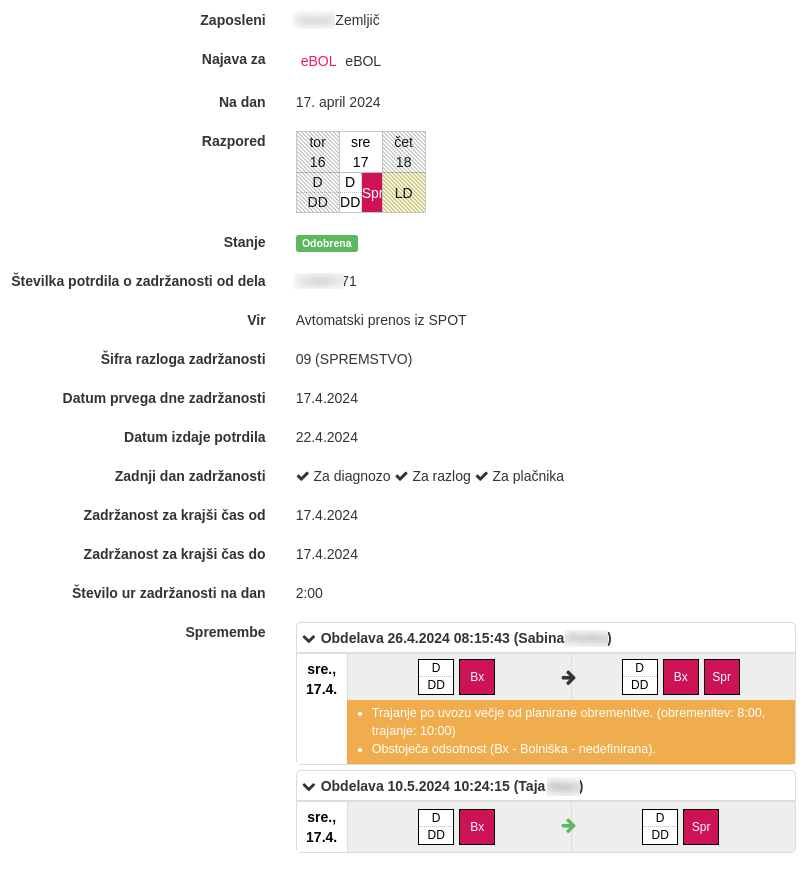
Import is a two-step process:
- EBOL download and conversion to requests
- EBOL request approval
Download eBOL
The eBOL transfer can be carried out:
- from an XML file,
- directly from SPOT automatically or
- directly from SPOT at the user’s command.
the XML files are downloaded from the SPOT portal by a person authorised to do so and saved in the appropriate folder on the computer.
Under Actions, select the Import plan command. Specify the import type “eBOL”, the transfer mode XML and then the file to import. You can also select several files at the same time.
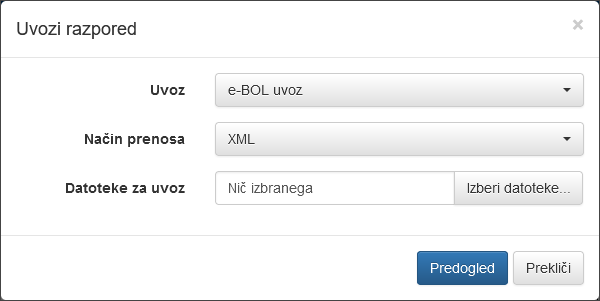
However, for direct transfer of eBOL, solution provider must first be authorised to work via the eBOL web interface. The authorisation and instructions are available at https://spot.gov.si/sl/teme/pooblastilo-za-delo-prek-spletnih-vmesnikov.
The direct transfer can be carried out automatically on a daily basis or at any time at the user’s command. To set up the first option, please contact ShiftPlan support, and for the second option, use the same procedure as for XML file transfer, except select Transfer from SPOT as the transfer mode.
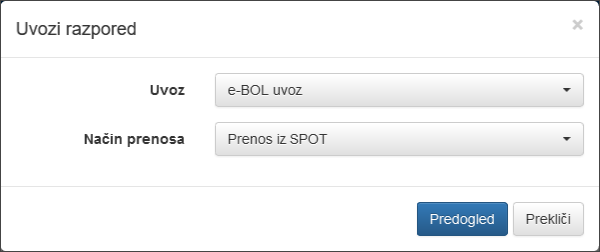
After clicking on the Preview button, a list of eBOLs that will be converted into requests will be displayed.
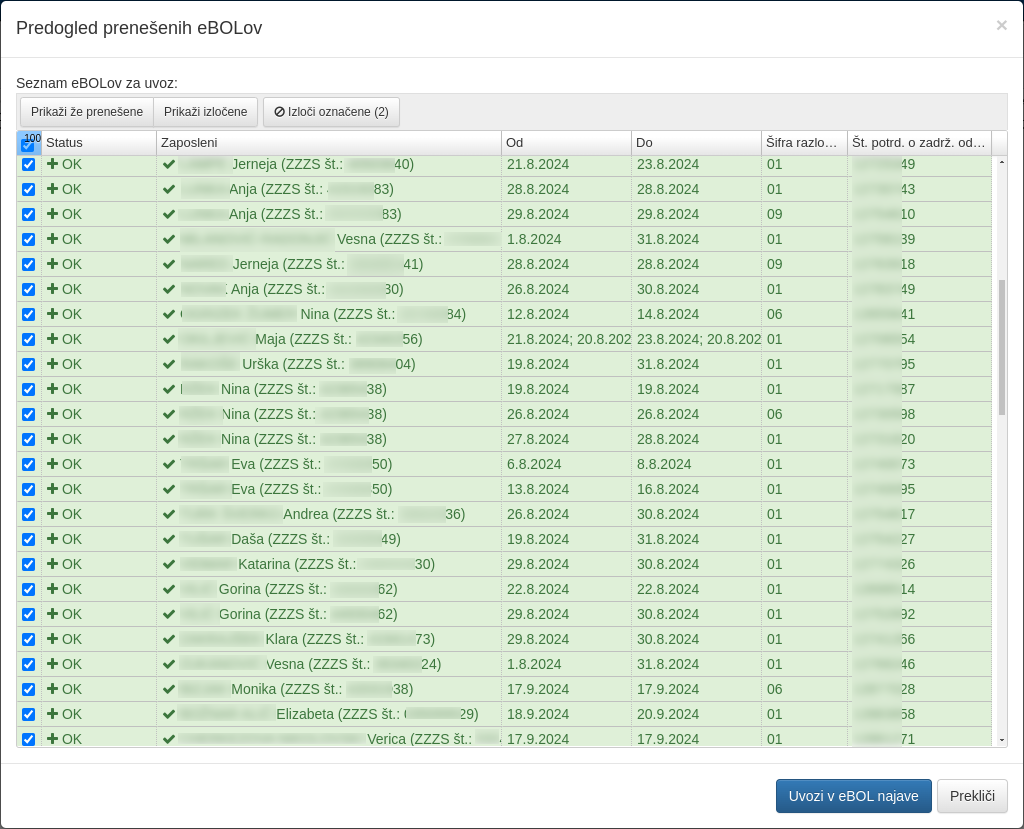
The Status column shows whether the employee’s details in eBOL match those in ShiftPlan. An employee who is not entered in ShiftPlan or whose first and last name do not match has an error status.
The error is avoided if the employee is entered or their details are edited to match. However, employees who are not entered in ShiftPlan can be marked and excluded from further transfers or eBOL imports by clicking Exclude marked 2.
The list of excluded employees is displayed by the Show excluded button 3. Here you can re-include the excluded employees in the import.
To view the sick notes that have already been downloaded, use the Show already downloaded button 1.
In case you do not want to download all the eBOLs displayed, you can tick only the ones you want to download in the first column of the list.
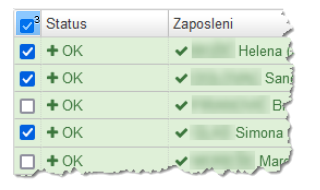
The Import to eBOL requests button 4 converts the data into eBOL requests.
Once approved, it is subject to the processing described in the following section.
Approval of eBOL requests
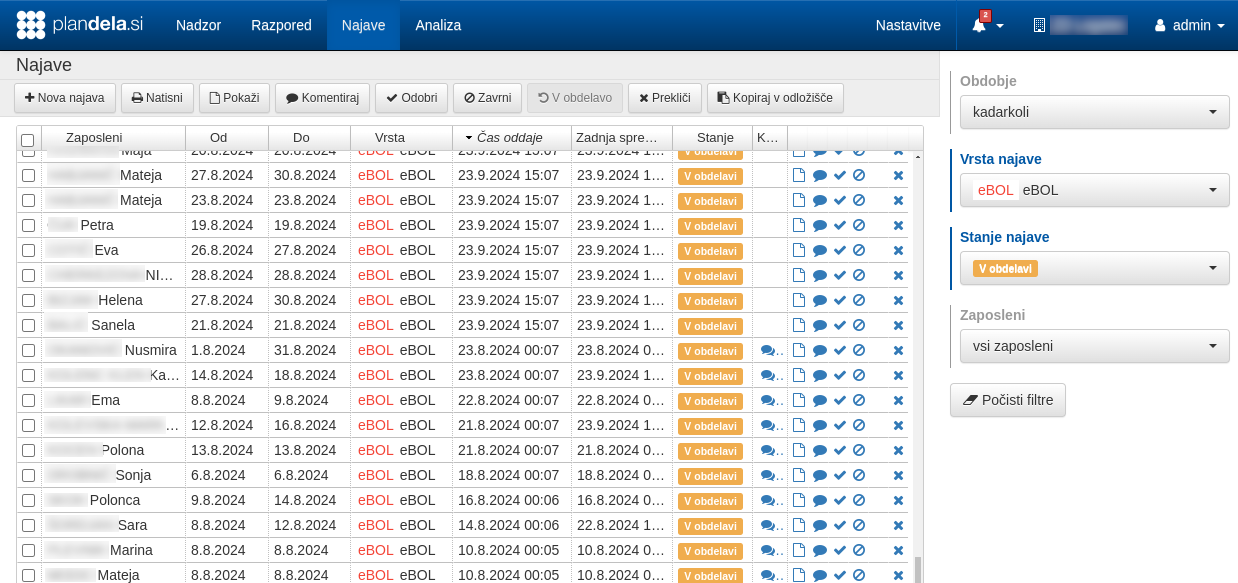
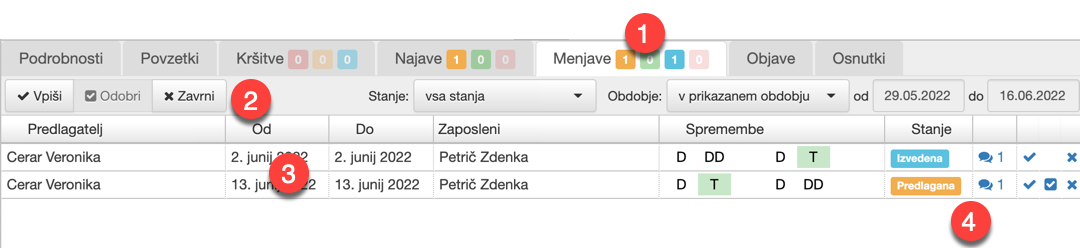
eBOL requests are approved like all other requests. In the Requests tab, unconfirmed requests (i.e. those requiring further processing) are displayed by filtering on the relevant requests type and status Processing.
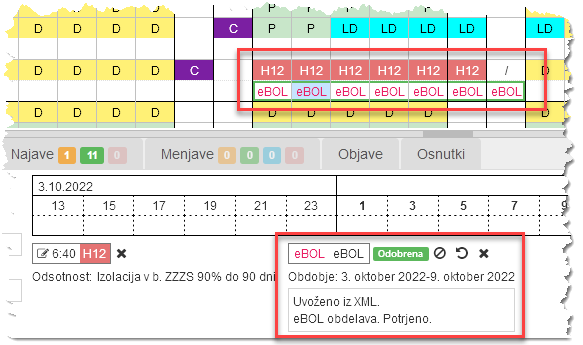
If necessary, existing assignments for the period of the sick note shall be automatically amended on approval to correspond to the absence as defined by the sick note. If the corrections are unambiguous and the assignments for all days are correct, the status of the assignment is changed to Approved. Otherwise, the status remains In progress and warnings are available in the request details overview to explain why the plan is not appropriate.
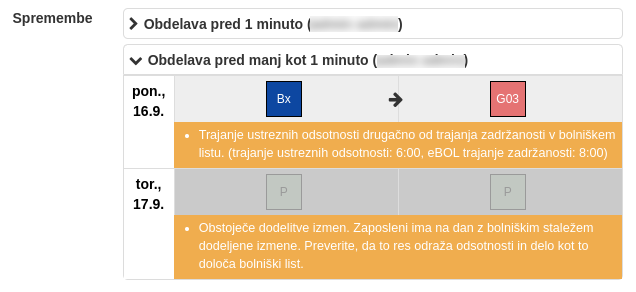
Status of a request is shown in details of the request in the Requests tab. For each day the changes made to the plan and warnings are shown. The issues are also visible in Planning details for each day. A date with warnings is marked with orange, otherwise green.
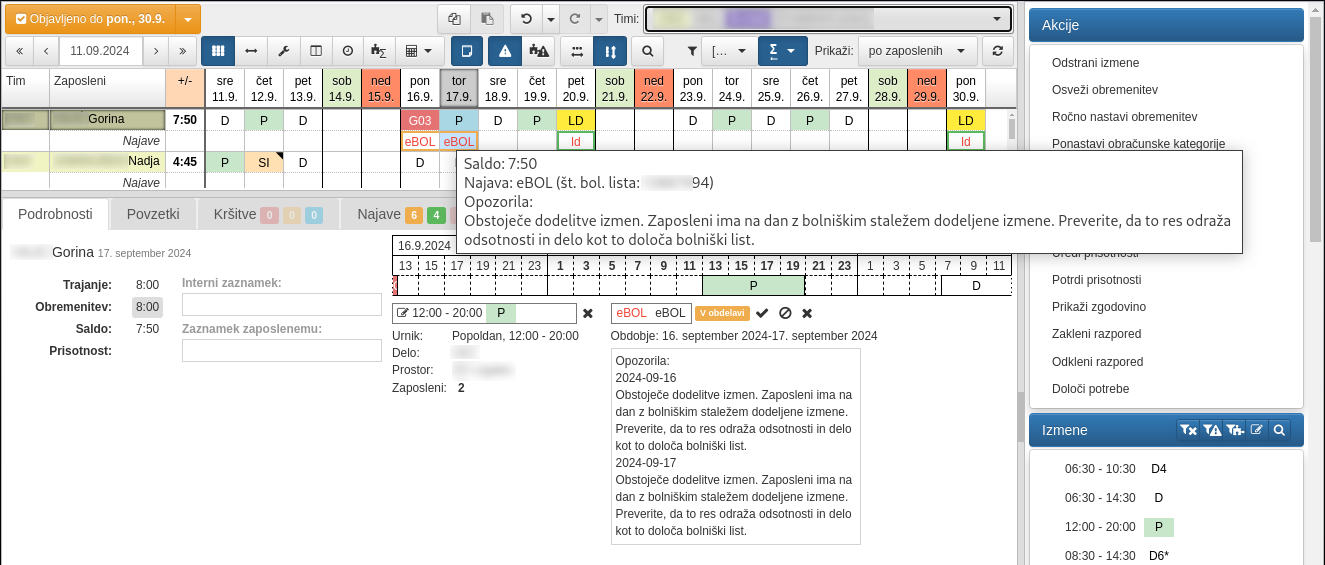
If you wish to have an request not processed because you have already made the appropriate arrangements in the shift plan or the alert is irrelevant, you can approve the request by clicking the Approve without processing button. In this case, the existing shift plan will not be modified and the status will change to Approved.
Cancellation of sick leave
Cancellations or subsequent changes to sick leave are quite common. For example, when the reason for absence changes during the course of the sickness. In this case, the sick note issuer cancels the existing eBOL and issues a new one.
When a cancelled eBOL is downloaded, the existing approved announcement is changed to the status Processing, so that the user is alerted to the need to review the status again. However, if the sick note was previously in the Cancelled status, the status is not changed.
User portal
In this document you will find instructions for the User Portal. It is intended to help schedule managers use the ShiftPlan solution.
The User Portal is designed for users who are actively involved in managing the work process (creating shift plan, monitoring the work process through attendance records, producing reports and analyses, etc.). The application administrator assigns these users the appropriate username and permissions.
For regular employees, there is the Employee Portal, where each employee can access their individual shift plan and other work-related information. Instructions for using the Employee Portal
Registration Terminal is used to register working time. Additionally, employees can also access their individual shift plan and other work related information. Instructions for using the Registration Terminal
Introduction
The User Portal is part of the ShiftPlan solution for users who are actively involved in worktime management. The portal allows users to access all the functionalities of the solution, from creating shift plan, monitoring execution, to analysing and billing working hours.
The User Portal is a web application that can be accessed using modern web browsers on computers and smart devices.
User manual starts with basic features of the User Portal with its building blocks and how to work with them.
Then, there is info on managing user account for users (e.g. activate account and change password).
Dashboard provides a quick overview of key work-related data and allows users to react to events and situations relevant to the organisation of work.
Plan is intended for display and managing of the shift plan.
Analysis allows a detailed analysis of the work process.
Requests allow employees to make requests for holidays, sick leave, preferences and other notices related to work-time.
Notifications are generated on all events relevant for the organisation of work, e.g. the warning of unpublished shift plan changes or new employee requests.
Settings allow you to adapt all aspects of the solution to your organisation.
Finally, there is Misc and What’s new sections.
Basic
The User Portal is navigated via the main menu at the top of the page.

Using the tabs you can access all the sections of the User Portal, from left to right:
2 Plan
3 Requests
4 Analysis
5 Settings
7 The User menu contains the links to My account, Logout, Help and Support and information about the current version of the application
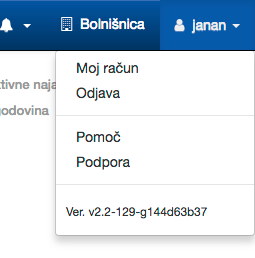
Sections and functionalities available depend on the rights granted to the user. For the entire User Portal, if any of the sections, links, displays, etc. are not displayed or available, then you do not have the sufficient permissions. If you think you should have access to specific feature, contact the ShiftPlan administrator in your organisation.
User account
Your user account gives you access to the User Portal. To activate your account, contact the ShiftPlan administrator in your organisation.
Logging in and logging out the User Portal is very simple. You can also change your password or reset your password if you have forgotten it.
In case ShiftPlan is integrated with the user directory in your organisation, you do not have the possibility to manage your user account within ShiftPlan; use the prescribed ways for your organisation.
Activation
To activate your account in the User Portal, contact the ShiftPlan administrator in your organisation. If you are an administrator yourself, you can manage activations for the users in settings.
You will receive an activation email containing the web address of the ShiftPlan app for your organisation, your username and a link to activate your account.
To activate your account, click the Activate link.
If your organisation has integrated ShiftPlan with the user directory, activation will take you to the login page with an explanation that you can log in to the User Portal with your username and password from your organisation’s user directory; no further activation steps are required.
Enter your new account password in the fields and confirm the activation with Activate.
You can find your username in the activation email. Remember the password you just entered for subsequent logins.
When entering your password, upper and lower case letters are important!
Login
In the address bar of your browser, enter the web address of the ShiftPlan solution for your organisation that you received with your activation email. You can also bookmark the address or set it as your homepage in your browser.
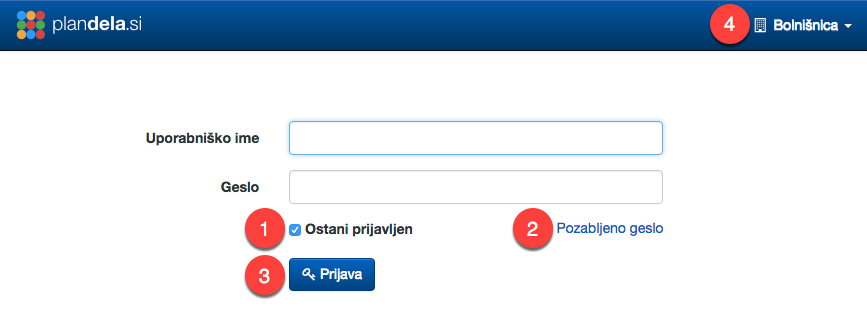
Enter the username you received with your activation email and password. You can check 1 Stay logged in, which keeps your login valid even if you close and reopen your browser.
When entering your password, upper and lower case letters are important!
If you have forgotten your password, you can reset it using link 2 Forgotten password
Confirm login by clicking 3 Login
In the 4 User menu there are links to Clear local data, Help and Support and information about the version of the app you are using.
Change password
In case ShiftPlan is integrated with the user directory in your organisation, you do not have the possibility to manage your user account within ShiftPlan; use the prescribed ways for your organisation.
You can change your password by selecting the My account link in the User menu. This link is only visible if you are logged in to the User Portal*.
Enter your existing password and new password in the fields and confirm with Save.
When entering your password, upper and lower case letters are important!
Reset password
In case ShiftPlan is integrated with the user directory in your organisation, you do not have the possibility to manage your user account within ShiftPlan; use the prescribed ways for your organisation.
If you have forgotten the password of your User Portal account, you can select the Forgot Password link on the login page. Enter your username or email in the fields and confirm with Send Mail.
You will receive a password reset email containing the web address of the ShiftPlan app for your organisation, your username and a link to reset your account password.
To reset your password, follow the Reset link. Enter your new password in the fields and confirm the password change with Reset.
You can find your username in the password reset email. You must remember password you just entered for successive logins.
When entering your password, upper and lower case letters are important!
Logout
Log out of the User Portal by clicking the Logout link in the User Menu.
My account - General settings
You can change your first name, last name, email address and password in the general settings of User account. You can find them by selecting the My account link in the User menu and selecting General settings in the side menu.
Change relevant fields and confirm by clicking Save.
Dashboard settings
You can find them by selecting the My Account link in the User menu and selecting Dashboard settings in the side menu.
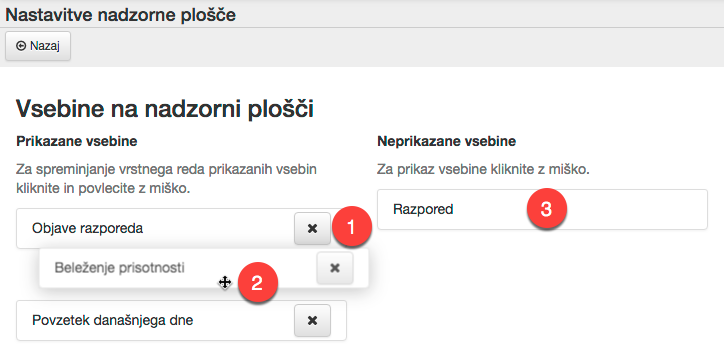
The dashboard provides a quick overview of relevant work-related information. It consists of individual widgets, which can be displayed, hidden or ordered according to the user’s preferences and needs.
In the settings, you can specify which widgets are displayed in the dashboard. To hide the widget, click 1 , sort by 2 dragging them to the desired location, and display them by clicking on the 3 widget.
You can limit teams for which widgets display info as well as other widget specific options.
Once the settings have been changed, Save is displayed to save the changes.
Notification settings
You can find them by following the My account link in the User menu and clicking Notification settings in the side menu.
In the notification settings, specify the notification mode for different types of notifications:
- you do not want to receive notifications
- in-app notification only
- in-app and email notifications
With the Notify only for teams filter, you can filter notifications according to the teams you want to receive them for.
Confirm the modified selection by clicking Save.
Deputies
You can find them by selecting the My account link in the User menu and selecting Deputies in the side menu.
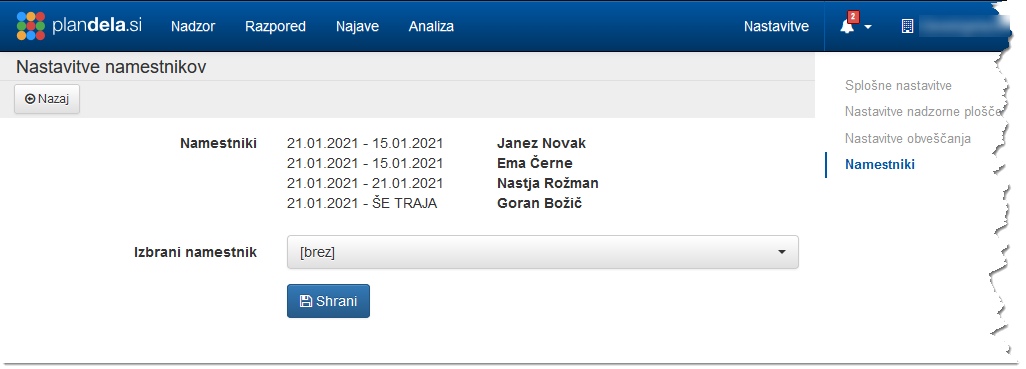
Select the deputy to approve requests from the list and save. If you select a new deputy, the previous deputy will be cleared with the current date. When you no longer need a deputy, select [none] and save.
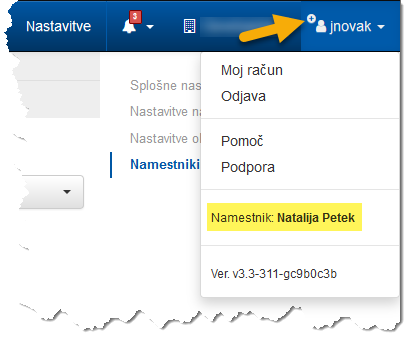
The user with the selected deputy is marked in the User menu header, and the name of the alternate is also listed in the User menu.
Dashboard
The dashboard provides an easy overview of important data. It is divided into individual widgets which the user can display, hide or sort in any order according to preferences and needs, using the Dashboard Settings in My Account.
The following widgets are available:
What’s new shows the major additions, changes and fixes available in the latest upgrade. Once you are familiar with the updates, you can close it by clicking the button at the bottom of the list; when new version is available, the What’s new pane will reappear.
There are two buttons in the title of each widget to refresh data from the server and for widget settings.
Today’s summary
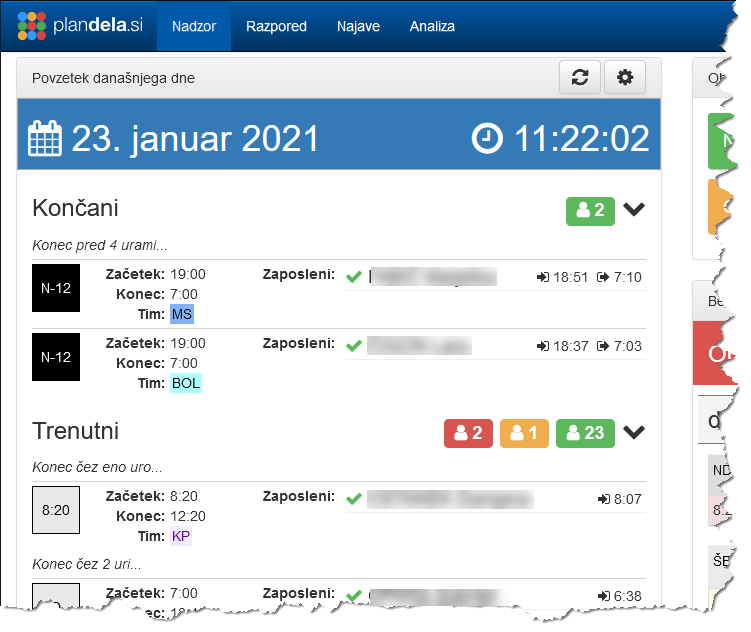
Today’s summary displays the status of the current day’s assignments and attendance. Shifts and employees are grouped according to actual and planned time by categories Finished, Current, Coming up and Absent.
The individual categories lists employees who belong to the category. The category title bar shows the total number of employees by attendance status. The category list shows the employees by shift, in chronological order, with attendance data for each shift.
The color and icon also indicate the status of presence; hovering on icon displays a more detailed description of the status.
You can expand and collapse a category by clicking on its title bar.
In the header there are buttons to refresh data from the server and for widget settings.
Plan publications
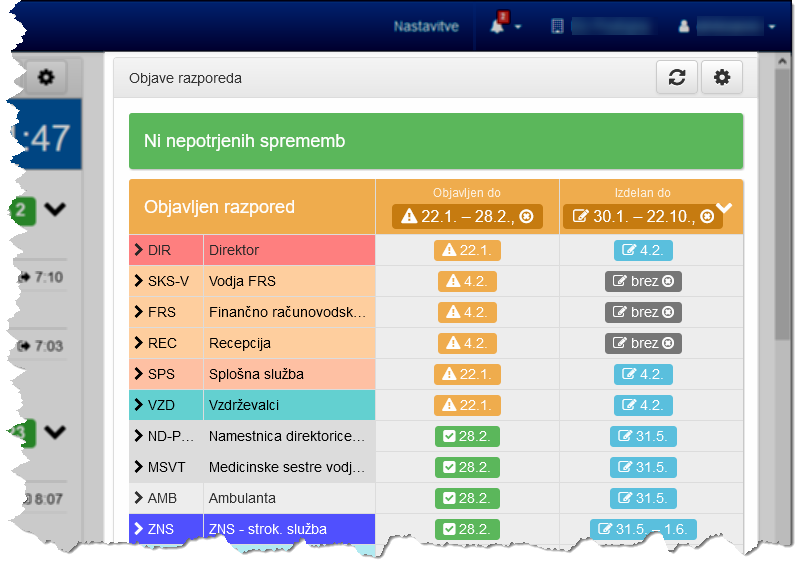
The Plan publications displays the status of the shift plan in two categories:
- Unpublished changes lists the employees whose shift plan has been changed after publication; for each employee, the Period of change and the Number of changes are indicated. The data of all employees are summarised in the title line of the category.
- Published plan lists the teams and employees with a publication status; for each employee, the date (Published by) until which the shift plan is published and the interval (Unpublished prepared plan) for which the plan is already entered but not yet published. The data of all employees in a team are summarised in the team, and the data of all teams are summarised in the category title bar.
The color and icon also indicate the status of the info; stopping on each info gives a more detailed description of the status.
You can expand and collapse a category by clicking on its title bar.
In the header there are buttons to refresh data from the server and for widget settings.
Plan
The Plan Overview gives you a quick overview of the shift plan for the upcoming period.
In the header there are buttons to refresh data from the server and for widget settings.
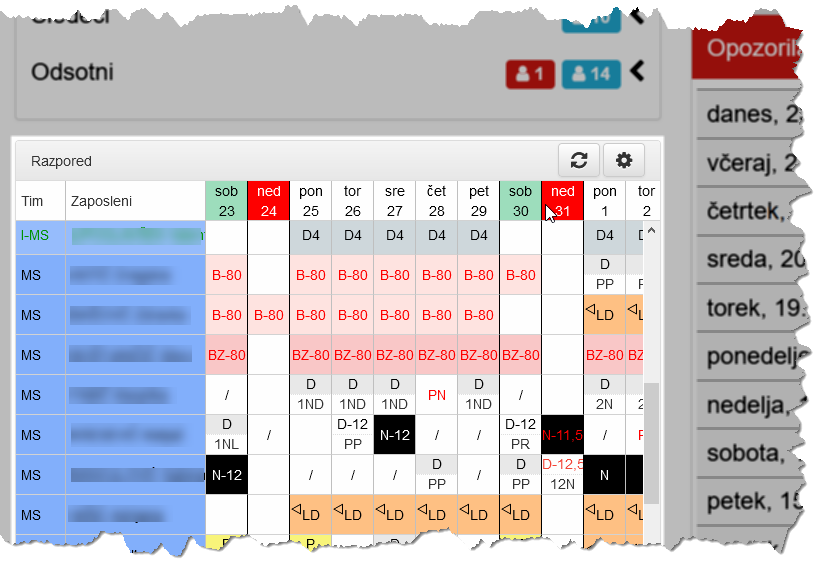
Attendance registration
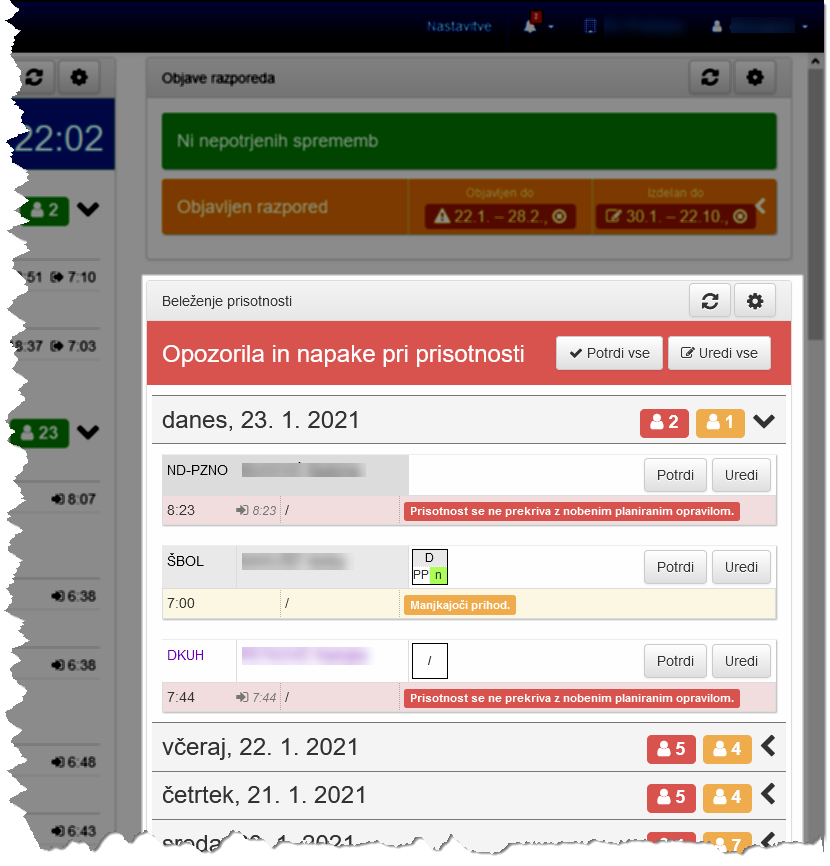
Attendance tracking widget displays the important details of the attendance tracking and the information of the registration terminals; for the latter, it indicates for each terminal the time of the last reporting and the number of events registered during the current day.
Attendance alerts and errors are shown, arranged by days. The list of alerts can be expanded and collapsed by clicking on the date bar. For each alert or error, the team, employee, shift, shift time, clock-in time and description are listed. You can Confirm the presence with Confirm or Edit all the attendance or shift plan for the given employee.
With Confirm All and Edit All buttons, you can confirm or start editing all listed presences at the same time.
In the header there are buttons to refresh data from the server and for widget settings.
Plan
Plan is displaying all shift plan related data for teams, employees and shifts managed by the user, allowing planning and monitoring of the shift work.
The Main UI Elements section describes all the components of the Plan view, the different view types and actions, and the tools for working with the shift plan.
Then, the instructions for common procedures when working with the shift plan, e.g. Assigning shifts, Editing presences and Publishing plan.
Main UI Elements
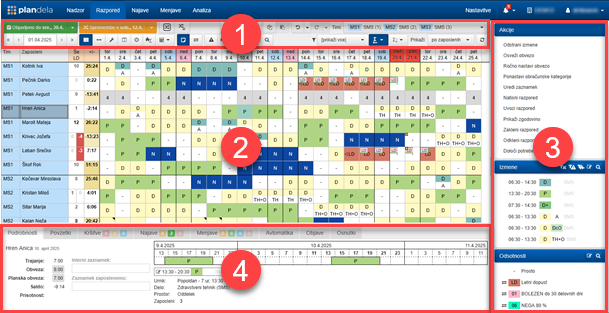
To view the shift plan, click on the Plan tab in the main menu. The main UI elements of the view are
1 toolbar with tools to adjust the view and publications,
2 shift plan table with view by employees or by shifts,
3 sidebar with actions and options to edit the shift plan and
4 bottom pane with additional content.
Toolbar
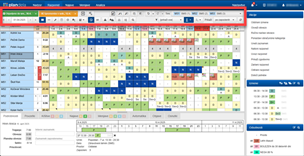
Use the buttons and selectors in the toolbar to control the display in the shift plan table and access commonly used shift plan editing tools. The toolbar adapts according to the currently selected shift plan display type, user permissions and enabled functionalities. The main elements of the toolbar are:
1 tool for managing publications,
2 tool for publishing changes,
3 button to highlight unpublished shift plan changes,
4 buttons for automatic scheduling (only if enabled for selected teams),
6 copy and paste commands,
7 teams selector,
8 display date selector (also via shortcuts),
9 buttons and selectors to adjust display of the current shift plan table,
10 button to show or hide the search bar (also via shortcut CTRL + F),
11 selector to apply Assignment filters and to display daily summaries and plan summaries (only available if summaries or filters are appropriately configured),
12 view type selector (by employees or by shifts) and
13 button to refresh the displayed data.
In addition to these, other tools will be available for specific display type, as described for each type of shift plan display.

Shift plan table
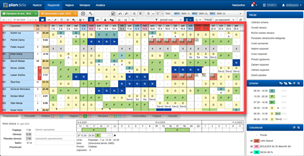
The central part of the Shift plan view displays the shift plan. You can choose between two views of it:
You can select the view type by selecting View type in Toolbar.
Selection of cells in the shift plan
You manage shift plan by select the cells you want to change (e.g. set a different shift, absence or employee depending on the type of view). You select the cells by clicking on the cell, holding the mouse down and dragging across cell regions. The selected cells are higlighted.
You can add cells to selection by holding down the CTRL when selecting additional cells.

On Apple computers, use the command key instead of CTRL.
Press SHIFT and click on a cell to select all cells between that cell and the actively selected cell.

Operations on selected cells and context menu
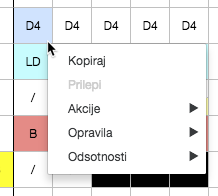
You can perform various actions on a selection of cells, which are listed in the sidebar and in the context menu; the latter can be accessed by right-clicking on one of the selected cells.
View by employee
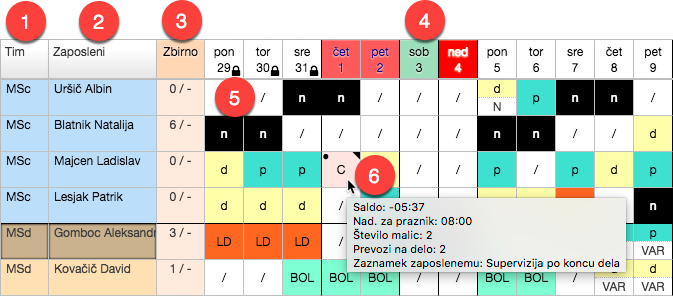
In the view by employees , the rows list the employees and the columns list the days in the selected date period. The content of the cells denotes the shifts and absences assigned to the employee on the selected day. To activate this view, select by employees in the View type selector in toolbar.
The initial columns show 1 Team and 2 Employee. The cells are colored with the team color and are also a link to their properties in team settings and employees. The subsequent 3 columns show Timetable summaries (e.g. leave remaining quota for the current/previous year) and, when displaying additional data in the cells (duration, commitment, balance, attendance), a summary of the data for the currently selected month.
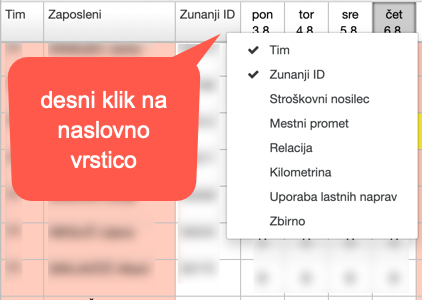
In the shift plan table, you can choose to display additional columns with details of employees by right-clicking on the header row of the table. The additional columns are also taken into account when searching / filtering rows in the table.
The following 4 columns contains daily plan, starting from the selected starting date in toolbar; the dates in the header are colored with the day type colors, and the locked plan is denoted by 5 icon next to the date. By clicking on the header you can switch between the different date formats (day only / day and month).
Hovering 6 over the cell displays the relevant data for the employee on that day; hourly balance is display, as well as e.g. notes, compensations, changed accounting category values, etc.
Button for toggling search bar in the table header displays a search bar that can be used to search the entire shift plan table.
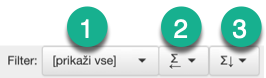
You can customise the view display by using 1 Assignment filter in the toolbar. When you select a filter, only the shifts and absences that match the filter are displayed in the table. FIlter can also specify the way the cells are displayed (e.g. you can use the filter to display only schedules, works or places, regardless of the default shift settings).
Toggle display of employee summaries using 2.
Toggle display of daily summaries using 3.
The filter selector and daily summaries are only available if the filters for the currently displayed teams are configured
Data displayed in the cell
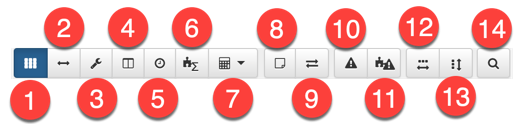
In the employee view, toolbar contains options for displaying various data in the shift plan table.
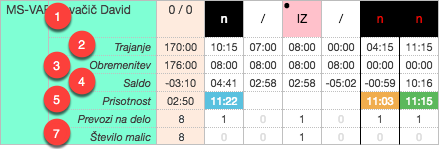
1 Assignments
Shifts are denoted by color and the schedule and/or place and/or work or absence label as defined in the settings. If there are several shifts or absences in a day, they are listed from left to right; if there are more shifts than can be displayed, the ✚ sign appears on the right edge. The cell may also contain notes: ◥ top right means note, ● top left means assigned values of accounting categories, ■ (in the compensation color) denotes assigned compensation and ◁ left means previous year’s quota was used.
2 Duration
Shows the total duration of all shifts and absences in a day.
3 Burden
Displays the required burden for the day. Manually changed burden is colored purple.
4 Balance
Displays hourly balance on given day. Manual or automatic compensation (eg. holiday compensation) colored according to configured compensation color.
5 Presence
Shows the total presence duration for the day. The color reflects the presence status: green indicates correct presence, orange indicates presence with warnings, red indicates presence with errors and turquoise indicates confirmed or manually edited presence.
6 Daily summaries
Displays daily summaries and requirements for all shifts
7 Values of accounting categories
For each of the selected accounting categories, a line is added showing the value of the category per day.
8 Display requests
Displays the requests for the displayed shift plan; the cells are framed according to request status.
9 Display swaps
Display swaps for the displayed shift plan; cells are framed in the swap status color.
10 Display employee constraint violations
Displays the rule violations for the employees corresponding to the displayed shift plan and in the Violations tab in the bottom pane; cells are boxed with the color of the violation status.
11 Display unfulfilled requirements
Displays daily summaries for shifts with unfulfilled requirements in the current shift plan, i.e. there are too few or too many employees assigned to a shift on certain days.
12 Expand the columns of the shift plan
Expands the columns in the shift plan to show a shorter period of the shift plan in more detail.
13 Expand rows of the shift plan
Expand the content of the rows in the shift plan so that each piece of information is shown in a separate row (e.g. if several shifts are assigned in a day, each is listed on its own row).
14 Find / filter rows of a shift plan
Show or hide the search bar for the shift plan table.
Searching / filtering rows of the shift plan
For the entered search string, the search bar indicates the number of hits in the current shift plan table, and the information that was searched for (e.g. employee name, assigned shifts and absences). When additional columns are displayed, the search will also be performed on the content of the additional columns.
If a word in the search string ends with a space, the search will only search the whole word, otherwise the search will search the beginning of the words.
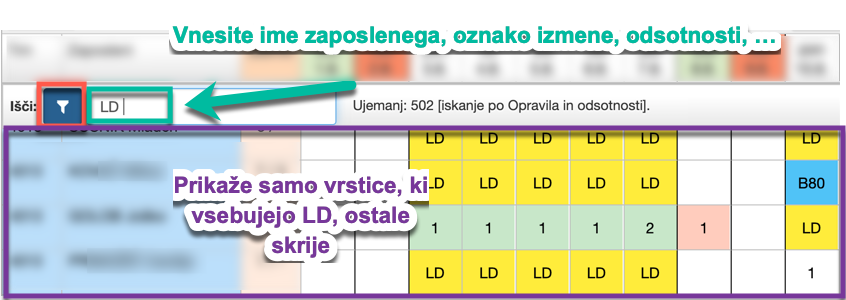
In the search bar, you can enable filtering of rows instead of searching, so that only rows containing at least one hit for the entered search term remain visible in the shift plan table. This way, you can easily show only rows that have, for example, only the desired shifts or absences, and hide all the others.
If keywords in the search string are separated by a comma, then results for any of the keywords are included. For example: the search string A,B,C will search for all rows containing A or B or C.
View by shifts
In the view by shifts, the rows list the shifts and absences and the columns list the days in the selected date period. The content of the cells lists the employees assigned to the shift on the selected day. The above display is accessed by selecting by shift from the View Type selector in the toolbar.

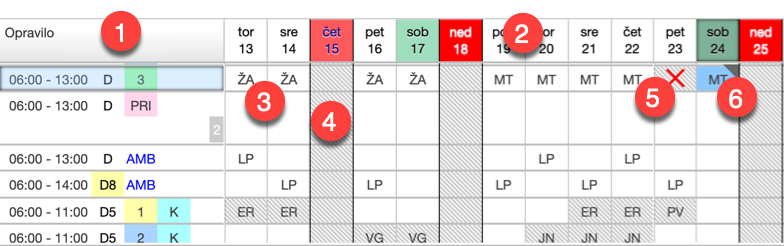
The first column of the table is 1 Shift, which lists the shifts with the schedule (time interval and label), place and work. A shift is also a link to its properties in settings. The individual rows within a shift are numbered to give an overview of the number of employees working the shift. The following 2 columns are by date, starting from the selected starting date in the toolbar; the dates in the header bar are colored with the day type colors, and the locked plan is denoted by the symbol next to the date.
The cells show the employees or the number of employees who work the corresponding shifts in the day. Button 6 expands the columns in the shift plan to toggle between displaying employees with their initials and displaying their full name. Button 7 expands the rows in the shift plan to toggle between displaying the number of employees on a shift and displaying individual employees.
Selecting 1 Color employees will color the cells in the color of the team the employee in the cell is from. This functionality is useful when employees from different teams may work on the same shift and can be distinguished from each other by coloring them.
If a shift is not available on a certain day, e.g. because it is not worked, cell 4 is hatched; if shift is disabled, cell 5 is hatched and marked with a red cross. A cell is also hatched if it contains an employee who does not belong to one of the currently selected teams in the toolbar.
The ◥ in the top right cell means either a note for the employee or a note for the shift.
Hovering on the cell displays the relevant data for the employee on that day, e.g. full name, notes, etc.
Button 2 toggle display of the requirements for shifts. The minimum number of employees is denoted by in red overlay and the maximum number of employees by yellow overlay.
Button 3 highlights the shortage or surplus of employees on each shift in relation to the entered requirements.
Button 4 only shows rows with shifts and absences that either have requirements specified or have at least one employee assigned in the displayed period, and hides all other rows.
Button 5 will only show the rows with shifts that do not have requirements mein the displayed period, and hide all others.
Using 8 a search bar will be displayed in the table header, allowing you to search the entire shift plan table.
You can customize the view by using the 9 Assignment filter in the toolbar; the filter selector is only available if the filters for the currently displayed teams are configured. When you select a filter, only the shifts and absences corresponding to the filter are displayed in the shift plan.
Display daily summaries using 11.
Sidebar
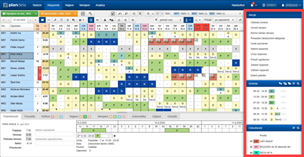
The sidebar of the Plan view shows the actions and options for editing the shift plan in the panels:
Panes Shifts, Absences in Compensations are displayed only in view by employees, while Employees pane in view by shifts. Available entries in panes are filtered according to selection in shift plan table.
All the actions in the sidebar are also available in the context menu in the shift plan table; it can be accessed by right-clicking on one of the selected cells in the shift plan.
You can open and close each panel by clicking on its title header.
Actions
This pane contains all the actions that can be applied to the selected cells of the shift plan view:
- Remove shifts
- Remove employees
- Refresh burden
- Manually set burden
- Reassign to teams
- Reset accounting categories
- Edit note
- Print plan
- Export plan
- Import plan
- Edit presences
- Edit presences with errors
- Confirm presences
- Show history
- Lock plan
- Unlock plan
- Enable shift
- Disable shift
For most actions, you can specify parameters, e.g. a note, via a dialogue, where you must also confirm the action or cancel it with Cancel or close it with Close.
Remove shifts
Remove all shifts in selected cells view by employees.
The action does not require confirmation.
Remove employees
Remove all employees in selected cells view by shift.
The action does not require confirmation.
Refresh burden
Refresh burden for the selected period with the one specified in the employee or team properties.
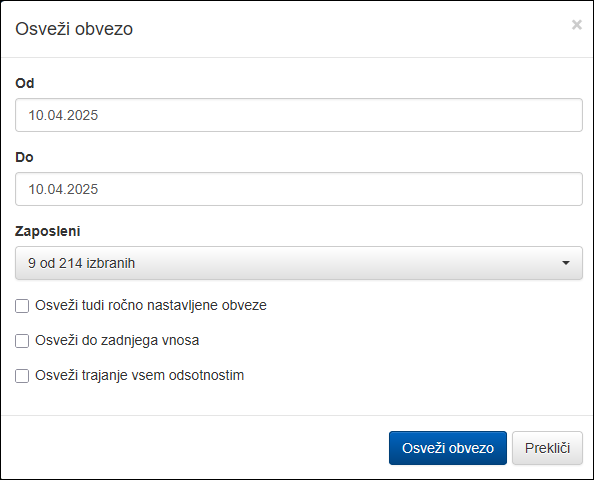
In the dialog, you select the date interval and the employees to be refreshed. In addition, you have the following options:
- Refresh also manually set burdens: deletes any manually set burdens
- Refresh to last entry: instead of the date To, the shift plan is refreshed to the last entry for each selected employee
- Refresh duration of all absences: when refreshing, the duration of all absences linked to the burden is also corrected
Use Refresh burden to refresh with the parameters you have entered.
Manually adjust burden
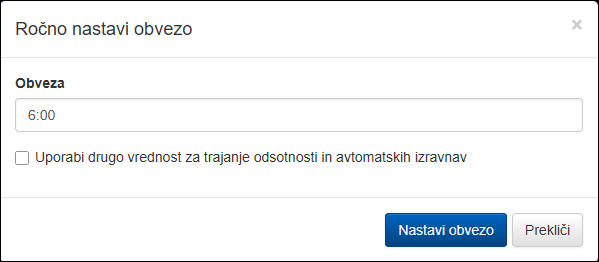
The option is most often used to set the monthly burden for an employee who did not start working on the first day of a month (thus default burden value does not apply).
Sets arbitrary burden for selected cells. In the dialog, specify the burden to be applied to all selected cells by selecting Set burden.
The manually set load is colored purple in the Burden row in view by employees.
To clear a manually set burden, either make a blank entry in the Burden field of this action or use the Refresh burdens action, where you tick the Refresh also manually set burdens option.
You can specify a different value for the burden used to determine the duration of absences and compensations.
Reassign to teams
Reassign selected employees to another team or teams on selected days.
The action allows you to quickly reassign employees to the teams specified in reassignment settings.
It is used when you want to temporary reassign an employee to another job for a short interval (a day, a week).
In the dialog, select one or more teams to which you want to reassign the selected employees and confirm with Confirm.
Reset accounting categories
The command changes the value of the billing category for the selected cells of the shift plan. It is used when you want to enter or manually modify specific billing category.
In the dialog, you select the billing category and the type of value change you want to make:
- whether the value should be set to the one entered, i.e. replace the one resulting from the shift or absence settings - specify values
- or to add or subtract the value determined from the shift or absence assignments - adjust values.
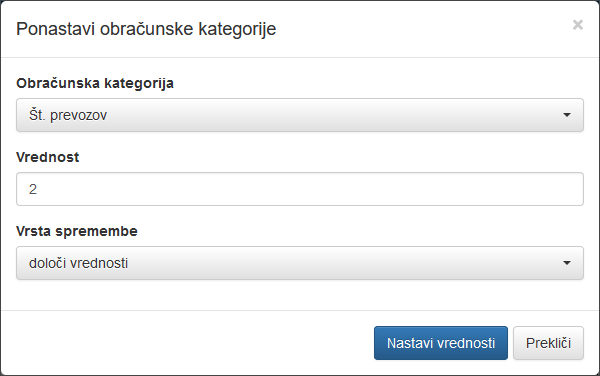
With Set values, the entries are applied to all selected cells.
A cell with a manually changed value of the accounting category is be marked with a dot ● in the upper left corner in view by employees.
Clear the assigned value of the accounting category by setting blank entry in the Value field of this action.
Edit note
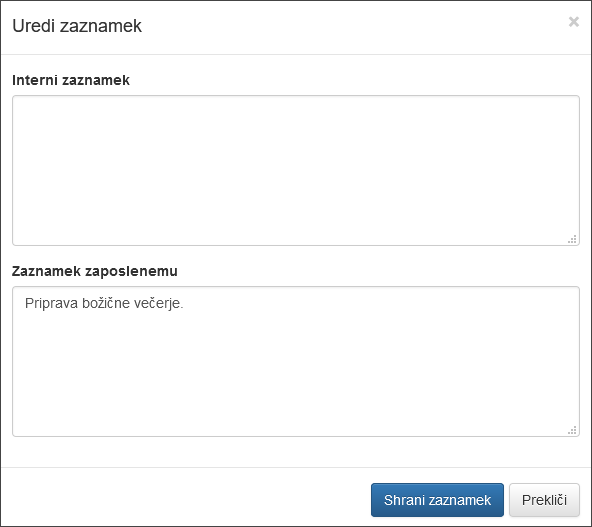
Edit note in selected cells of the shift plan. You may enter two types of notes in the dialog:
- internal note is only visible to users (schedule managers) with the appropriate rights and is not visible to the employee, and
- employee note, which is also displayed to the employee and is intended to inform the employee of the details or specifics of the shift plan.
You can enter both types of notes in the same cell.
Save note applies the notes to all selected cells.
The cell containing notes is marked with a notch in the top right corner, both in view by employees and in view by shifts.
Notes can be cleared by entering a blank entry in the note field of this action.
Print the plan
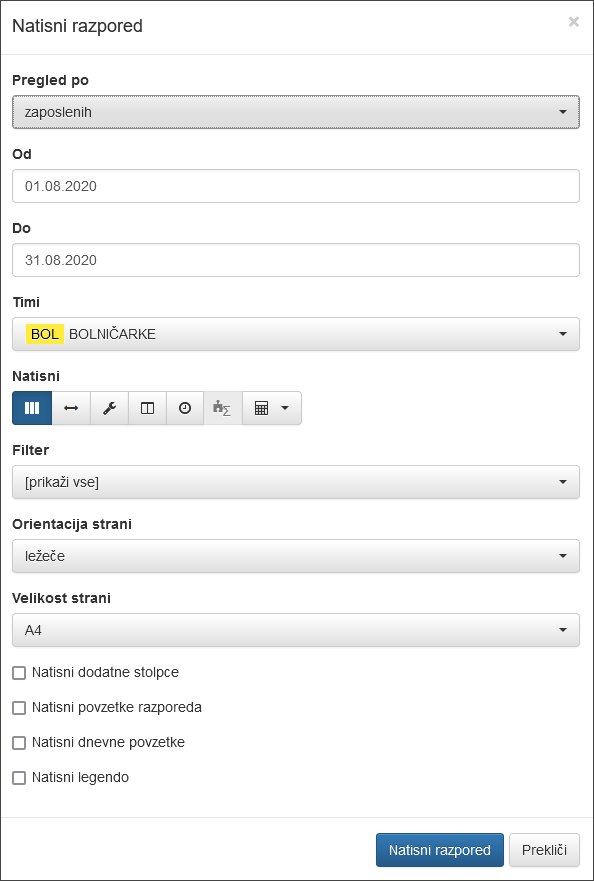
Prints the plan in the desired view for the selected employees or teams and date interval. In the dialog, specify:
- view type (by employees, by employees separately, by shifts)
- date interval
- teams or employees
- filter
- page orientation
- page size
- additional options according to the view type (same as in relevant view)
You can also specify
- in employee view print additional columns, plan summaries and daily summaries,
- in employees separately view, each employee is printed on his/her own page, and
- in shift view, the number of blank lines for each shift (e.g. if you want to write additional data to a paper version)
Print plan opens a new window or tab in the browser, which determines display and further steps.
The action is also available via keyboard shortcuts CTRL + P.
Export plan
Export plan for selected employees or teams and a specific time period. The export function allows the plan to be exported and saved in various formats for review and further processing in other systems or applications. The action is available only if the plan export has been enabled for you by the application administrator.
Depending on the configuration, multiple export formats may be available. The basic export provides data in a tabular format, similar to the employee or shift view within the application.
Custom export formats can be prepared upon request to meet specific needs — such as integrations with other systems or tailored data views. To implement a solution that fits your requirements, please contact our support.
In the dialogue, specify:
- type of export
- name of exported file
- teams
- date interval
The action is also available via keyboard shortcut CTRL + SHIFT + P.
Import plan
The Import plan action allows you to import different types of data from pre-prepared files. By default, only the import type “Hourly balance” is available, the other imports are configured by app administrator according to customer needs.
When importing, you need to select the type of import and the import file.
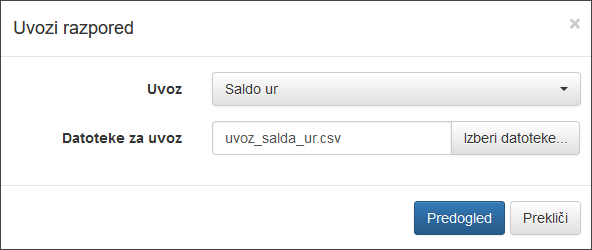
Hourly balance import
The hourly balance is imported from a suitably prepared CSV file, which must contain the following data separated by semicolons:
- External_ID - the “External ID” field in the employee’s properties
- Compensation - the name of the compensation type for which the values will be imported
- Date - date on which the compensation is entered
- Value - Compensation value
Example:
External_Id;Compensation;Date;Value
208462;Fixed state;31.8.2022;0:05
201947;Fixed state;31.8.2022;6:59
400229;Fixed state;31.8.2022;5:21
206904;Fixes state;31.8.2022;4:06
eBOL import
Edit presence
Edit presences for selected cells of the shift plan. With this action you can edit shifts, absences, presences and notes by day for employees in one place.
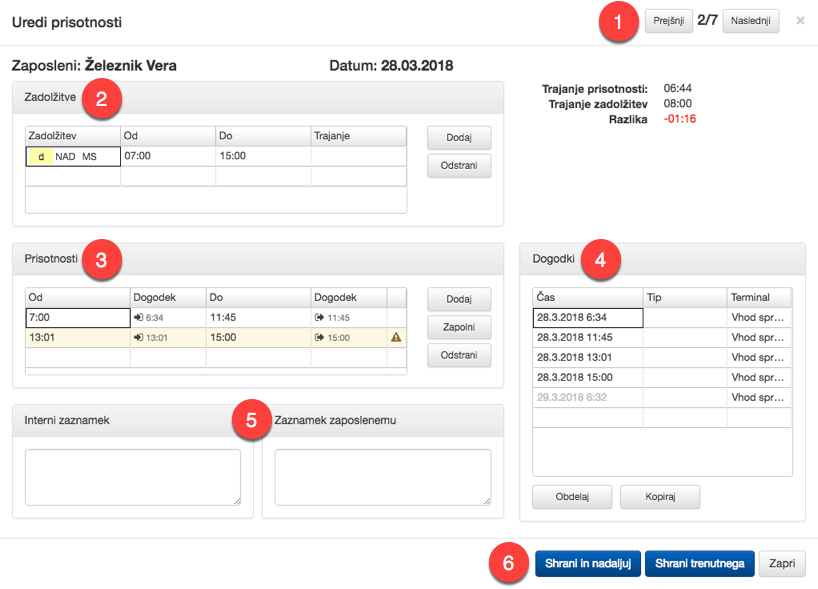
1 Circle through selected cells: scroll buttons and indicator to show which of the selected cells you are in; under the dialogue title, the employee and the date for which the data are displayed, and to the right, the duration of presences and shifts / absences and the difference for that day.
2 Shifts and absences: the window lists all the shifts for the employee per day in the table; Add to add a shift or absence and Remove to remove shifts (select the shift row first, then Remove). To change a shift or absence, click in the cell in the Shifts and absences column (selecting an empty cell adds a shift).
3 Presences: the box lists the presences in a table with the arrival and departure times and their corresponding attendance events. In case of deviations from the attendance rules, the row will turn yellow or red in case of a warning or error, and the sign will appear in the last column; if you hover over it, you will see a description of the warning or error. Use Add to add a presence, Fill to add an presence that fills the currently selected shift in the Shifts and absences box, and Remove to remove a presence (select the presence row first, then Remove)
4 Events: this box lists all attendance events in a table with information about the time, type of event and the terminal on which the event was recorded. The events of the actual day are displayed in black and the events of the following day in grey. You cannot modify the events, you can only use them: with Process, the events are reprocessed according to the current shifts from the Shifts and absences box and the configured Registration mode (usually by first changing the shifts in the Shifts and absences box to match the real ones, and then selecting Process to start the reprocessing according to the new shift plan); and with Copy, the time of the currently selected event is transferred to the currently selected cell in the table of the Shifts and absences box.
5 Notes: edit internal note and employee note.
6 Command bar: with Save & Continue save the currently displayed data and circle to the next selected cell, with Save current only save the currently displayed data without circling to the next cell.
The modified presences are colored turquoise in view by employees.
Edit presences with errors
Edit presences for selected cells of the shift plan that contain presence errors. With this action you can edit shifts, absences, presences and notes by day for employees in one place.
It differs from editing presences only in that only subset of cells containing errors in the presences are edited.
Confirm presence
Confirms presences for selected cells of the shift plan that contain presence errors. It automatically fills missing arrivals or departures with shift times, and mark presence as confirmed; in view by employees, confirmed presences are colored blue.
Presences can only be confirmed for a cells for the past dates.
The action does not require confirmation.
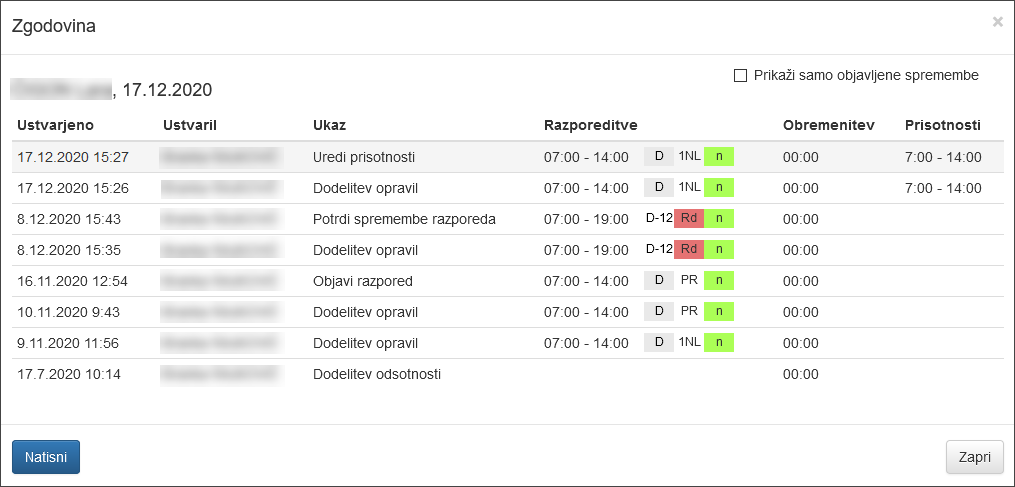
Show history
Show shift plan change history for all selected cells. The history is displayed in a window, and for each selected cell, the employee and the date and all changes.
With Print you can print the displayed content.
Lock plan
Locks plan up to a given date to prevent any changes to the shift plan until that date.
The lock status of a plan is indicated by the sign next to the date in shift plan table.
In the dialog you will see a notification about the date until which the plan is currently locked. In the Lock until date field, enter the date of the new locking and confirm with Lock plan.
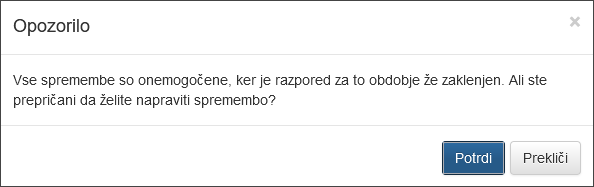
Power users and users with the “Unlock plan” permission can modify the plan without having to unlock it first! A warning will be displayed before the change, which must be confirmed.
Unlock the plan
Unlocks plan by a given date, thus allowing changes to the shift plan after that date.
The lock status of a plan is indicated by the sign next to the date in shift plan table.
In the dialog you will see the current date until which the shift plan is locked. In the Unlock by date field, enter the date of the new lock and confirm with Unlock plan.
Enable shift
Enable shift in selected cells of shift view which are currently disabled.
The action does not require confirmation.
Disable shift
Disable shift in selected cells of shift view. Employees cannot be assigned to disabled shifts.
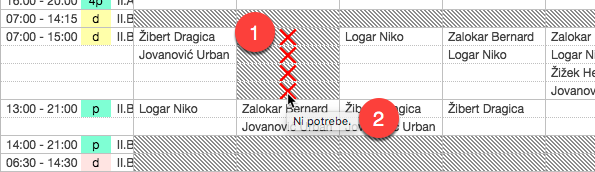
Cells with disabled shifts are 1 hatched and contain a red cross icon.
You can enter a note in the disable dialog and confirm the action with Disable.
The note will be displayed if you 2 hover over a cell with a disabled shift.
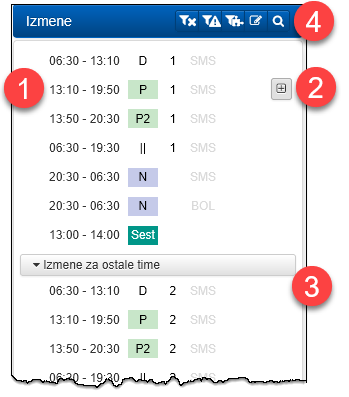
Shifts
The Shifts panel contains all the shifts that can be assigned to the selected cells in Employee view.
The list contains all the shifts that comply with all the selected cells, i.e. they apply to all the teams of selected employees, works, skills, types of days, etc.
Replace the existing assignments in all selected cells using 1 selected shift by clicking on it.
If you want to add a shift to an existing schedule in all selected cells, select 2 , which appears on the right of the list on hover.
In the bottom part of the list, 3 shifts may be displayed whose other teams of the shift place correspond to the teams of the selected cells.
The following tools is available in the 4 header:
filter or search the shifts in the list according to the search parameters and
when assigning shift, enter a time interval that is different from the one predefined by the shift.
displays only the shifts that have requirements set for the selected dates in the shift list.
displays only those shifts in the shift list that deviate from the entered requirements on the selected dates.
displays all shifts in the shift list, regardless of the employee’s attributes - i.e. even those that are not otherwise available to the employee.
Assignments
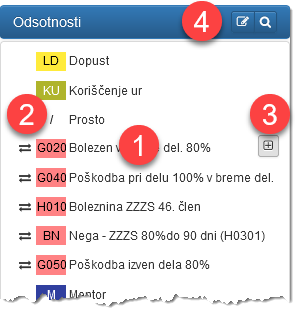
The Absence panel lists all the absences that can be assigned to the selected cells in the view by employees.
Replace the existing assignments in all selected cells with 1 absence by clicking on it. If the absence has the Replace existing option set in the settings, it is marked with 2 and will use the time interval of the previously entered shifts and absences. If you do not want to keep the interval or duration of existing assignments, first delete the existing assignments and then assign the absence.
If you want to add the absence to the existing assignments in all selected cells, click 3 , which appears on the right of the list on hover.
The following tools is available in the 4 header:
filter or search absences in the list according to the search parameters.
when assigning, enter a time interval that is different from the overwritten or predefined one.
Compensations
In the Compensations pane all available compensations are listed that you can assign to selected cells in view by employees.
By clicking on a specific compensation, a dialog is displayed where value is set 1 as well as adjustment type 2 (depending on the compensation settings). Dialog is not displayed for compensations, which have preconfigured appropriate value source (eg. value of overtime).
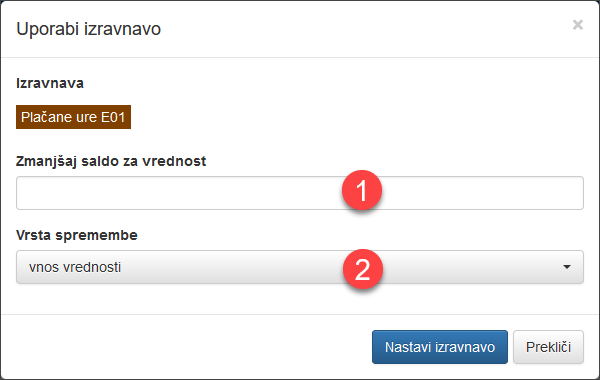
The compensating action is described next to the field for value entry. Values of compensations must be positive numbers!
Following adjustment types are available (depending on the compensation type):
- value entry - value is adjusted for the given value,
- balance target value - balance is set to given value,
- counter target value - counter of the compensation is set to given value.
Using Set compensation applies compensation to all selected cells.
The compensation is displayed in view by employees with a ■ (in the color of the compensation) in the top left corner of the cell.
If the compensation is adjusting the balance, the cell in the Balance row in view by employees is also colored accordingly.
Remove the compensation by entering a blank in the Value field of this action.
History
The History pane displays the commands of all the changes made to the currently displayed shift plan in chronological order.
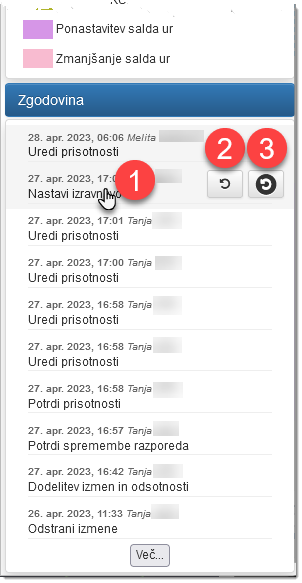
Clicking on each line 1 shows the changes caused by the selected command.

Users with superuser rights can also revert commands; individually 2 or up to and including the selected command 3.
Employee
The Employees panel contains all the employees that you can assign to the selected cells in shift view.
The list includes all employees which are assignable to all the selected cells, i.e. their teams can do the work, have the relevant skills, can work on the selected day types, etc.
Click on 1 employee to replace their shift on the selected days with the selected shift.
If you want to add the shift to the existing assignments of the selected employee in all selected cells, click 2 , which will appear on the right of the list on hover.
In the list below, 3 employees whose teams correspond to the other teams of the selected shifts might be listed.
The following tools is available in the 4 header:
filter or search the employees in the list according to the search parameters.
turn on the display of more detailed shift plan information when hovering over employee in the list, displayed in the bottom pane:
shows only not yet assigned in the list (in the current view) and
show only employees from the selected teams in the toolbar,
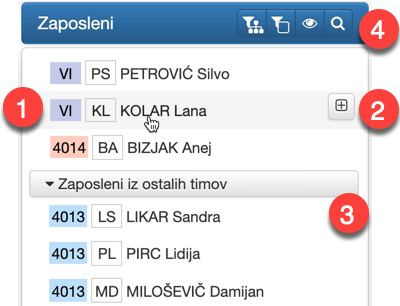
Bottom pane
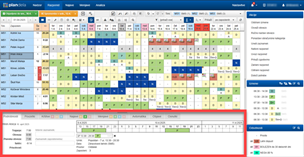
The bottom pane of the Plan view shows the content related to the shift plan:
To view the pane, click on its tab.
Details
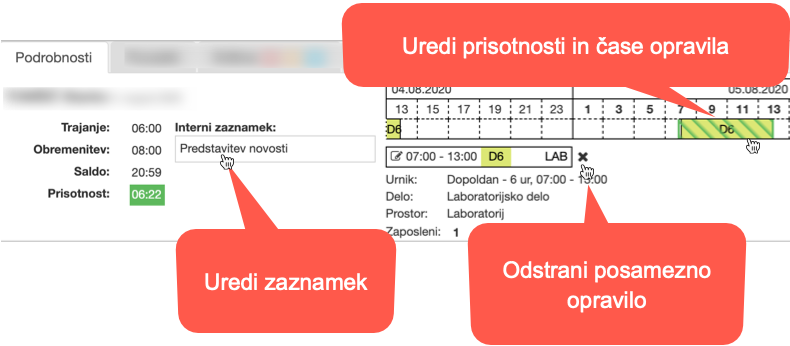
Details pane contains detailed description of selected cells. If you select a single cell, all the employee’s day data is displayed, as in the figure below, otherwise a summary of this data is displayed for all the selected cells.
The details include all the assignments, requests and other relevant information for the selected cells.
You can quickly access and edit details by clicking on the displayed values and graphical elements.
For multiple selected cells, details are displayed in aggregate.
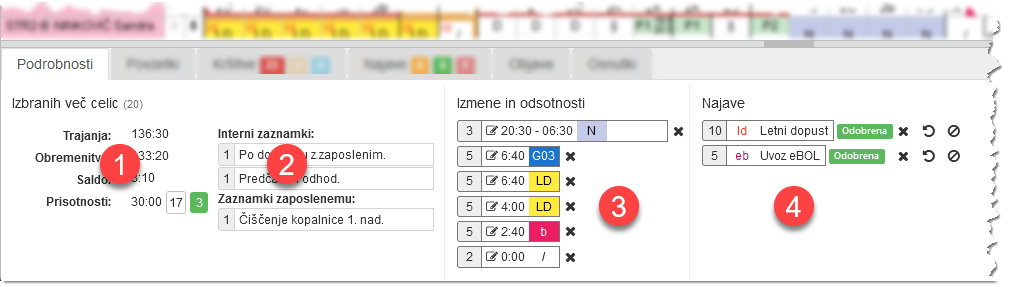
1 Durations, burdens, balances and attendances are totals for the selected cells. Attendances are also aggregated or counted by type (valid or confirmed attendances, no attendance, with error, etc.).
2 Notes are grouped by content, and the number of times each note has appeared is also shown. Clicking on a note edits the note for all selected cells that have the same note.
The number of occurrences of identical shifts and absences is shown in section “Shifts and absences” 3. Clicking on an individual assignment edits the time interval and clicking on the delete icon removes all occurrences in the selection.
The same applies to the sections “Requests” and “Swaps” 4. Requests are grouped by type and status. For each set of requests, clicking on the graphical elements allows quick changes of status (approval, rejection). The same applies to swaps, which are grouped by shifts or status.
Summaries
Summaries are a tool for quick and efficient shift plan analysis, which you can use while creating shift plans. They provide both graphical and numerical views of the shares of selected categories within a given period for all selected employees and their teams.
Povzetki so prikazani kot grafikon s podatki za zaposlene, ki so izbrani v tabeli razporeda. Z izbirnikom kategorije 1 prikažete povzetke po izmenah, urnikih, prostorih, delih, odsotnostih, izravnavah, obračunskih kategorijah in filtrih, ki jih lahko dodatno omejite z 2. Z izbirnikom 3 določite način kako so podatki prikazani, s 4 pa izberete časovno obdobje, ki se v primeru izbire v prikazanem mesecu oz. letu samodejno prilagaja pogledu na razpored.
By hovering the cursor over a value label in the chart 5, all values of that type are highlighted.
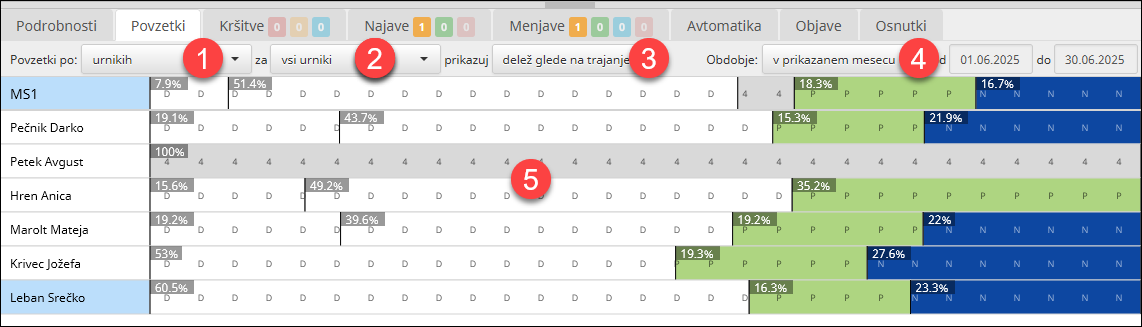
By 6 clicking a value label in the chart, a popup opens with its details such as duration, share, total hours, number of occurrences and the type of value (shift, absence, accounting category, …).
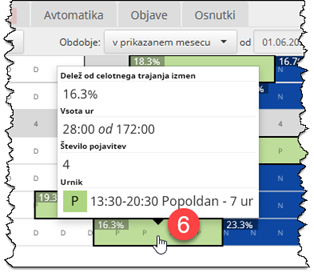
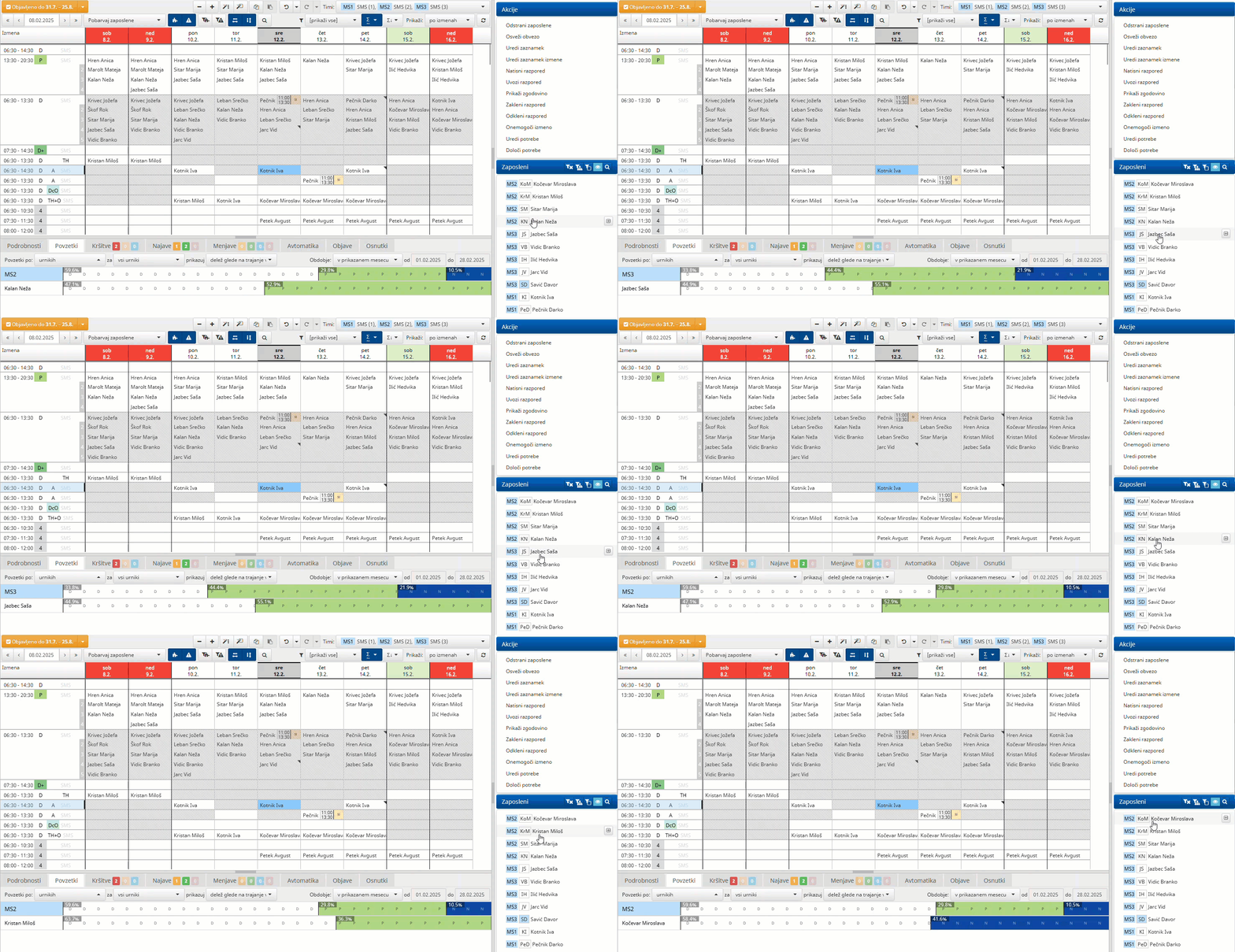
In case of using in the Employees panel in the sidebar of the *by shifts view and hovering the cursor over the employee in this window, the summaries are displayed only for that employee and its team for the duration of the hover.
Violations
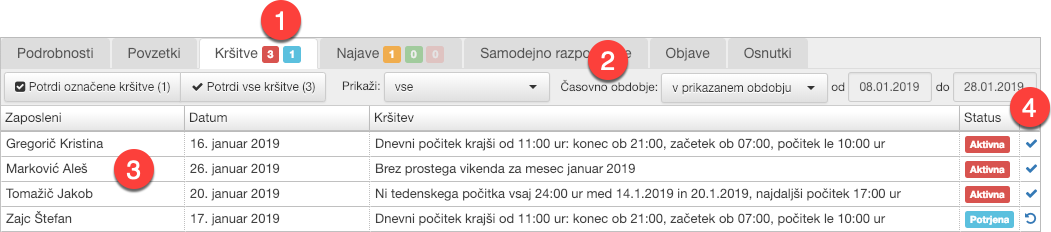
Violations are a tool for checking the compliance of a shift plan with the constraints that apply to employees. The rules are checked on an ongoing basis as the shift plan is built, so that potential violations are immediately displayed whenever changes are made.
1 Violations tab displays the number of violations in the color of the corresponding status.
Violations are listed together with the employee, the relevant date, a description of the violation and its status. When a violation occurs, it has a status of Error or Warning, and when it is confirmed, it becomes Confirmed.
In the 2 toolbar , there are buttons to confirm in selected violations and all violations from the list and to filter violations. You can also select the date period for display.
Double-clicking 3 anywhere in the violation row will display and select the cells corresponding to the violation in the shift plan table.
You can use action 4 in the far right column to either confirm or reactivate the individual violation, depending on the status of the violation. By hovering on the status Confirmed, you will get information about the user and the time of confirmation.
Requests
Requests for the selected teams and date interval are displayed in the list. In the Requests 1 tab, the number of requests is shown in the color of the corresponding state.
In the toolbar 2, you can add, approve, reject or filter the requests by type and status. You can also specify any display period.
Double click 3 anywhere in the requests row to select and display the cells corresponding to the request in the shift plan table.
In the Status column, for each request there is a link to 4 request handling.
You can sort the list of requests by the data displayed by clicking in the header of the column you want to sort by; each subsequent click changes sorting from ascending to descending and vice versa.

Swaps
the Swaps for the selected teams and date interval are shown in the list. In tab Swaps 1 the number of swaps is shown in the color of the corresponding state.
In the toolbar 2, you can apply, approve, reject or filter the swap by type and status. You can also specify any display period.
Double-click 3 anywhere in the swap row to select and display the cells corresponding to the swap in the shift plan table.
In the Status column, each swap is linked to 4 swap handling, and any schedule violations that may have occurred as a result of the swap are shown, as well as any notes on the swap.
You can sort the list of swaps by the displayed data by clicking in the header of the column you want to sort by; each subsequent click changes from ascending to descending and vice versa.
Automation
The Automation tab contains the tools for automatic scheduling. It is only available if the app administrator has enabled the functionality for you. The tab allows you to customise, start and monitor automatic scheduling. The content of the tab adapts to the phases of automatic scheduling.
For a detailed description of the tab content, see the instructions for using automatic scheduling.
Publications
Publications list everything related to the publication of new shift plan and the subsequent publication of plan changes.
1 buttons can be used to select the display of the Currently or Originally published timetable, and the Selected button can be used to display the timetable as it was at the time of publication, selected in the list.
You can use the 2 buttons on adjacent lines to compare the above versions of the timetable.
You can highlight currently unpublished changes to the timetable by clicking 3 , where the already published timetable will be shown hatched. A timetable that is published as a draft is shown partially hatched.
With filters 4 you can restrict the list of publications according to the type of publication and the date range.
In the list on the right of each post, you can also see the 4 operations you can do with the draft:
- compares the selected publication with the current schedule;
- shows the selected publication;

Drafts
You can save the current version of the timetable as a draft, or you can also publish it as a draft to employees.
Saving drafts allows you to prepare and compare several versions of the timetable and then use the preferred version in the final timetable.
However, by publishing drafts you can give your employees the opportunity to see the planned timetable before you have the full timetable. For example: you can publish a draft annual leave schedule for the whole year in advance, and then publish the detailed shift schedule for each month on an ongoing basis.
Save the current timetable as a draft with 1 Save draft. Publish it as a draft to employees with 2 Publish draft.
Drafts already saved and published are shown in a list; by selecting 3 you can filter the list to show drafts only for the selected period. The list also shows, for each draft, the 4 operations you can do with the draft:
- Compare the selected draft with the current schedule.
- Displays the selected draft; after displaying, you can use the draft in the current schedule.
- Delete the selected draft.

Scheduling
Scheduling relates to assigning shifts or absences to employees. For scheduling use Shift plan table in the Plan section of the app.
Selection of cells in the shift plan
You manage shift plan by select the cells you want to change (e.g. set a different shift, absence or employee depending on the type of view). You select the cells by clicking on the cell, holding the mouse down and dragging across cell regions. The selected cells are higlighted.
You can add cells to selection by holding down the CTRL when selecting additional cells.
On Apple computers, use the command key instead of CTRL.
Press SHIFT and click on a cell to select all cells between that cell and the actively selected cell.
Highlighting of currently selected cells in the plan
When working with a large amount of data in the plan, it can sometimes be difficult to locate the currently selected cells. By quickly pressing SHIFT SHIFT (twice in succession), you trigger a blinking effect on the selected cells to make them easier to identify. If the selected cells are outside the visible area, pressing SHIFT SHIFT again will also bring them into view.
Operations on selected cells and context menu
You can perform various actions on a selection of cells, which are listed in the sidebar and in the context menu; the latter can be accessed by right-clicking on one of the selected cells.
The available actions depend on the *view type, selected cells and user permissions. For example, the action Manage Presences will only be displayed for cells of a shift plan that has already been executed, while the Shifts and Absences panes will only be displayed in the View by employees, if the user has the right to modify the shift plan.
Undo and redo changes
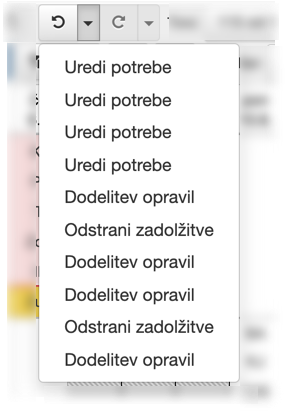
You can undo and redo (Undo / Redo) planning actions using the corresponding toolbar operations. The command works as in standard document editing software (including the keyboard shortcuts CTRL+Y to undo and CTRL+SHIFT+Y to redo).
Undo is available for most planning actions, the only exception being actions where which are communicated to other users and employees (e.g. publishing a shift plan).
Changing the time interval of a shift
The shift also defines the schedule, i.e. the time interval when the employee must be on duty. The shift schedule is predefined (e.g. 7:00 - 15:00) and can be changed for individual shifts. For shift assignments and those absences that have a fixed interval, you can change the From and To times, and for other absences you can change the Duration.
Specifying interval on assignment
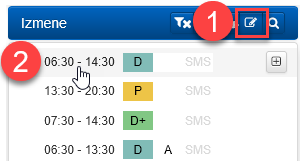
In view by employees you can change the time interval using 1 .
When assigning a shift, 2 a dialogue will appear in which you can change the default time interval of the shift. The modified time intervals are applied to all selected cells.
Changing time interval of individual shifts
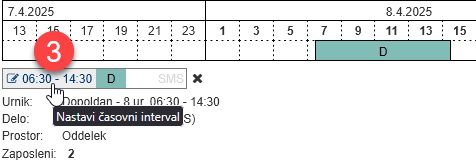
To change the time interval of an existing shift, select the action 3 Set time interval of the shift in Details in bottom pane. A dialogue opens in which you can change the time intervals for the selected shifts.
Changing time intervals when managing presences
If you want to change shift time intervals retrospectively (i.e. for work that has already been done), you can do this at the same time as editing attendance, where you have the option to change the time intervals for all shifts.
Entering shifts using the keyboard
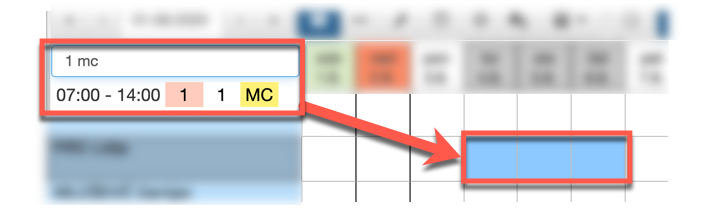
Shifts and absences can also be easily entered in the plan by selecting the relevant cells and then typing in the corresponding shift label using the keyboard. This will display the shift or absence that best matches the currently entered string in the left part of the plan table. When moving to another cell or confirming with the ENTER key, this shift is entered in the selected cells.
If you hold down the SHIFT key while confirming the entry, the Shift or Absence interval window will appear after confirmation.
If you hold down the CTRL key while confirming the entry, the shift or absence will be added to the current shifts in the selection.
To delete the currently entered shifts in the cells, press the DEL key.
Adding a shift
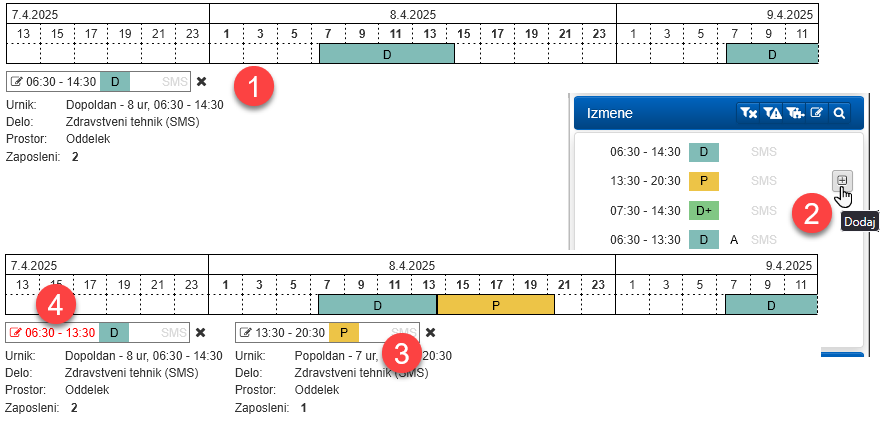
In view by employees you can add another shift to the 1 existing shifts using 2 , that appears to the right of the shift (either in Shifts in sidebar or in context menu) when you hover over it. For keyboard input, you can add shifts by holding down the CTRL key when confirming the entry.
After clicking the selected shift 3 is added to the existing shifts without changing its time interval. In the case of overlapping time intervals with existing shifts, only the latter are changed; in the example below the time To of the existing schedule has changed from 15:00 to 13:00, the interval is therefore colored red in the details. If the overlap is complete (the new shift completely overlaps the existing one), then the existing one is removed; if it is intermediate (the new shift completely falls into the existing one), then the existing one is split into two parts (before and after the new shift).
You can add absence in the same way, clicking in Asences pane or context menu.
Copying and pasting
You can also use the copy-paste for scheduling. Copy-paste makes it much easier to work with obvious repetitions of parts of the shift plan, to transfer the schedule from drafts, etc.
The copy and paste actions are available in the toolbar, in the context menu and also as keyboard shortcuts with the key combinations CTRL+C for copy and CTRL+V for paste.
You can copy and paste cells between different browser windows or tabs, between drafts, etc. E.g. copy part of a draft from one browser tab to the current plan in another browser tab.
View by employee
In the view by employees, all shift data for the selected cells is copied, including any modified shift times. The same rules apply for a pasted shifts as for a manually entered shifts. Therefore, if the pasted shift is not valid for a cell (e.g. not valid for that day, day type, team, etc.), then the content in that cell will not be updated.
First, select the cells of the shift plan you want to copy. The copy action copies the selected content to the clipboard and makes it available for pasting.
You must select at least one cell to paste the copied content. If you select only one cell, when using the paste action, the entire copied region of shift plan will be pasted, and the selected cell will correspond to the top-left boundary of copied region.
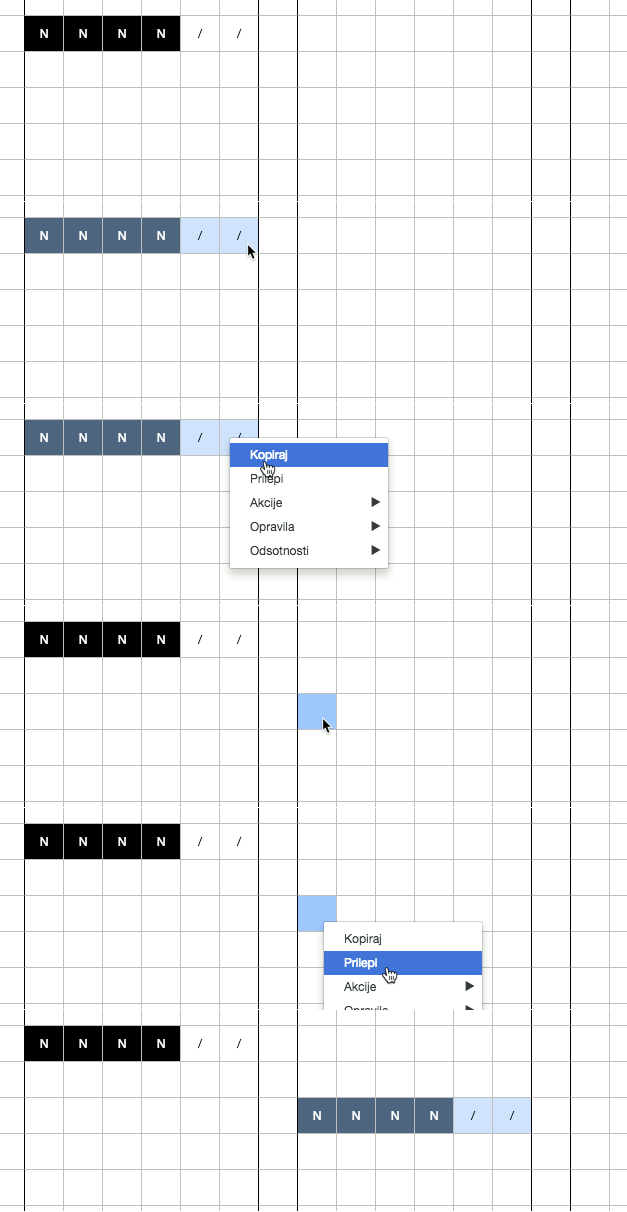
If you select multiple cells when pasting, the content will be pasted only to the selected cells, repeating copied region if necessary, first by column, then by row.
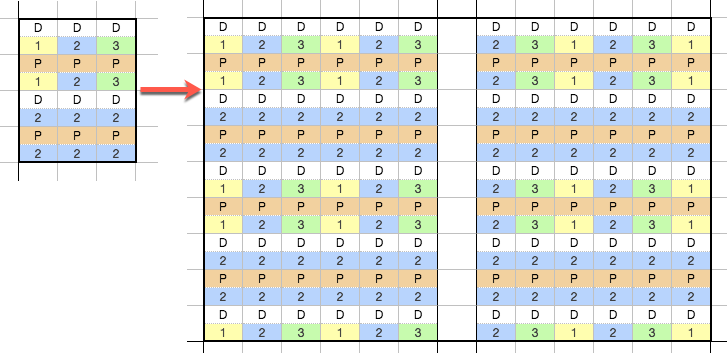
View by shifts
In the shift view, only employees are copied, all other data is discarded, e.g. shift and date. When pasting, all copied employees are assign the to selected cells if possible, following the same rules as for manual assignment of shifts to employees. Therefore, if an employee does not have a specific shift available, it will not be assigned.
First, select the cells of the shift plan you want to copy. With the copy action, the selected employees are copied to the clipboard and made available for pasting.
To paste, select one or more cells of single shift in the schedule and use the paste action.
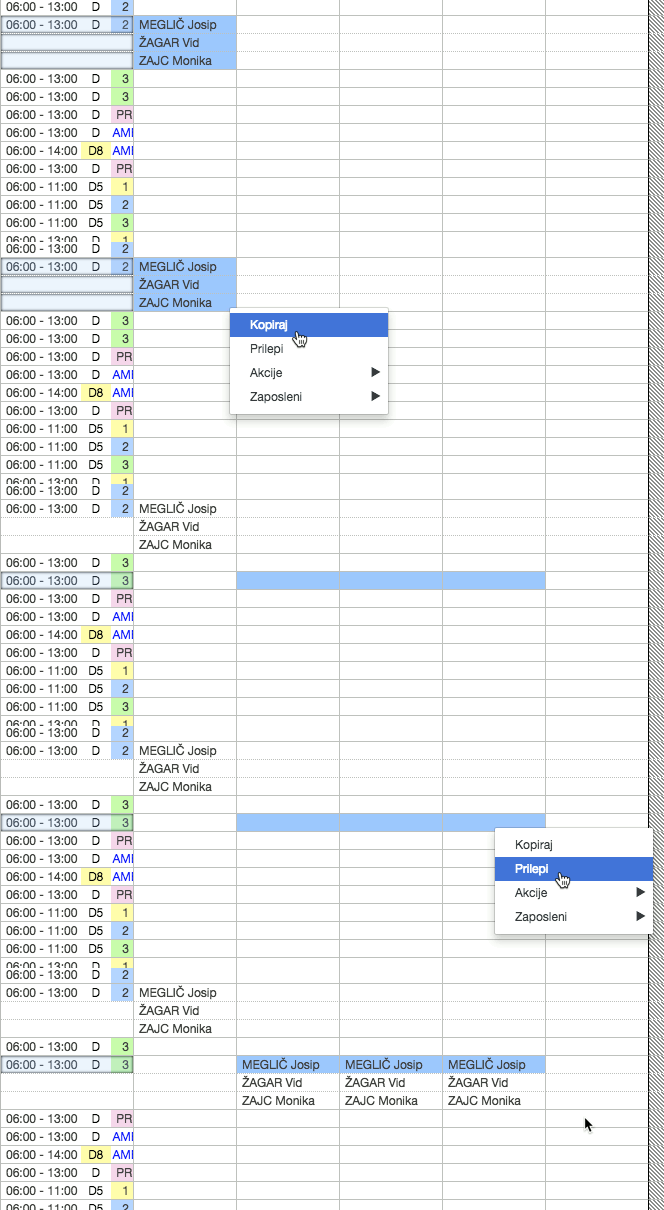
Replace with absence
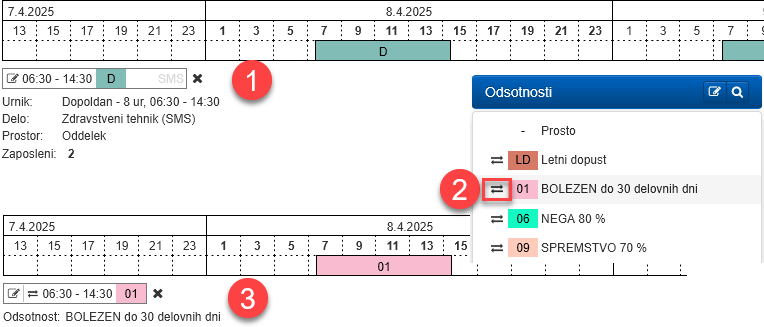
In view by employees you can replace existing shifts with absences so that the time intervals of existing shifts are preserved. Typically, replacement with absence is used for sick absences where the time intervals should remain as if employee would work planned shifts.
To use this functionality, the absence must have the Replaces existing option enabled. The absence properties are edited in the absences list. In Absences panel 2, absences that will use the interval of existing assignments are marked with .
Replace existing 1 shifts in selected cells with absences by selecting absences in Absences panel, in context menu, or using keyboard input
If you do not want to keep the interval or duration of existing assignments, first delete the existing assignment and then assign the absence.
Reassigning employees to other team
Reassign selected employees to another team or teams on selected days.
The action allows you to quickly reassign employees to the teams specified in team reassignment settings.
It is used when you want to temporary reassign an employee to another job for a short interval (a day, a week).
In the dialog, select one or more teams to which you want to reassign the selected employees and confirm with Confirm.
Assigning employees to teams
You can assign employees to teams, and thus indirectly to the user in charge of their shift plan, in settings.
Secondary teams
Secondary teams are useful when individual employees work shifts other than their primary team shifts, possibly assigned by other users who do not have primary team rights.
An example is on-call duty, where only some employees from several teams are on on-call; they are scheduled by the on-call manager, who has the right to schedule only the on-call team. Such employees can be assigned to the secondary on-call team in team assignment settings.
User cannot modify the shift plan for an employee who has been assigned a shift by a user who has rights over an secondary team (unless, of course, the user has rights over the secondary team). In such case, the user must modify the shift plan in coordination, e.g. using requests.
Editing presences
The shift plan may also differ from the actual worked shifts due to delays or extensions and last-moment absences. In such case shift plan is to be updated retrospectively; for this purpose, you can use Edit presences dialog.
When selecting shifts for an employee already in the past, the view by employees shows the presence and its status for that shift. Using 1 in the toolbar you can display total presence duration for the day, where the color reflects the presence status:
- green correct presence,
- orange presence with warnings,
- red presence with errors and
- turquoise confirmed presence.
Prior to generating payroll and other accounting reports, you need to make sure that the shift plan matches the actual worked plan. For the presences row, this means that all cells must be green or turquoise .
The simplest way to do this is to display only presences in the shift plan 1, select 2 all the cells you want to process and then trigger action 3 Edit presences with errors (you can also do this in the context menu). This way you will only edit those presences that contain errors or warnings.
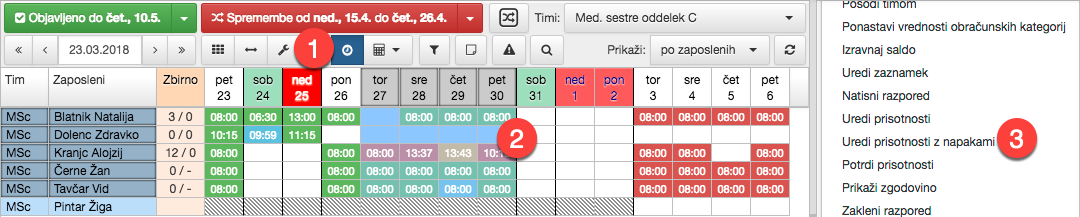
For a detailed description of all the options when editing presences, see the description of the action Edit presences, here are some typical situations:
- Manual presence changes
- Missing arrival or departure registration
- Shift entered does not match arrival and departure registrations
- Adding additional presence not overlapping the entered shift
The shift does not match the arrival and departure registrations
When there has been a change of shift and it has not been yet be amended in the shift plan, 1 the arrival and departure registrations are very likely not to match the shift and the presence will contain a warning.
In this case, you simply change the shift by 2 clicking on it; a list of the relevant shifts will appear, where you select the right one. Then 3 Process to automatically populate the Presences table with the registration times; the presence warning disappears.
Check the time intervals and 4 save the changes.
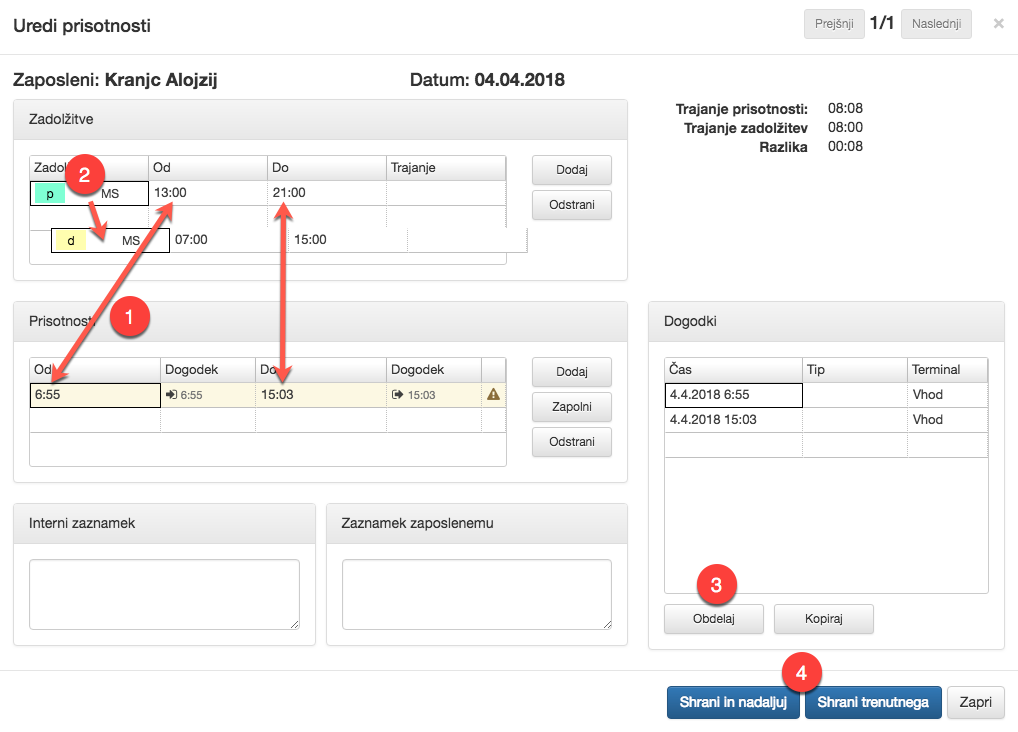
Adding exceptional presence not overlapping the entered shifts
Additional presence entered not overlapping any shift is only taken into account for the calculation of the hourly balance; for such entry no additional allowance and salary supplements are evaluated!
If you want additional presence to be taken into account for the calculation of allowances and salary supplements, you must add the appropriate shift to the shift plan. The choice of the shift you enter for such extra attendance depends on the rules for calculating supplements.
For example, if an employee has come for an extra shift for an hour and a half in the evening, but you have not planned this in advance, 1 extra attendance will appear in the Edit presences dialog with the error Presence does not overlap with any planned shift. Add a shift by 2 clicks on the Assignment cell in the empty row of the Shifts and absences table; first select the appropriate shift, then you can 3 correct the shift time interval. Process the registrations again according to the modified shift plan by 4 selecting Process; the error for 1 additional presence will disappear and you can 5 save the changes.
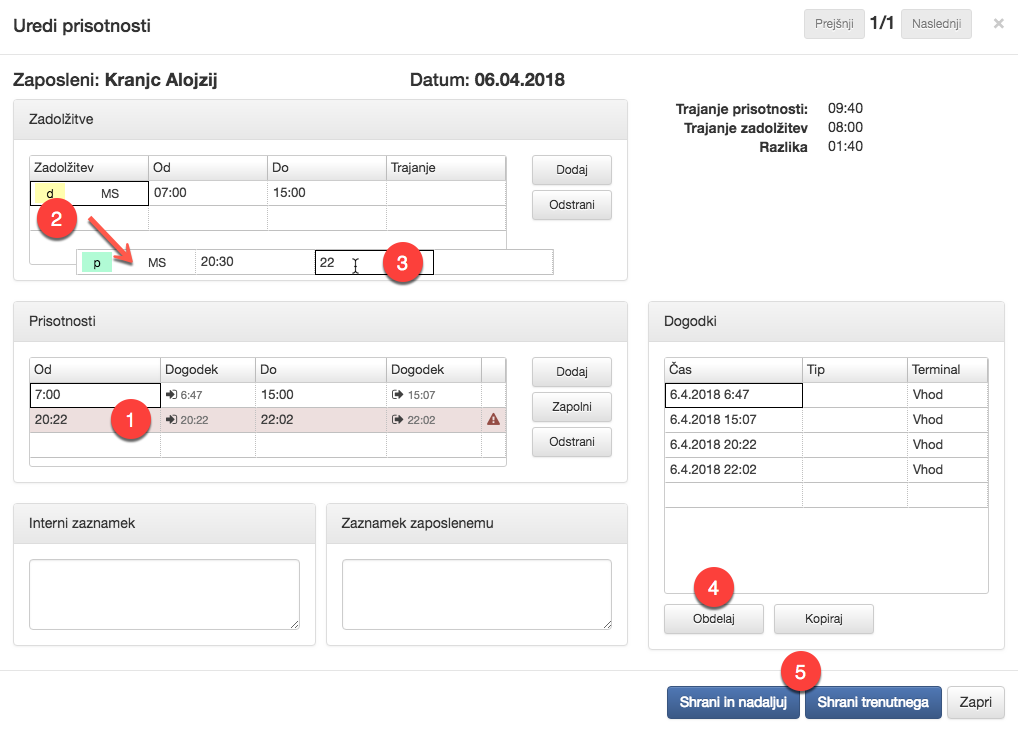
Manually changing presences
When you need to change the presence times as recorded via the registration. You cannot change registrations (in Table 1 Events) **(delete, add); you can only edit presence times!
For example, if you want to round an employee’s presence To to a full hour, 2 click in the cell in the Presences table, then change the time to the desired value and 3 save the changes.
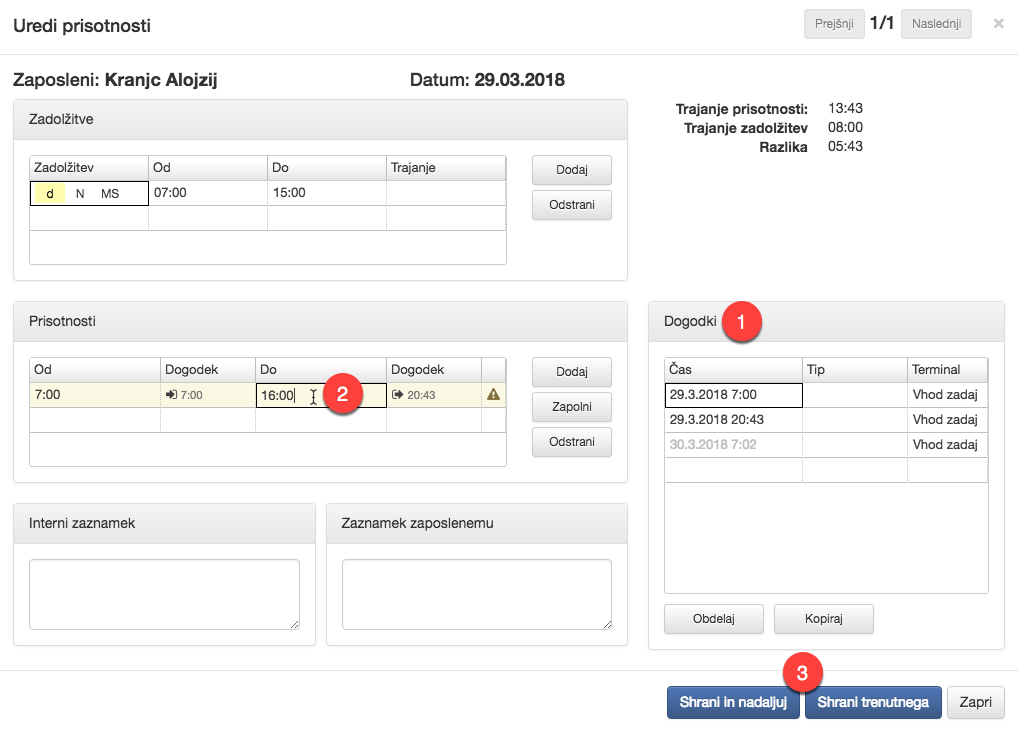
Missing registration of arrival or departure
If the assignments are correct in the employee’s shift plan, but the registration of arrival and/or departure is missing, the missing time is already entered (it is equal to the start or end of the corresponding shift) and only 1 confirmation of presence is required. You can also correct the time beforehand by 2 selecting the cell you want to change and entering the new time.
In case the shift plan is correct and you just want to confirm the time intervals as they are set in the shifts, you can use the action Confirm presences.
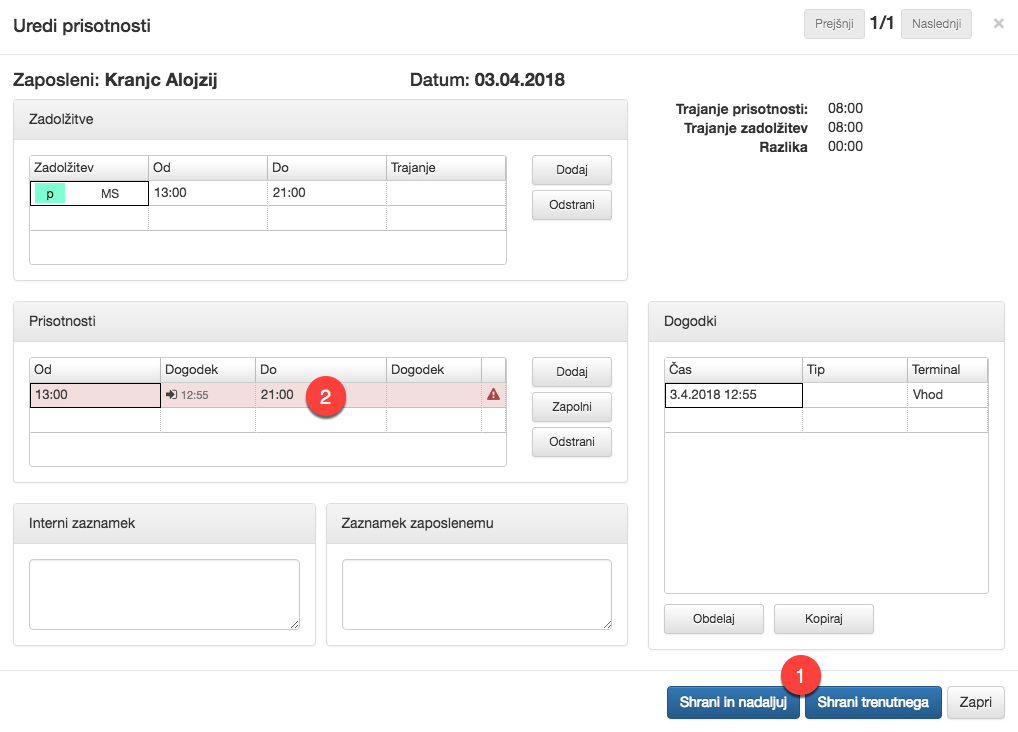
Summaries
When displaying the shift plan, various tools are available to summarise the important aspects at the relevant time periods, allowing the plan to be created and modified efficiently.
-
Plan summaries
Displays relevant summaries for employees in the shift plan table.
-
Share of assignments
Graphically shows shift and absence share for selected employees in the Summaries tab.
-
Daily summaries
Shows the total number of employees for shifts and absences per day.
Plan summaries
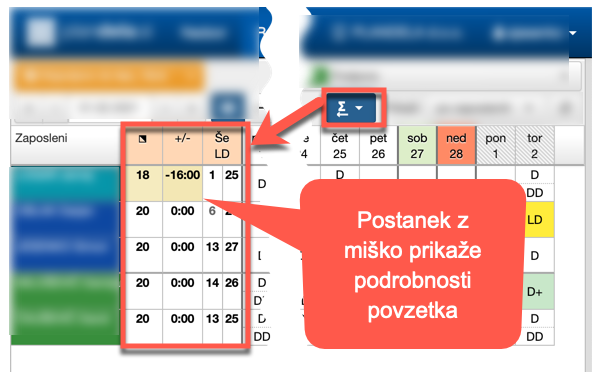
In the by-employee shift plan table, you can display additional columns of plan summaries, which summarise relevant plan data over time. The summaries are configurable, and allow you to summarise, among other things, the leave balance, the end-of-month balance, the number of shifts in the period, the proportion of each shift, etc. By hovering over the summary, the details of the summary (e.g. summary period and target values) are also displayed. The visibility of summaries is toggled by making the appropriate selection in the toolbar or by right-clicking on the header row of the shift plan.
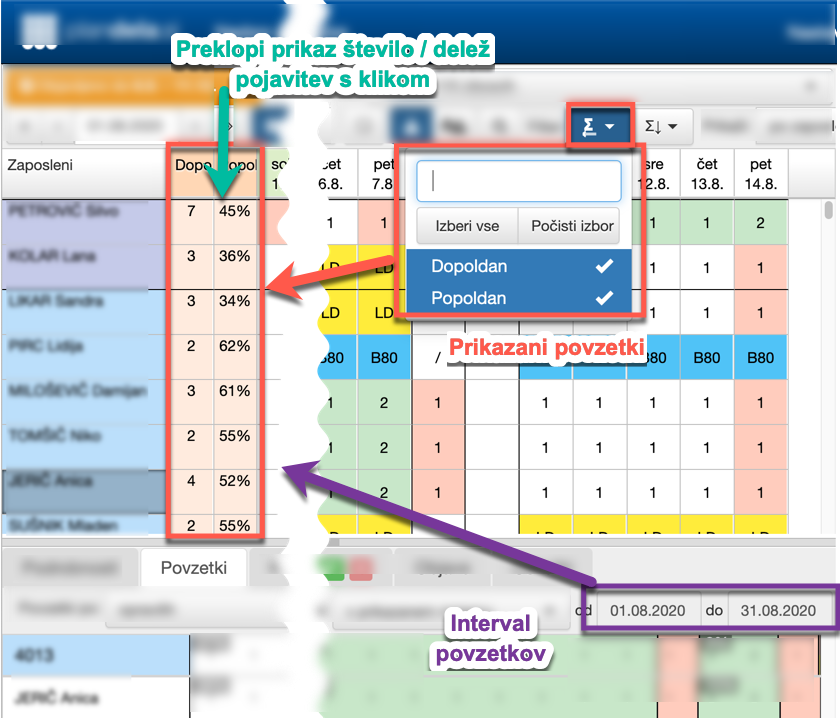
Plan summaries are also available for counting shifts from preconfigured filters. Clicking on the summary column toggles between displaying the number and percentage of shifts. The time period for displaying the summaries for the filters is set in the Summaries tab.
When displaying additional data in the cells (duration, burden, balance, attendance), the data for the currently selected month are also displayed, i.e. the total duration of all shifts and absences in the selected month, the total duration of the burden, the balance of the hours in the month, the total duration of all presences in the month, as well as the sum of the selected billing categories in the month.
Share of assignments
The shares of the assignments are displayed in the Summaries tab, which can be found in the bottom pane. They show graphically and numerically the share of the shifts, absences and other categories in the selected period for all the currently marked employees and their teams. This way, you can easily find the most suitable employee before assigning the shift. E.g. when scheduling a night shift, you can easily find an employee who has a significantly lower share of night shifts than the rest of the employees.
The type of summaries to display is selected with 1. Available summaries include shifts, schedules, places, works, absences, compensations, accounting categories and filters, which can be further refined with 2. With the selector 3 you define how the data is displayed, and with 4 you set the time period for which the summaries are calculated. Each row 5 shows the shares for teams and employees; within a row, the width of each bar represents the share of hours that the category accounts for in the total. By clicking on the value label in the chart 6, you can view more details about that category in a popup window.
All summaries displayed are automatically refreshed whenever the plan is changed, so when you make a plan change, values already include the changes you have just made. For a more detailed analysis, the summaries are also available in the Analysis section.
Daily summaries
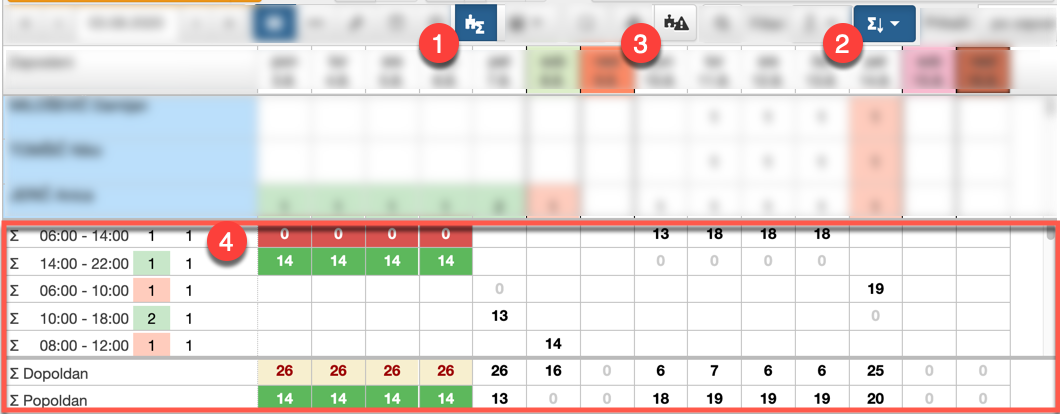
Daily summaries summarise the number of shifts and absences per day. They are displayed below the shift plan table 4. You can display them for individual shifts 1, or for combinations of shifts as defined by filters 2.
If daily requirements are also entered for shifts or filters, the cell colors in the summaries denote the matching of the actual number of employees on a shift and the entered requirements - green if the number of employees currently assigned is adequate, red if there is a shortfall, and yellow if there is a surplus of employees. Clicking on the summary bar toggles between displaying the actual number of employees, the deviation from the entered requirements and the display of the entered requirements.
You can limit the display of daily summaries to shifts and filters where the number of employees deviates from the requirements in the displayed period by clicking 3. This way you can quickly check whether all requirements are met (i.e. all summary lines are hidden).
If the currently displayed teams do not contain all employees working a shift, the daily summaries show separately the number of employees from selected teams and all teams in the way number of employees in selected teams/number of employees in all teams.
Display of daily summaries in the Employee Portal
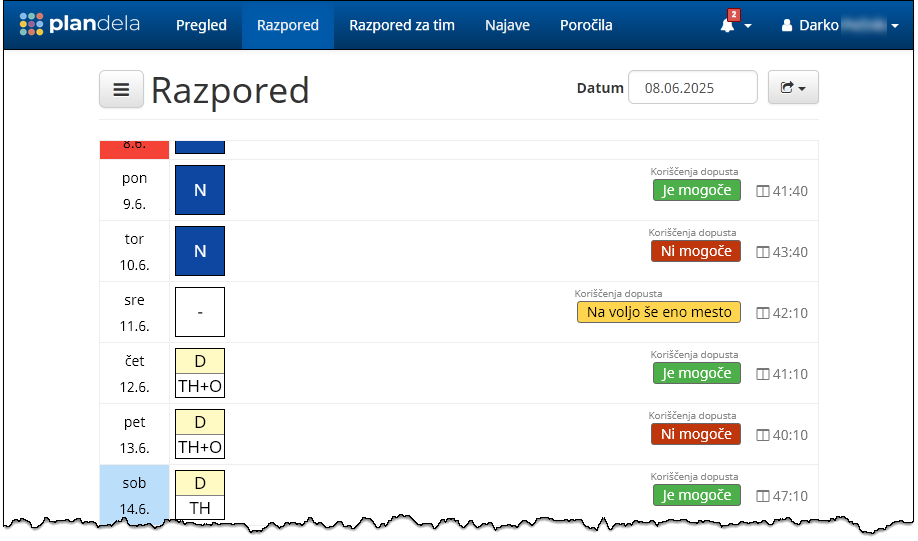
Employees can view daily summaries in the Employee Portal using text and color indicators, based on daily requirements and the current schedule. The indicators are customized in detail depending on the numerical difference between scheduled staff and the required staffing levels.
Example use case: You may want to show employees which days are still available for taking leave, based on a predefined maximum number of employees allowed to be on leave on the same day.
For setup and additional information, please contact our Support.
Assignment filters
Use filters to show only certain shifts and absences in the shift plan, and hide all other shifts. They can be used both in the view by employees and in the view by shifts. A filter can also determine the way the cells in the shift plan are displayed (e.g. the filter can be used to show only schedules, works or places, regardless of the default shift settings).
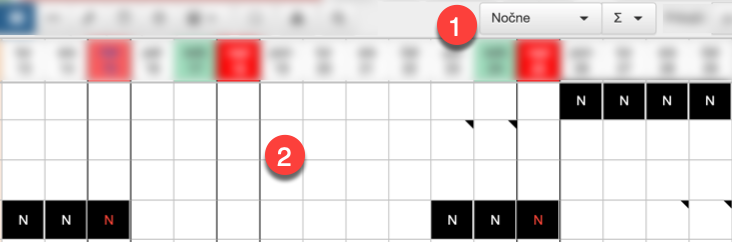
The filter is selected in filter selector 1, and shift plan table is adjusted accoringly 2. The filter selector is only available if the filters for the currently displayed teams are properly configured. The selector only contains filters that are available for the selected teams of the shift plan table.
Employee constraints
The compliance of the shift plan with the employee constraints is checked automatically when the plan is created and whenever it is modified. You can display constraint violations in the view by employees using the button in the toolbar; the cells corresponding to the violations are displayed with a box in the color of the violation status.
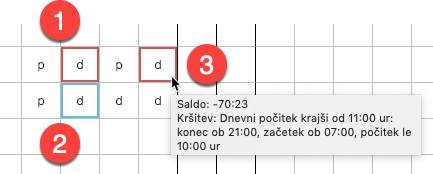
When a violation occurs (i.e. when the underlying plan change is applied), it always has the status active; the active violation box is 1 red. If a violation is unavoidable, you can confirm it so that it no longer appears (or it appears as confirmed with a 2 blue box). One might aim to have a shift plan that is free of constraint violations or has only confirmed violations. By hovering over the cell with violation, a 3 detailed description of the violations is displayed.
Violations of the employee constraints in the plan are displayed in the Violations tab in the bottom pane, where you can review and confirm them. In 1 tab title, the number of violations of the status is displayed with a color and a number. The number corresponds to the displayed violations in the tab list and depends on the active filters in the violations tab.
The display of violations can be adjusted with 2 filters for type of violation and period; this affects both the display in the list and in the plan. Selecting 3 violation row will also select the cells in the schedule table that correspond to the selected violation.
If certain violations are not relevant (e.g. unavoidable or agreed with the individual employee), you can confirm them in the following ways:
- using action in the 4 rightmost column of the list,
- selection the cells with violations in the plan and confirm them using Confirm selected violations or with the Confirm violations action in the context menu,
- using Confirm all violations to confirm all listed violations
For confirmed violations, you can display the user and the time of confirmation by hovering on its Confirmed status. To reactivate such a violation, use the action on the violation in the 4 rightmost column of the list.
Requirements
Requirements define how many employees must be assigned to a shift on any given day. Requirements determine the minimum and maximum number of employees allowed on shift.
To use automatic scheduling, the requirements must be set as the automation will allocate an appropriate number of employees to each shift based on the requirements. However, setting requirements is also useful for manual scheduling. If the requirements are set, the application will warn you when scheduling if there is a shortage or surplus of employees on a particular shift.
Viewing and adjusting requirements is available in shift view, where you can click on 1 in the toolbar to display the requirements. When displaying extended rows 4 (i.e. employees per shift), the minimum number of employees required is shown in transparent red and the maximum number of employees required is shown in yellow. The dashed border indicates that the maximum number of employees is not limited. Button 2 highlights the shortfall or excess of actual staff allocated compared to the current requirements entered; e.g. if a minimum of three staff is required for a shift on a particular day and only two are allocated, one cell will be colored red to alert the planner that an appropriate rescheduling is needed.
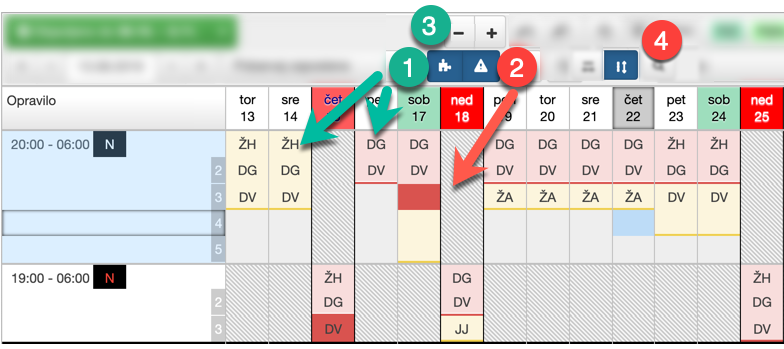
However, in the case of the collapsed rows 1, the plan shows the numerical value of the minimum and maximum number of staff required respectively.
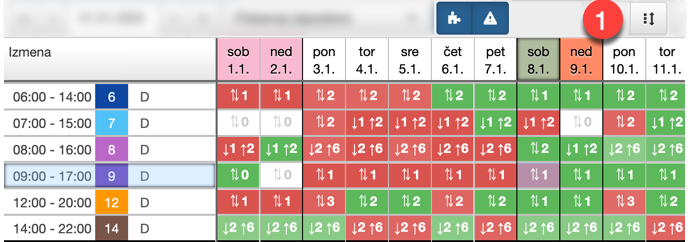
The display of requirements is also available in view by employees, where button 1 is used to switch on the display of daily summaries that count the number of employees on each shift. Clicking on the summary table 3 toggles to the requirements display. The background color in the summaries tells us whether the actual number of employees on each shift is within the defined requirements (green), or whether there are too few (red) or too many (yellow).
Button 2 only shows the rows in the summaries where the actual number of employees differs from the requirements entered (i.e. hides all green rows, and keeps only those with certain red or yellow entries).
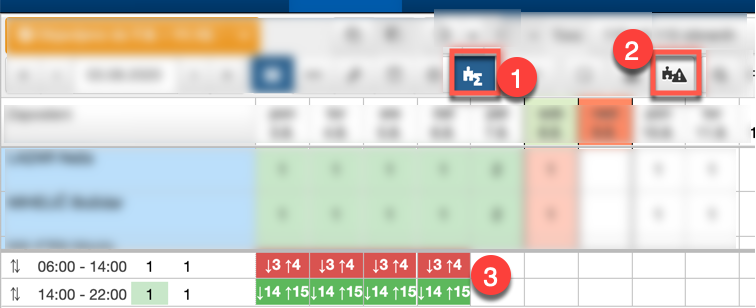
Requirements entry
You can enter requirements in the timetable using Requirement templates, or carry them over from the previous period.
To enter requirements, select Set requirements in the Actions sidebar and select the target period for which you want to enter requirements in the timetable.
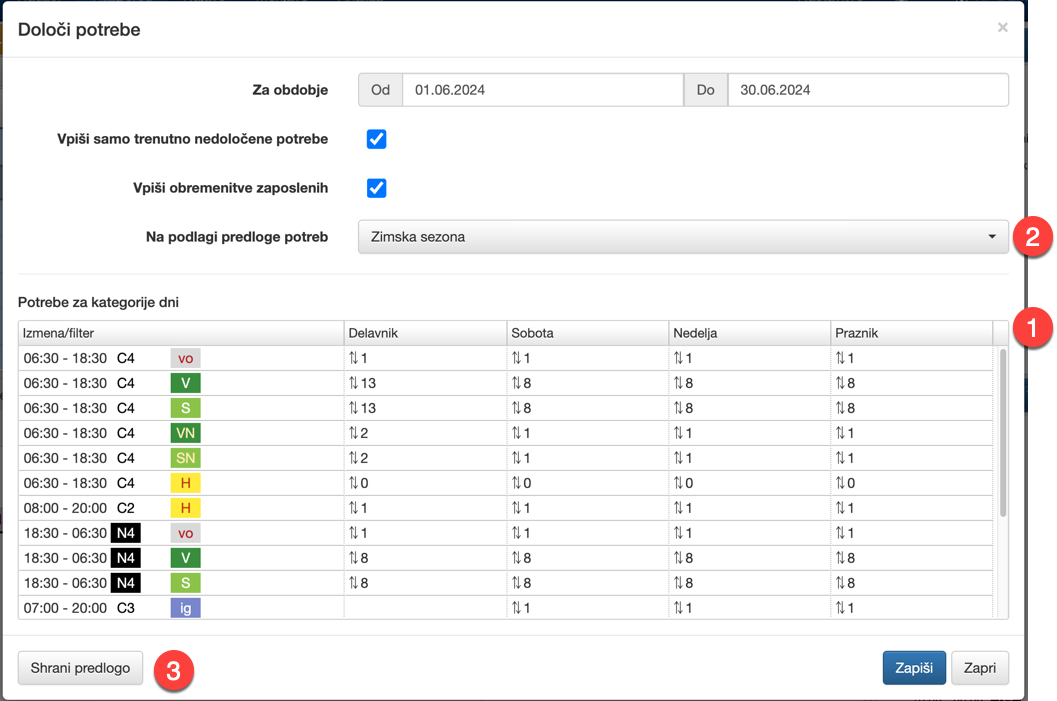
Table 1 shows the shift requirements (rows) by type of day (columns). The classification of days is part of the system settings of the application, and can be very simple (e.g. only separating into workday / weekend), or it can differentiate days according to arbitrary date and other criteria (e.g. specifically separating Mondays, 1st days of the month, etc.).
You can manually enter min/max staff requirements by selecting a cell and entering numeric values. The entire table can be quickly filled in by selecting Requirement template 2. Any manual corrections to the table can be saved to an existing template by clicking Save Template 3.
Clicking on the Save button will enter the displayed requirements to the shift plan.
When entering requirements, you can additionally set the following options:
-
Enter only requirements not currently specified
Enter requirements only for shifts and dates for which they are currently not yet set. If this option is not selected, it also overwrites the requirements already entered for the whole selected period.
-
Enter employee burden
For all employees in the selected period, enter burdens if not already entered.
Set requirements based on the previous period
You can also define a requirement template based on requirements previously entered in the timetable.
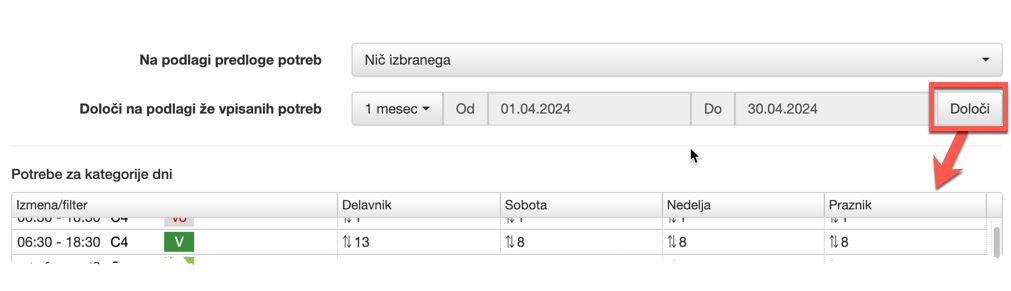
Clicking on Specify will transfer the requirements for each type of day from the selected period to the table.
If different values of requirements have been entered for same type of day in the previous period, the most recent occurrence is used and the cell is colored yellow. When hovering over cell, all the different occurrences in the selected period are displayed.
If there is no type of day in the selected past period that appears in the target period (e.g. a holiday), the cells will be colored red. By right-clicking on the cells, the user can specify alternative values.
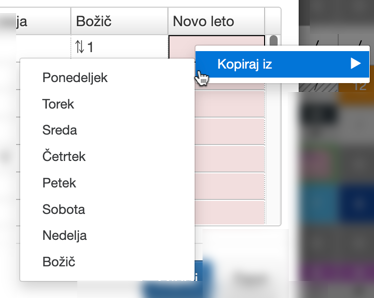
You can further manually adjust the requirements and then write them in the shift plan, or save them as a template for future use.
Adjusting requirements in the shiftplan
You can also adjust the requirements for each shift directly in the timetable, on a day-by-day basis. Example: you have entered the normal requirements for the whole month in the template, but due to exceptional circumstances, work will be carried out differently on a particular day (e.g. external audit, inventory, team building, training) and you need to adjust the required number of employees on each shift accordingly. There are several ways to make the adjustment:
-
In the view by shift, select the cells and enter the minimum and maximum number of employees for the selected shifts and dates.

-
In the view by shift, select the cells and use the 3 buttons and to increase the maximum and minimum number of employees (shortcut + / -). The maximum number of employees (while keeping the minimum number of employees) is set using the same buttons while holding down the SHIFT key (shortcut SHIFT + + / SHIFT + -).
-
Select the cells and use the Edit requirements action to enter the staff requirements for the selected days and shifts. This action can also be accessed by clicking on Employees in the Details tab.
Automatic scheduling
The automatic scheduling module generates a shift plan taking into account the entered requirements, legal limits, monthly burdens and other scheduling rules listed below. The automatic scheduling is particularly useful for large number of employees, dynamic requirements and complex scheduling rules. In this case, the manual creation of the shift plan is very time-consuming and the final result deviates significantly from the optimal shift plan. Automated scheduling, on the other hand, can search for the most appropriate solution in a wide range of possible shift plans.
Automated scheduling is designed so that the user has full control over the scheduling, and the automation just helps to find the best shift plan. The user fully determines how many employees are required on a particular shift, but can also manually create any part of the shift plan; the automation then just fills in the missing requirements. The automated creation of the shift plan also clearly shows the rules on which the automation has selected the solution. Each rule violation or compliance is scored with the corresponding number of points; the automation then simply finds the shift plan with the highest total score and thus respects as many scheduling rules as possible. This allows easy and gradual adaptation of the scheduling rules in a way that perfectly suits the user’s and staff wishes and requirements.
The entry and adjustment of the scheduling rules for each department is done by the consultant in cooperation with the user. The automation supports a wide range of rules, including:
- legal restrictions (weekends off per month, limit on the number of weekly and monthly hours, daily rest, number of weekends off per year, etc.)
- predefined work cycles
- groups of employees (e.g. driver/codriver, mentor/mentee, etc.)
- sequences of shifts (e.g. multiple shifts of the same type, day off after night shifts, etc.)
- balanced assignment of on-call, standby, holiday (e.g. New Year) and other sensitive assignments
- employee preferences entered by means of Requests (overtime, day off, night or day work only).
Depending on the result of the automatic scheduling, the user can adjust the importance of the rules and restart the scheduling.
Preparing for automatic scheduling
To automatically create a shift plan in the selected period, the user must enter the relevant data, which the automation then uses to generate a suitable shift plan.
-
Input requirements
Depending on the entered requirements for employees, the automation will automatically assign employees to the appropriate shifts. The most convenient is using forecast requirements where the requirements for each shift are determined based on the previous period. These can then be further adjusted by the user if necessary.
-
Manual entry of sickness absences, holidays and other pre-known absences and shifts
The part of the shift plan that is manually entered will be left unchanged by the automation and taken into account when creating the rest of the shift plan.
-
Entry and processing (approval, rejection) of Requests
The automation will also take into account confirmed requests entered by employees or users when creating the shift plan.
Start automatic scheduling
Before starting, you first define the date period and the employees for which you want to automatically create a shift plan. The most convenient way is to create a schedule for an automatically determined scheduling period 3. This is determined for the selected cells to include the date period to which the scheduling rules apply (e.g. a full month) and also any teams that need to be scheduled simultaneously due to all-encompassing shifts. To start automatic scheduling for the whole period, click on the 2 button on the toolbar or in the Automation tab (shortcut CTRL + SHIFT + A).
Automatic scheduling can also be used on subset of selected cells, leaving all others unchanged. This method of scheduling is particularly useful when the automation is used to make subsequent corrections to an existing schedule and only a small part of the schedule must be automatically reshuffled. To start automatic scheduling only for the selected cells, click button 1 in the toolbar or tab Automation (shortcut CTRL + A)
For the selected period, all automatic schedules already made for the current period are also displayed .4 Details of each past scheduling are displayed by double-clicking on the scheduling row.
Scheduling rules can be adjusted before each run by adjusting the sliders 5 to increase or decrease the importance of each rule (e.g. increase the importance of a rule to reduce excess hours worked to reduce overtime costs).
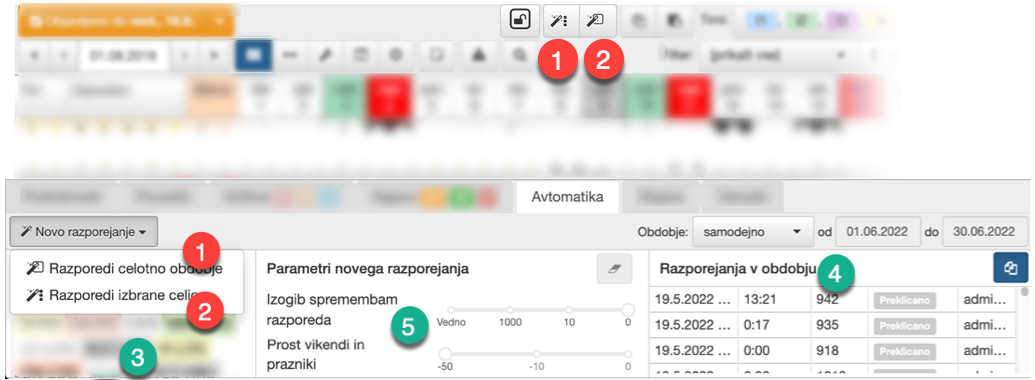
Monitoring automatic scheduling
After the automatic scheduling is started, the current best solution is displayed in the shift plan table. The schedule is scored according to the scheduling rules, where following or breaking each rule contributes a certain number of points to the overall total. At runtime, the automation searches for the schedule that has the highest score.
The state of the current execution is shown in 7, and the current best solution score and scheduling timeline is shown in 8. In the shift plan table 9, and also in the list 10, the rules followed and the points contributed to the scoring of the current solution are clearly indicated. Shift plan cells that have not been changed by the current execution of the automatic scheduler are indicated in the shift plan table by 11 hatched pattern.
Execution is automatically terminated when:
- the best possible solution is found, or
- the current best solution no longer improves over time.
Execution can also be stopped manually with the button in the toolbar or tab 6.
You can send the automatic scheduling to the background by clicking on the button on the toolbar or tab. To redisplay the current automatic scheduling status, click on the button .
If there were any manual changes to the shift plan during the automatic scheduling (manually assigned shifts, absences or changed requirements), you can include them in the current automatic scheduling by clicking on the button .
Applying the automatic schedule
You can confirm the automatically created shift plan in the toolbar or tab 6 by clicking (ENTER) button, or discard it with the (ESC).
The applied automatic schedule is not yet published and is therefore not visible to employees. You can therefore manually modify it if needed before publishing, and restart the automation with adapted rules if necessary. You can also compare several automatic schedules for the same period using drafts. You can save a single automated timetable as a draft, and then restart the automated scheduling with the customised rules. Finally, you can compare several automated drafts side by side and use the most appropriate one.
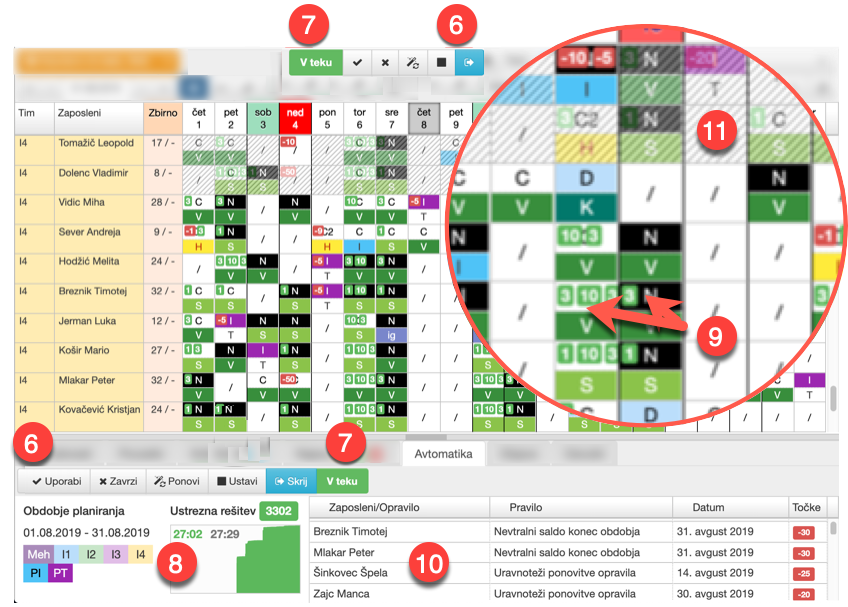
Automatic rescheduling of an existing shift plan
Automatic scheduling can be restarted for an existing (manually or automatically) created shift plan. Before that, requirements, scheduling rules can be re-adjusted or some changes to the shift plan can be done manually.
When the scheduling is restarted, the automation will only modify the parts of the shift plan that are not locked, while the locked assignments will remain unchanged. Locked cells can be displayed using button 11, where unlocked cells are hatched 13 in the shift plan table and locked cells are unhatched 14. Currently selected cells can be locked or unlocked using buttons 12 (shortcut CTRL + L or CTRL + SHIFT + L).
All manual entries in the shift plan are locked for automation by default, and automatically assigned shifts are unlocked by default. Thus, only automatically assigned shifts are reshuffled by automation on restarts, while manually entered shifts remain unchanged (unless explicitly unlocked by the user).
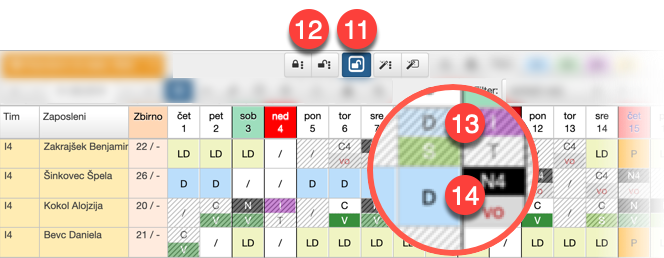
Adjust shading intensity
If you want manually entered assignments to stand out more clearly in the plan, use the button to adjust the shading intensity.
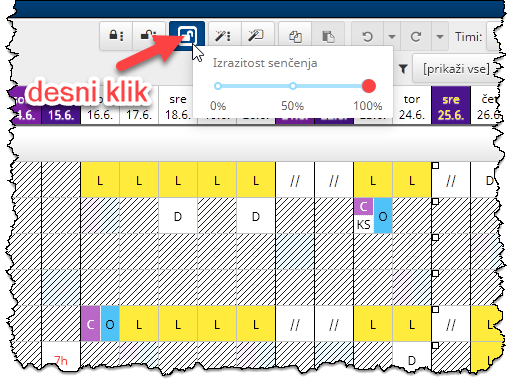
Requests in the plan
In view by employees, you can display requests in shift plan with 1 in the toolbar.
The cells of the timetable corresponding to the request (employee and period) have a rectangle bordered in the top left corner with the color and code of the request, and the color of its border corresponds to the state of the request. The rounded edges of the rectangle indicate the start and end of the request.
Requests list corresponding to the displayed plan, i.e. the selected teams and date period, is available in the 2 Requests tab in the bottom pane. By clicking on the 3 request, corresponding plan cells are selected in the schedule table; you can then perform actions on them using the toolbar 5. You can also filter the list according to the type and status of the request and the date period.
As in Requests, you can manage individual reques by clicking on the link in column 4 Status or directly using the commands in column 6.
The requests for each day are also displayed in the Details tab in the bottom pane.
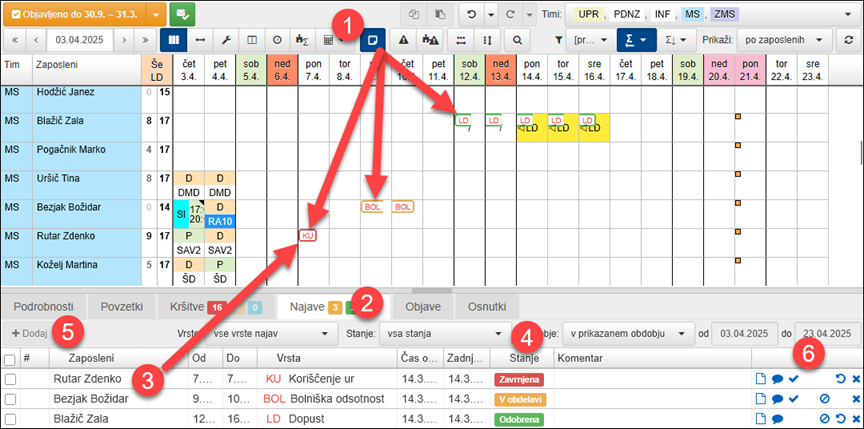
You can also approve or reject a request in progress by using the right-click menu commands.
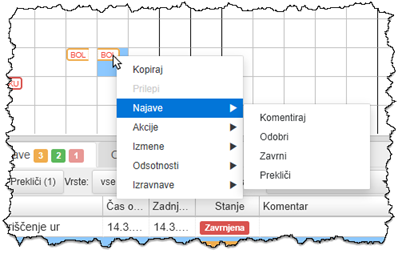
If you want to add requests for several employees at the same time for different time periods, you can speed up the process by selecting the relevant cells in the shift plan for which you would like to have requests entered 7, pressing the Add button 8, selecting the request type and confirming the entry by pressing the Save button 9.
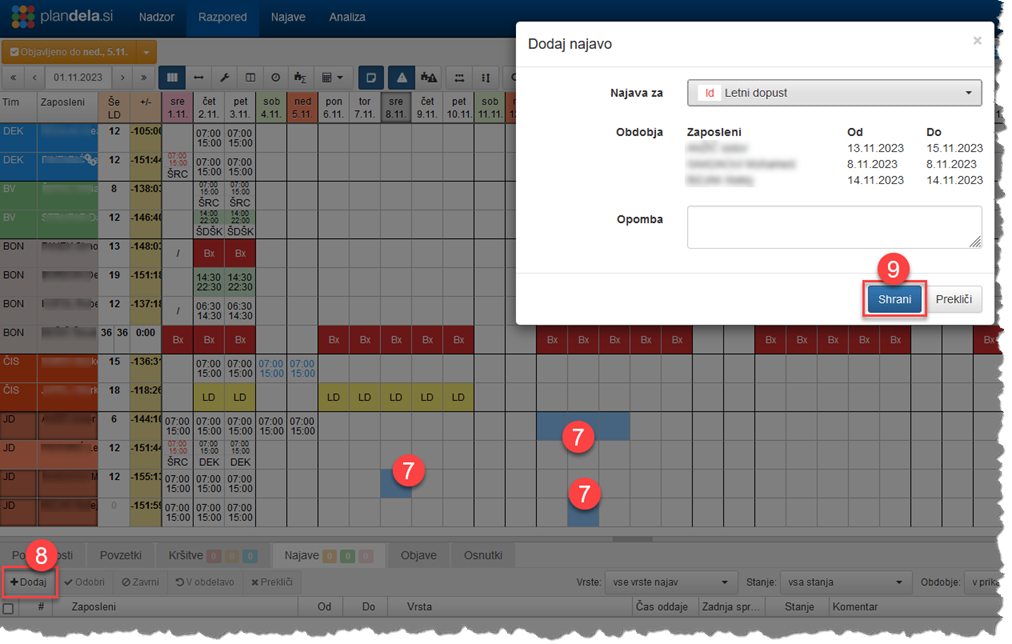
Swaps in shift plan
In view by employees you can **map changes within a schedule with 1 in the toolbar. The cells of the schedule corresponding to the swap (employees and dates) have a bordered rectangle displayed at the bottom, the color of which corresponds to the status of the swap.
List of swaps corresponding to the displayed schedule, i.e. to the selected teams and time period, can be found in the Swaps tab in the lower section. By clicking on 3 swaps, you select the corresponding cells in the schedule; you can then easily perform the desired actions on them from the toolbar 5. There are also tools for filtering the list, which can be customised according to the type and status of the swaps and the time period.
As in Swaps, you can manage individual swap by clicking on the link in column 4 State or directly with the commands in column 6.
Following actions are available when dealing with a swap:
- Apply - writes the proposed swap to the plan but does not publish it. This can be used to check the appropriateness of the proposed swap. If it is suitable, then confirm it, if it is not suitable you can undo the changes and reject the swap.
- Approve - approves the proposed swap and applies and publishes it. Employees are automatically notified of the approved swap and the plan change.
- Reject - reject the proposed swap. Employees are informed of the rejection.
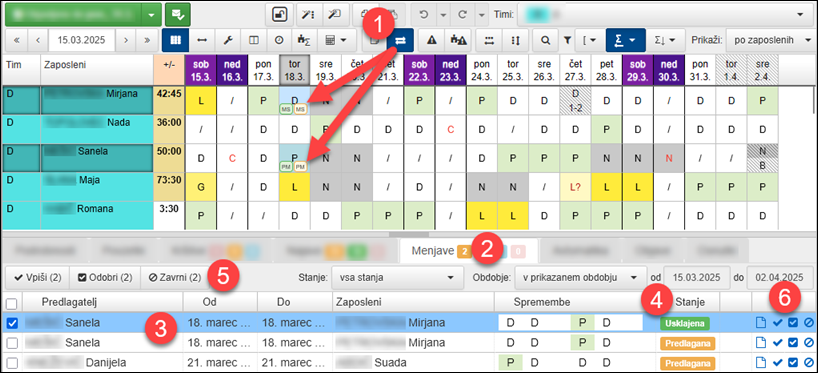
You can also approve or reject the swap using commands from the context menu.
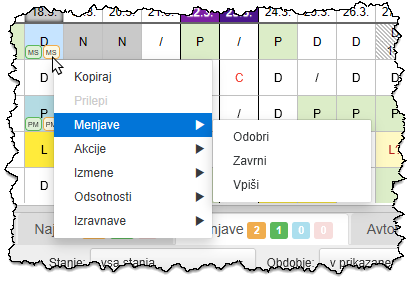
Swap proposal
You can also propose and send the swap for approval to an employee as a schedule manager. To propose a swap, you make a change to the shift plan and then, instead of publishing it, select the Suggest swap option, which creates a swap from the current changes and sends it to the employees involved for approval.
Once all employees have agreed to the swap, it is applied to the shift plan.
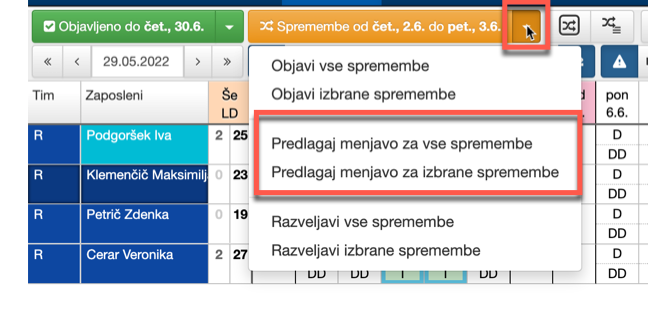
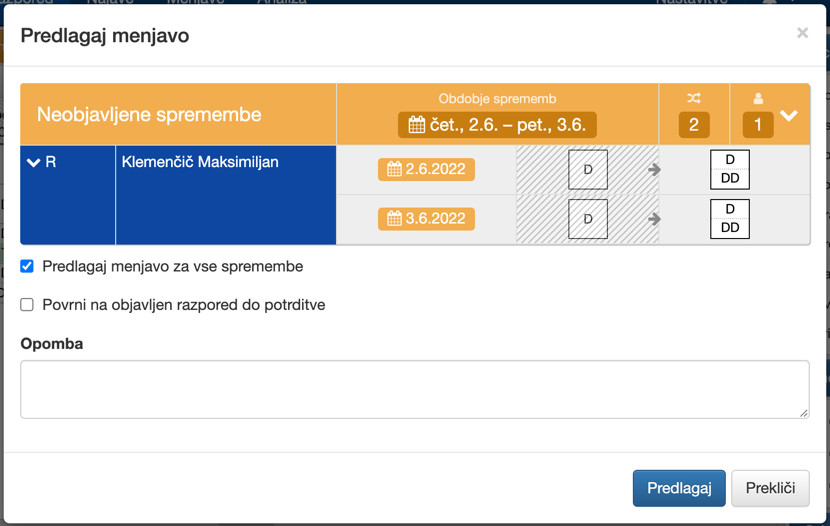
Drafts
**You can save the shift plan at any time, and you can also [publish it to employees] as a draft (…/publishing/draft).
Saving drafts allows you to prepare and compare several versions of the timetable and then use the preferred version in the final timetable.
However, by publishing drafts you can give your employees the opportunity to see the planned timetable before you have the full timetable. For example: you can publish a draft annual leave schedule for the whole year in advance, and then publish the detailed shift schedule for each month on an ongoing basis.
Published shift plan does not need to be saved separately as it is saved automatically when publishing and is then available for reference in the publication history.
You can save, publish and review drafts in the Drafts tab in the bottom section.
Publication of the shift plan
the publication of a shiftplan is the moment when a timetable that has been in the process of being drawn up becomes public and can therefore be seen by the staff members for whom it is intended. From the moment the timetable is published, any changes to the timetable must be validated and published so that staff are informed of any subsequent changes to the timetable. The history of published timetables can be consulted in the Publications tab in the section below.
If any user forgets to publish a new or changed shift plan, it will be automatically published for the current day and all past days. In this case, employees will not receive notifications and emails about the plan change, however they will nonetheless view the latest version of the shift plan.
However, by publishing a draft, you can give your employees the opportunity to see the planned timetable before you have the full timetable. For example: you can publish a draft annual leave schedule for the whole year in advance, and then publish the detailed shift schedule for each month on an ongoing basis. When the draft is published, changes to the timetable do not need to be confirmed; in the event of a subsequent change, the draft already published will no longer be shown to employees during the period of change until any new publication of the draft or actual publication of the timetable.
Here you will find instructions to the most common procedures when publishing new shift plan and shift plan changes:
- Publication of new shift plan
- Publication of plan changes
- Publication of draft timetable
- Acknowledgment of change receipt
- Revert plan changes
With the Swaps module, you can propose an swap for unpublished changes, which is then sent to the employees for approval and automatically applied to the shift plan upon approval.
Publication of the draft timetable
Razpored, ki je še v izdelavi, lahko predhodno objavite zaposlenim kot osnutek, ter jim tako omogočite vpogled v predvideni razpored. Ko imate pripravljen končni razpored, pa jim tega objavite po običajnem postopku za objavo novega razporeda.
The counters (e.g. leave balances) shown to employees also take into account the schedules published as a draft.
Publication of the draft to employees is thus particularly appropriate for:
- Publication of a long-term leave plan. Example: Staff members have already scheduled their leave for the summer holidays, but a detailed schedule has not yet been drawn up. By publishing the schedule, you give them an overview of the planned leave dates and the total amount of leave already taken and planned. Once you have a shift roster, publish it to them in the normal way.
- Publication of the indicative long-term plan. Example: You already have an indicative plan for several months in advance, e.g. which days are working and which days are free; you are preparing a detailed plan with detailed shift assignments for the coming month. You can therefore publish the long-term plan as a draft and the short-term plan as a rolling plan in the normal way.
Publication procedure
Publish the draft in Draft section below by selecting Publish draft.
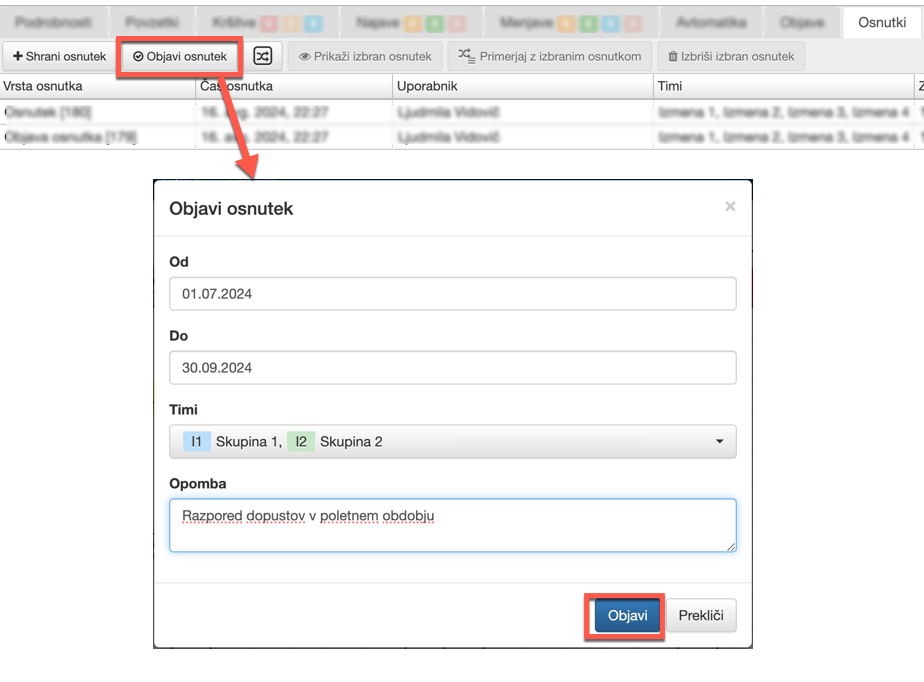
The application does not inform employees by email or via the Employee Portal when the draft is published. Once published, the draft timetable is only displayed to them in the Employee Portal and the registration terminal, with a marker indicating that it is a draft.
Subsequent amendments to the draft
When subsequent changes are made by the planner to the timetable published as a draft, the revised timetables are no longer shown to employees. To display the revised timetables you need to republish the draft.
By adjusting the solution accordingly, individual allocations can be automatically published as a draft to employees, e.g. annual leave is immediately visible to employees as a draft after entry, without the need to publish a draft separately. Please contact support to customise your setup accordingly.
Overview of the draft currently published
Publications of drafts are not included in the Schedule publication status or Unpublished changes displays – from the point of view of these displays and tools, a published draft is still considered as an unpublished schedule.
However, you can display the timetable as it is currently visible to staff (including published drafts) by displaying the currently published timetable under Publications tab by selecting Current. For a highlighted display of unpublished changes, select a schedule published as a draft is displayed partially hatched, thus distinguishing it from the actual published schedule, which is fully hatched.

Publication of the new plan
The plan which is being prepared is not accessible to employees and can only be viewed and edited by users with the appropriate permissions before publication. The publication of a shift plan makes it public and can be viewed by the employees for whom it is intended.
Plan publication status for the teams is shown:
Pri slednjem se stanje nanaša na izbrane time v pogledu; z zeleno je označeno, če je celoten razpored za izbrane time že objavljen za vsaj v nastavitvah določen rok vnaprej (privzeto 21 dni), z oranžno pa, če obstaja še neobjavljen nov razpored pred tem rokom. V kolikor razpored ni objavljen do tega roka, prejme uporabnik o tem obvestilo.
Click 1 publishing tool (or Publish new plan in its menu or via keyboard shortcut CTRL + SHIFT + S) to open the Publish new plan dialog, which displays all the information about the 2 already published and 3 new plan, by employees and altogether for all teams. To publish plan, you need to 4 specify the date by which the plan is published, and optionally a 5 note. You can publish the plan for 6 all employees in the listed teams, or for 7 only selected employees.
By clicking Publish, the plan for the selected parameters is published and employees for whom the shift plan has been published are sent a notification by email and in the Employee Portal.
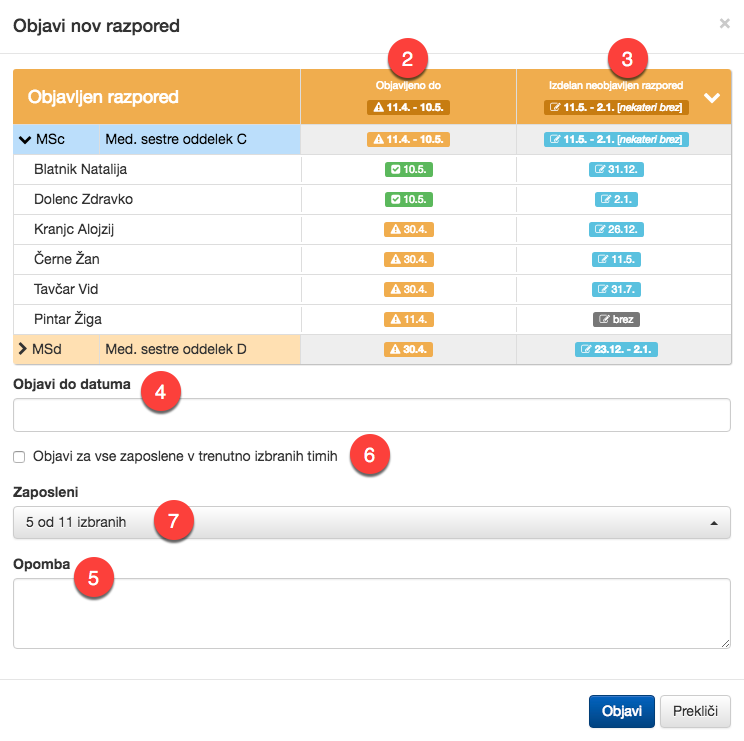
Poweruser can unpublish the shift plan in settings in the list of teams by clicking the “Revert publication” button.
Publication of plan changes
Plan changes are changes to the already published plan. Similar to publishing a new shift plan, changes must be published to make them public and thus visible to the employees concerned.
Status of unpublished changes for teams over which you have permission is displayed:
- in Publication summary in Dashboard and
- in the Changes publication tool.
In the latter case, the status is displayed to the currently selected teams; if there are no changes to the plan for the selected teams, the Changes publication tool is hidden. If there are changes after the time limit specified in the settings (default 3 days), it is colored orange. If there are unpublished changes before this deadline, the user receives a notification and the Changes publication tool is colored red.
You can highlight unpublished changes to the plan by in the toolbar or in the Publications tab.
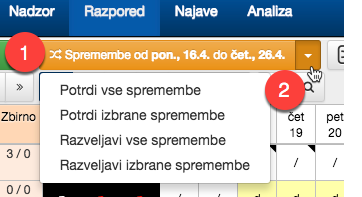
By clicking 1 publication tool (or Publish all changes or Publish selected changes in the 2 menu, or via keyboard shortcut CTRL+S)) opens the Publish plan changes dialog, where 3 all plan changes for the selected teams are displayed. In the dialog you can specify 4 Publish all changes or 5 Date interval and Employees.
If you want to publish just subset of changes, select them in the shift plan table and select Publish selected changes; in this case the date and employee fields will be pre-populated.
Use option 6 Ignore inaccessible changes if you don’t have permission for all assignment changes (e.g. if you schedule employees in their secondary team and there are also employees in their primary teams with the changes that you don’t have permissions for). Optionally, you can also enter 7 note with the publication.
Published shift plan changes cannot be cancelled!
By selecting Publish, the changes to the shift plan for the selected parameters are published and employees for whom the changes have been published are sent a notification by email and in the Employee Portal and the Registration Terminal.
Option 8 Request confirmation of receipt allows you to request acknowledgment that the employee has received the change notification and is up-to date with latest shift plan.
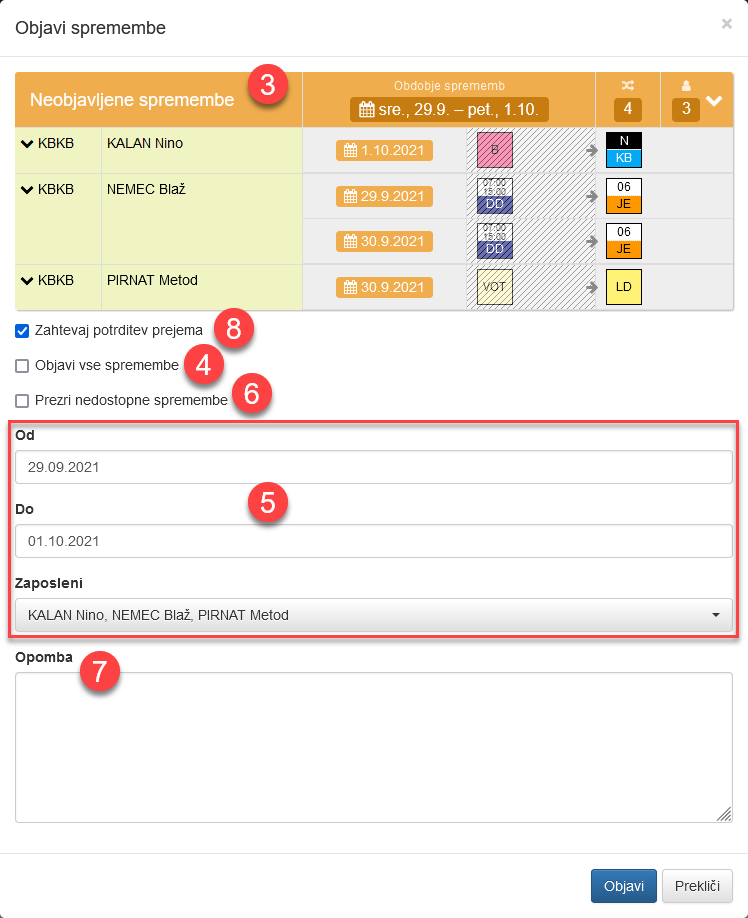
Optionally, you can also a request an acknowledgement that the employee has received changes and is up-to-date with latest plan.
Confirmation of change receipt
When changes to the shift plan are published, the user can request acknowledgment that the employee has seen notification and is up-to-date with the changes.
Employees receive the acknowledgment request by email, on a registration terminal or on a mobile device simultaneously with the change notification.
The default value for the receipt confirmation is set in the general settings for the whole organization or in the team properties for each team. In addition, acknowledgement can be requested when confirming changes 1.
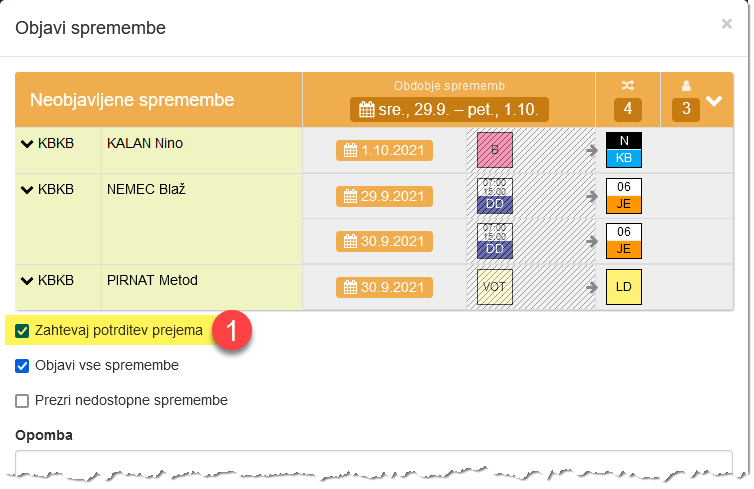
The manager has an overview of the status of the acknowledgements received and can inform or contact the employee via other communication channels if any acknowledgments are missing. The status of the acknowledgment is displayed in the 2 Tool for managing acknowledgments.
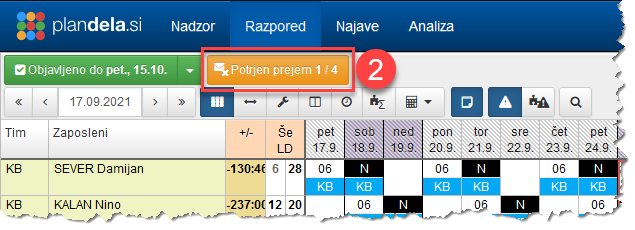
Clicking on tool 2 displays a list of the requested and received acknowledgements and their status.
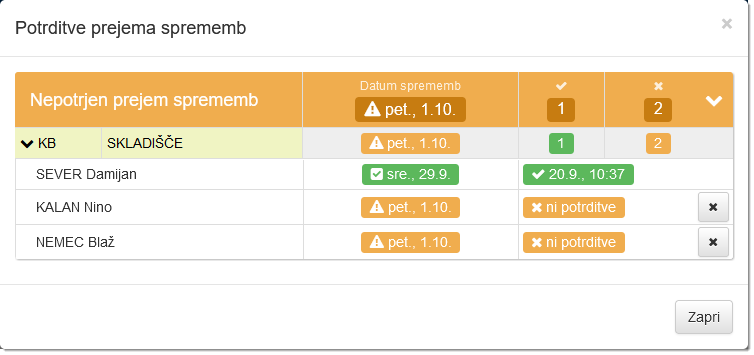
You can remove outdated pending acknowledgments by clicking .
Reverting plan changes
You can also revert plan changes, i.e. revert the shift plan to the state it was in when it was last published.
Selecting Revert all changes or Revert selected changes in the 2 1 Publishing tools menu opens the Revert plan changes dialog, where all plan changes for the selected dates are 3 displayed. In the dialog you can check 4 Revert all changes (if you have selected Revert selected changes the option is not checked, otherwise it is), or 5 Date interval and Employees.
If you want to undo only specific changes, select them in plan and use Revert selected changes, in which case the date and employee fields will be pre-populated.
Clicking Revert will revert the plan changes for the selected parameters; the plan will revert to the state of the last publication.

Comparison of different versions of the shift plan
You can clearly and efficiently compare the different versions of the shift plan (first publication, publications of changes, drafts) by displaying the selected versions simultaneously in adjacent rows.
This can be done in the Publications or Drafts section below, by selecting the relevant button in the toolbar of section 1 or by clicking , shown in the publication or draft 2 bar.

An additional row will then appear in the Plan view, showing the schedule for the selected publication or draft.
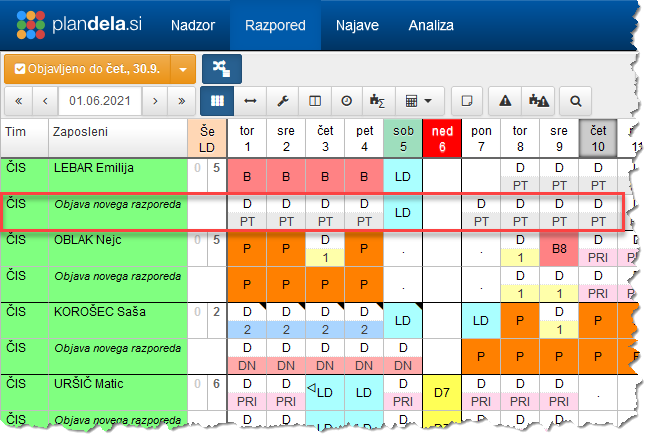
You can also compare more than two shift plans at the same time. Repeat the above procedure for each.
To turn off the comparison, click the button.
Keyboard shortcuts
The frequently used functions of the app are also available as keyboard shortcuts.
Moving around the shift plan
- ALT + ←
- Premakni se en teden nazaj
- ALT + SHIFT + ←
- Premakni se na začetek meseca
- ALT + →
- Premakni se en teden naprej
- ALT + SHIFT + →
- Premakni se na naslednji mesec
- CTRL + F
- Išči v razporedu
- CTRL + S
- Objavi spremembe razporeda
- CTRL + SHIFT + S
- Objavi nov razpored
- CTRL + P
- Natisni razpored
- CTRL + SHIFT + P
- Izvozi razpored
- CTRL + C
- Kopiraj razpored
- CTRL + V
- Prilepi razpored
- CTRL + Z
- Razveljavi akcijo
-
CTRL + SHIFT + Z
CTRL + Y - Ponovno uveljavi akcijo
- CTRL + O
- Išči po izmenah za trenutni izbor
- CTRL + SHIFT + O
- Išči po odsotnostih za trenutni izbor
- del
- Pobriši vnose v trenutno izbranih celicah
- Vnos oznake
- Vpiši predlagan vnos v razpored
- SHIFT + F2
- Uredi zaznamek
- +
- Povečaj min/max potrebe za 1
- SHIFT + +
- Povečaj max potrebe za 1
- -
- Zmanjšaj min/max potrebe za 1
- SHIFT + -
- Zmanjšaj min potrebe za 1
- Vnos števila
- Nastavi najmanjše in največje število zaposlenih na vpisano število zaposlenih
- CTRL + A
- Zaženi avtomatsko razporejanje za izbrane celice
- CTRL + SHIFT + A
- Zaženi avtomatsko razporejanje za celotno obdobje
- CTRL + L
- Zakleni označene celice za samodejno razporejanje
- CTRL + SHIFT + L
- Odkleni označene celice za samodejno razporejanje
- In progress
- Cancelled
- Approved
- Rejected
- Proposed
- Agreed
- Rejected
- Executed
- Rejected
- Current – the current timetable, including unpublished timetables and unpublished changes.
- Published – the timetable as it is currently published to employees (published drafts are not taken into account).
- Originally published – the timetable as originally published to employees (i.e. the first publication).
- Publication or draft – the state of the timetable at the time of the exactly selected publication or draft.
- presences,
- presence events,
- the data collected or
- notes
- duration (time spent in the category),
- number of occurrences,
- share based on the duration of all shifts or
- share by duration of selection (i.e. relative to the filtered categories).
- publication of the new shift plan
- publication of shift plan changes
- warning of unpublished plan
- warning of unpublished plan changes
- new request
-
Basic
The exported tabular format closely resembles the view in the application and supports both employee-based and shift-based exports.
-
General
The export can be customized to meet specific requirements. To implement a solution tailored to your needs, please contact our Support.
- arrival, event means arrival at work;
- leaving, event means leaving work;
- collection, event means the collection of data at the terminal, e.g. to sign up for lunch in company restaurant.
- schedule view (what appears in the cells and details),
- burden,
- registration mode,
- employee constraint sets,
- trigger intervals for notifications of unpublished new or changed schedule and
- information to display to employees, i.e. what content is available to employees via the Registration Terminal or Employee Portal.
- duplicated event interval, i.e. the time during which a second clock-in at the terminal with the same tag is not considered a new one; and
- sequence of display of the first and last name of the employees (‘First Name Last Name’ or ‘Last Name First Name’)
- burden, the duration of the absence is equal to the burden on the absence day;
- time interval, specify the time interval of the absence. If you leave the time interval blank, each time you enter this absence, a window will appear in which to enter it.
- duration, specify a fixed duration.
- duration-to-planning-burden difference - the difference between actual work and planning burden is taken as a compensation;
- duration-to-planning-burden difference when no shifts - the compensation is taken as a planning burden if no shifts are entered on the given date. In the case of an absence entered, the difference between the planning burden and the duration of the absence is taken into account in the compensation;
- planning burden, when without assignments contributing to the balance [starting in the day]
- planning burden, when without assignments with duration [in the interval 0:00– 24:00]
- absence-duration-to-planning-burden difference - the compensation is always taken as the planning burden, except when an absence is entered on the day of the compensation. In such case, the difference between the planning burden and the duration of the absence is taken as a compensation;
- duration-to-accounting-burden difference - the difference between actual work and accounting burden is taken as a compensation;
- duration-to-accounting-burden difference when no shifts - the compensation is taken as an accounting burden if no shifts are entered on the day of the compensation… In case an absence is entered, the difference between the accounting burden and the duration of the absence is taken into account in the compensation;
- accounting burden, when without assignments contributing to the balance [starting in the day]
- accounting burden, when without assignments with duration [in the interval 0:00–24:00]
- absence-duration-to-accounting-burden difference - the compensation is always taken as the accounting burden, except when an absence is entered on the day of the compensation. In such case, the difference between the accounting burden and the duration of the absence is taken as a compensation;
- scheduled-duration-to-presence difference - the difference between the planned duration of a shift and the actual presence when it is longer than planned is compensated. Useful e.g. when managing over-time hours. What part of the overtime will be taken into account is defined by the Source value rounding field.
- presence-to-planned-duration difference - the difference between actual presence and planned duration is compensated. Useful e.g. when managing overtime hours recuperation (the compensation will make up the difference to the planned working time when the presence is shorter than the planned working time). The Source value rounding option can also be used here.
- end-of-day-balance-to-target difference – the compensation automatically adjusts the balance of hours to the target value when there is a surplus or shortfall of hours. Example of use: employees are allowed to have a limit of deviation of the balance of hours to a maximum of +20 hours. In case of a larger surplus, such a balancing will automatically reduce the balance to the set limit.
- 8h per weekday
- 6h40 on weekday and Saturdays
- 184h in January 2018
- 4h per weekday
- 92h in January 2018
- day night cycle (day, night, free, free)
- daily burden according to day type: specify the burden for the day type;
- daily burden according to day of the week: specify the burden on a day of the week;
- monthly burden: for each pair (month, year), specify the time that counts as a burden on the first day of that month; in addition, you must also specify a burden from which to determine the duration for absences, e.g. leave, which must be of the daily type. You must add the monthly burdens in advance, as different years have different months with different required hours of work;
- burden according to assignments: burden for employees is equal to the total sum of durations for all assignments on a given day;
- burden by work cycle: set burdens for each day in a cycle based on start of work cycle. In addition you can also set the cycle of burdens for each team.
- instances when counting whole days or
- duration when counting actual duration.
- annual, which is applicable to most types of leave, or
- custom, where the period can be set freely.
- General
- Assign on approval
- eBOL
- Amend registrations
-
Unused annual leave / counter
Shows the remaining annual leave or other counter for the current and previous period.
-
Balance at the end of the period
Shows the balance at the end of the set period and warns of any discrepancies.
-
Duration summary
Shows the duration of shifts, absences, billing categories, etc., and warns when they deviate from the set target values.
-
Occurrence counter
It shows the number of shifts, absences, billing categories, etc., and warns when they deviate from the set targets.
-
Duration share
It shows the proportion (by duration) of shifts, absences, billing categories, etc., and warns when these deviate from the set target proportions.
-
Count share
It shows the proportion (by number) of shifts, absences, billing categories, etc., and warns when these deviate from the set target proportions.
- minimum rest between two shifts, specify the minimum rest required;
- minimum weekly rest, specify the minimum rest required;
- monthly free weekend;
- working hours limit, specify the period (week, month, year) and the working hours limit for that period.
- other constraints that arise in the work process
- arrival, event means arrival at work;
- leaving, event means leaving work;
- arrival or departure, event means departure or arrival, depending on the schedule;
- auxiliary for presence, the event is available at the same time as the early events, but does not start or end presence;
- available for attendance after attendance registration, the event is available then as collecting events;
- break
- on-duty arrival
- on-duty departure
- offset arrival
- offset departure
- offset duration
- round arrival
- round departure
- round duration
- round arrival per time unit
- round departure per time unit
- round duration per unit of time
- warn early arrival
- warn late arrival
- warn early departure
- warn late departure
- warn too short duration
- warn too long duration
- warn for shift without presence
- warn presence without shift
- warn of mismatch between registration and shift place
- assign shift on presence without shift
- remove presences at the boundary
- viewing published plan,
- viewing unpublished plan,
- changing the plan,
- managing shifts,
- reading teams,
- managing teams,
- managing users,
- managing tags,
- viewing summary reports,
- executeing summary reports,
- viewing daily reports,
- executing daily reports,
- viewing collected data,
- viewing internal notes,
- viewing requests,
- managing requests,
- viewing swaps,
- managing swaps.
- the initial transfer of access rights (after completing the initial configuration),
- ensuring consistency in case of manual or maintenance-related changes in the physical access control system.
- In the browser toolbar on the top right, open
 Menu.
Menu. - Select Settings.
- To extend your settings, select Show advanced settings ….
- Find the storage location settings and specify it by selecting
Change…
- Close the Settings tab.
- Open the Settings menu on the top left
 .
. - Select the General tab and use Browse … in the Download section
to find the location where the files are stored.
- Confirm with OK.
- From the Safari menu, select Safari and then Preferences….
- In the dialog, select the General tab and find File download location.
- Choose where to save your files and close the settings.
- In the browser toolbar on the top right, open Menu.
- Select Tools.
- Select Delete browsing data.
- Tick the checkboxes for the data you want to delete.
- Confirm with Clear browsing data.
- Open the Clear Recent History menu on the top left
- Check checkboxes for the data you want to clear.
- Confirm with Clear now.
- From the Safari menu, select History and then Clear History….
- Select the relevant time period in the dialog and confirm with Clear History.
- Publication of a long-term leave plan. Example: Employees have already scheduled their leave for the summer holidays, but a detailed schedule has not yet been drawn up. By publishing the schedule, you give them an overview of the planned leave dates and the total amount of leave already taken and planned. Once you have a shift roster, publish it to them in the normal way.
- Publication of the indicative long-term plan. Example: You already have an indicative plan for several months in advance, e.g. which days are working and which days are free; you are preparing a detailed plan with detailed shift assignments for the coming month. You can therefore publish the long-term plan as a draft and the short-term plan as a rolling plan in the normal way.
- vnos in urejanje izravnav je v stranskem razdelku iz Akcij premaknjeno v svoje okence
- vnašanje negativnih vrednosti ali z enačajem spredaj je zamenjano z izbiro vrste spremembe
- izravnave so lahko omejene za posamezne time
- lahko so samodejne (npr. po potrditvi določene najave)
- Skupno število pojavitev izmene/odsotnosti na vsak dan
- Delež oddelanih ur posamezne izmene za vsakega zaposlenega v izbranem obdobju
- Število posameznih odsotnosti za vsakega zaposlenega v izbranem obdobju
- Količina izbranega dodatka / obračunske kategorije v izbranem obdobju
- V nekaterih seznamih je omogočeno urejanje ali kopiranje več vnosov hkrati
- Gumbi z akcijami za izbrane vrstice so prikazani tudi v orodni vrstici
- Izbrane vrstice se ohranijo tudi po potrditvi urejanja
-
V Nadzorni plošči
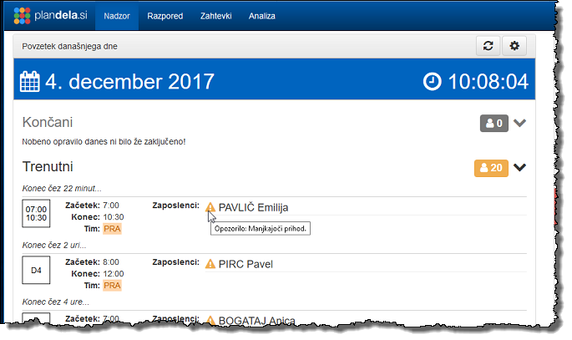
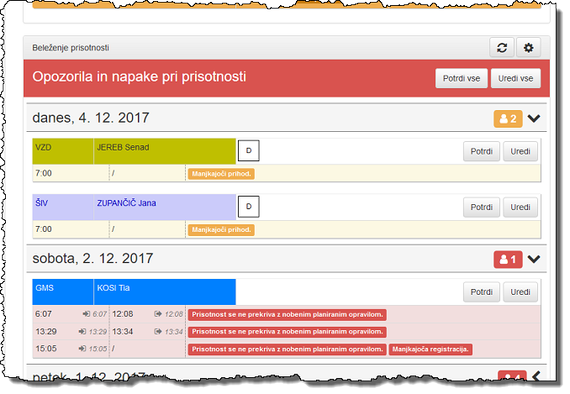
-
V Urejanju prisotnosti
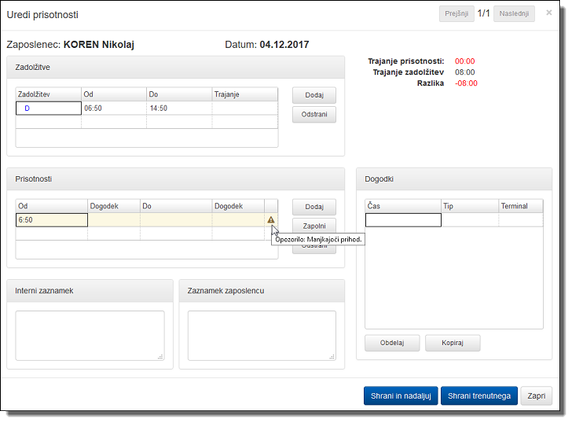
-
V Podrobnostih
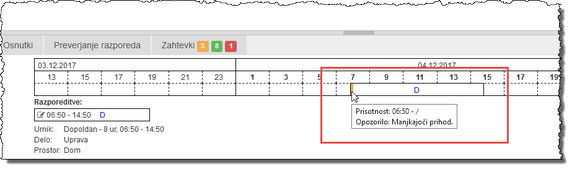
-
Možnost vnosa dve tipov zaznamkov: internega ali vidnega zaposlenemu. Interni zaznamek je viden samo tistim uporabnikom, ki imajo nastavljene ustrezne pravice. Zaznamek zaposlenemu pa je namenjen obveščanju zaposlenega preko registracijskega terminala in portala za zaposlene. Več…
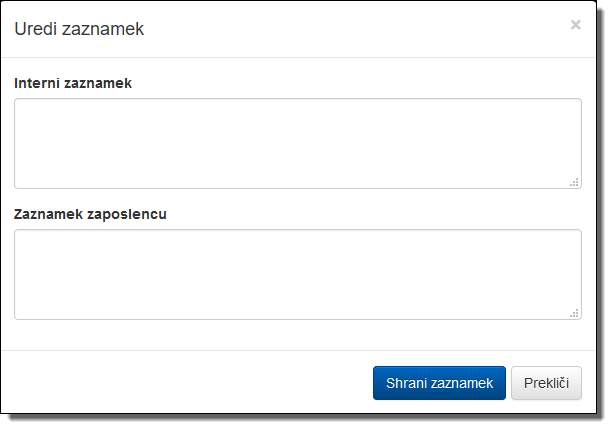
-
Uporabnik lahko, v primeru pozabljenega gesla, tega sam ponovno nastavi s klikom na spodaj označeno povezavo. Dodana je tudi možnost Ostani prijavljen s katero se onemogoči samodejno odjavo.
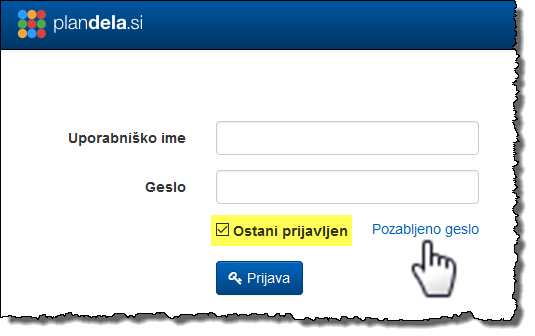
-
Gumb osveži (označen spodaj) sedaj osveži vse potrebne podatke. Osveževanje celotne strani v brskalniku tako ni več potrebno.
-
Poenotena je barvna paleta, zato se je tudi, pri prikazovanju prisotnosti, spremenila rumena barva v oranžno. Malenkost so drugačni tudi odtenki zelene, rdeče in modre barve.
-
V Portalu za zaposlene je omogočen vpogled tudi v razpored celotnih timov, ki se jih določi v nastavitvah (11). Prikazane so samo razporeditve brez ostalih podatkov (salda ur, prisotnosti, opomb, …).
- Hitrejše izvajanje poročil
- Status izdelave poročila je sedaj prikazan s kazalnikom poteka
- Upravljanje kvot je preimenovano v Upravljanje dopustov.
- Poenostavljeno je urejanje dopustov (več podrobnosti v pomoči).
- Dodana možnost kopiranja količine dopusta iz prejšnjega v naslednje leto za vse zaposlene naenkrat.
-
Novosti
Okno Novosti prikazuje pomembnejše dodatke, spremembe in popravke, ki so na voljo v zadnji nadgradnji programa. Okno se lahko z gumbom na dnu seznama začasno zapre in s tem omogoči več prostora za preostala okna. Ob namestitvi naslednje nadgradnje se Novosti ponovno prikažejo.
-
Povzetek današnjega dne
“Povzetek današnjega dne” prikazuje stanje razporeditev in prisotnosti za tekoči dan. Izmene in zaposleni so glede na dejanski in planirani čas združeni po kategorijah Končani, Trenutni, Sledeči in Odsotni. Klik na posamezno kategorijo odpre seznam zaposlenih skupaj z njihovimi razporeditvami.
Time, ki so vključeni v povzetek, se lahko določi s klikom na gumb , ki se nahaja v desnem zgornjem kotu okna.
-
Beleženje prisotnosti
[Ta vsebina je na voljo samo uporabnikom z omogočeno pravico spreminjanja razporedov.]
V “Beleženju prisotnosti” so navedene podrobnosti o beleženju prisotnosti: število planiranih, prisotnih in manjkajočih zaposlenih ter status delovanja registracijskih terminalov.
Time in časovne intervale za zamudnike ter manjkajoče zaposlene se lahko določi s klikom na gumb . V prihodnjih nadgradnjah pa bodo upoštevani dejanski načini beleženj, ki jih imajo nastavljeni zaposleni.
-
Razpored
Hiter pregled razporeda za prihodnjih 14 dni. Time zaposlenih, ki so prikazani v hitrem pregledu, se lahko določi s klikom na gumb .
Več podrobnosti o novi nadzorni plošči je na voljo v pomoči.
- Hitrejše nalaganje razporeda in preklop med pogledi
- Prikaz vertikalnega ločila med posameznimi tipi dni (delavnik, sobota, nedelja, praznik) v razporedu (lahko se tudi izklopi).
- Samodejno zapolnjevanje prisotnosti v primeru manjkajočih registracij. Več…
- V izdelanem poročilu se lahko skrije prazne (neobračunane) stolpce in s tem poveča njegovo velikost pri tiskanju.
- Pri tiskanju pogleda “Po izmenah” se lahko doda pod vsako izmeno poljubno število praznih vrstic, ki se jih potem porabi za ročne zabeležke.
Actions
Requirements
Automatic scheduling
On Apple computers, use the command key instead of CTRL.
Requests
Requests allow employees to communicate their desired vacation dates, announce and approve various leaves and other work-time related preferences and limitations.
Each requests relates to specific employee, a time interval, a request type and a status; in addition, the times of submission and of the last modification of the requests are also stored. The request types can be edited in request settings and the states are represented by colors:
In section 1 Requests you will find a list of requests. The list can be refined using 2 filters in the Side menu where you can specify the period, types and statuses of the requests and the employees by which you want to filter the list. Use Clear filters to reset the filters so that all requests are displayed.
You can sort the list of requests by 3 clicking on the column header you want to sort by; each subsequent click changes from ascending to descending and vice versa.
In the 4 command lines you will find links to create a new request and to display the selected request, to copy the list to the clipboard, to edit the request (also available in column 6) and to print the requests.
Requests are normally entered by the employee via the Employee Portal; however, new request can be entered on his/her behalf by a manager or user with the appropriate rights by selecting New request or automatically downloaded from an external service (e.g. eBOL from the SPOT interface).
To display and discuss the selected request, double-click on it or select the shortcut from the link in the Status column 5.
You can also display the requests in the planning view to help you schedule the work.
If you have set up multi-level approval for requests, it is only Approved when it has been approved at all levels.
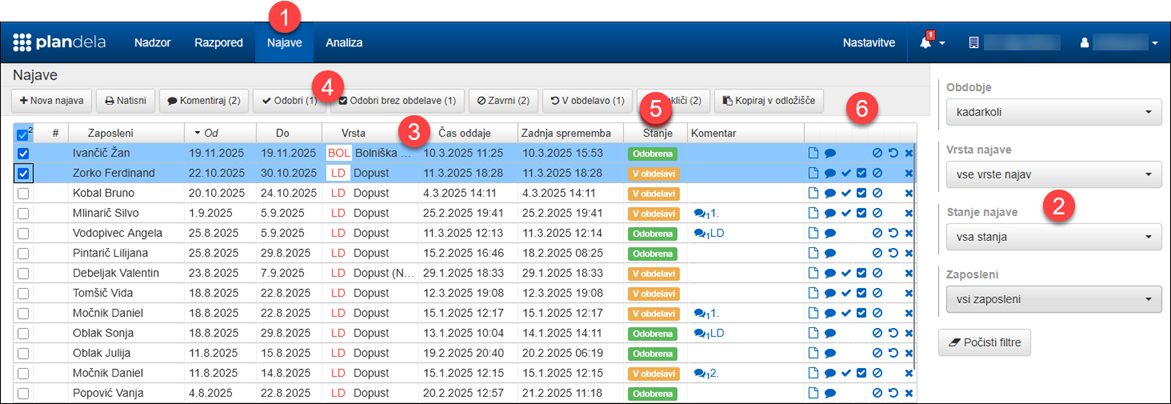
New request
Requests are usually entered by the employee via the Employee Portal, but can be entered on his/her behalf by a manager or user with the adequate permissions using New request under Requests.
In the dialog, enter employee, request type, date interval and any note and create the request using Save.
Select Back to discard request and return to the previous page.
Managing requests
You can access the status of an request by double-clicking on it or by selecting the shortcut link in the Status column under Requests.
All details of the request 1 are displayed: employees, type of request, time interval, information on existing requests 2, current status of the request and any events related to the request 3 (messages, status changes, etc.).
You can comment, approve, reject, resubmit for processing or cancel by clicking on the corresponding button 4. For each of these actions, you can enter a comment 5 beforehand, which is recorded in the request and is also a message to the employee.
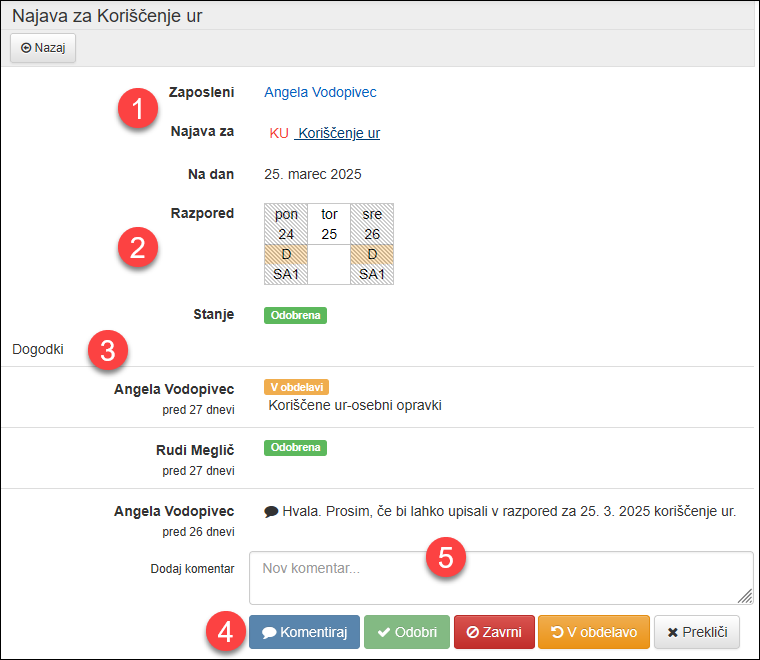
Swaps
Employees can propose a swap of shift with another employee, who can accept or refuse the swap. Schedule managers are either informed of the executed swaps, or approve them individually, depending on the swap settings for the individual teams.
Changes of the swap (which days and employees are included in the swap), and the state of the swap:
In section 1 Swaps you will find a list of swaps. The list can be refined using 2 filters in the Side menu where you can specify the period, the swap statuses and the employees you want to filter the list by. Use Clear filters to reset the filters so that all swaps are displayed.
You can sort the list of swaps by 3 clicking on the header of the column you want to sort by; each subsequent click changes from ascending to descending and vice versa.
In the 4 toolbar you can find the actions you can perform on the swaps.
You can show and manage the swap by clicking Show.
You can also propose, display, approve and apply swaps in the planning sectin.
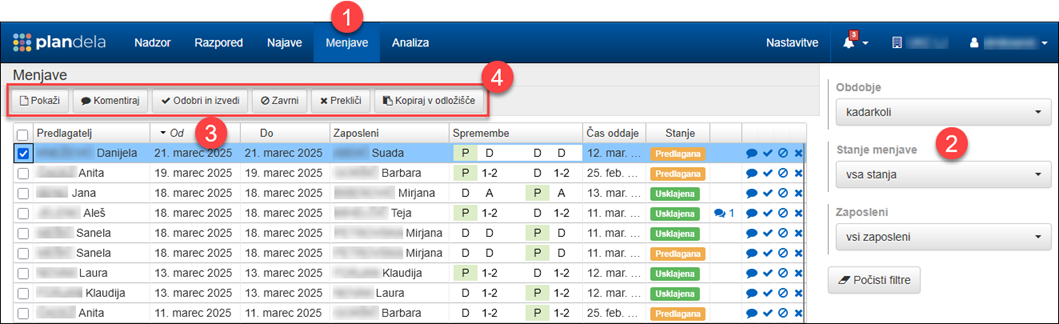
Managing swaps
By selecting Show or link in the Status column under Swaps you can manage specific swap.
All 1 details of the swap are displayed: swap changes, the proposer, the current status of the swap, as well as any planning 2 violations and all swap-related 3 events (messages, status changes, etc.).
You can comment, approve and apply or reject the swap by clicking on 3 corresponding buttons. Additionally you can add a 4 comment which is displayed to all employees involved in the swap.
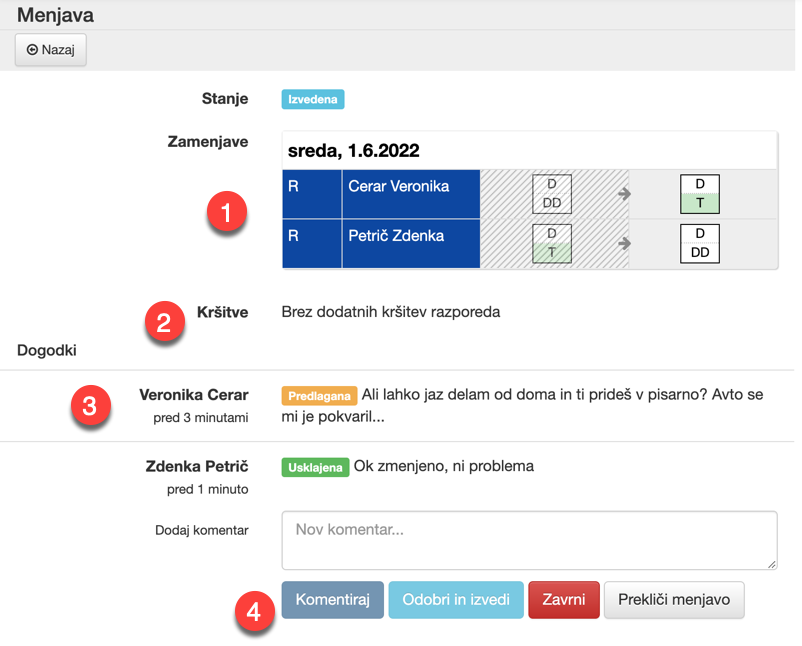
Analysis
Section 1 Analysis contains analytical and payroll tools that allow you to quickly summarise and disaggregate data on planned and realised work over long periods of time.
The following sections are available and can be found in the 2 side menu:
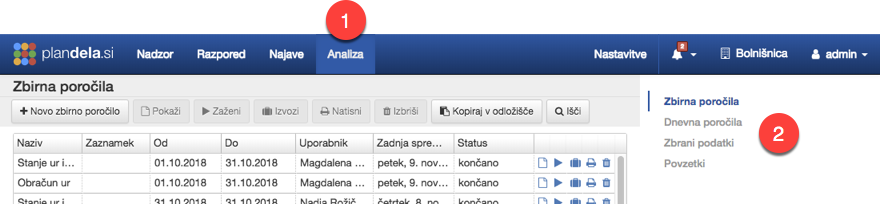
Summary reports
Summary reports aggregate data on employees by time and convert it into a report that contains the values of the configured billing categories for the selected employees or teams in a given period. Examples are billing of working hours and salary surpluses, etc.
V pogledu Zbirna poročila lahko 1 izdelate novo zbirno poročilo, ki se potem prikaže v seznamu že izvedenih poročil. V seznamu so samo poročila, za katera ima uporabnik ustrezne pravice, vsebuje pa podatke o vrsti poročila, časovnem intervalu, uporabniku in času spremembe ter statusu.
You can use 2 commands on corrently selected report:
Show view;
Execute execute; the report is reevaluated, when it is ready it gets value completed in the Status column;
Publish publish;
Export export;
Print print;
Delete delete.
Shortcuts to the commands can also be found in the last 3 columns of the list.
You can 4 copy the full list of summary reports to the clipboard, or you can 5 search through it.
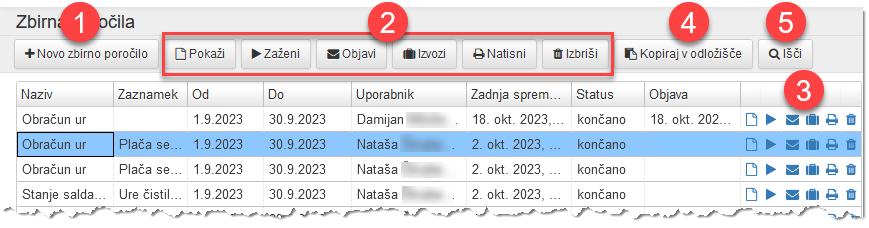
Creating a new summary report
To create a new summary report, use New summary report in list of summary reports.
To create a new summary report, you need to select the type of report and the period for which the report should be created, additionally you can enter a note for future reference. Tick 1 Select employees instead of teams if you want to select employees instead of 2 teams.
If you are selecting employees, only employees who are currently in the team for which the user has permissions are displayed in filter 2.
Select 3 Schedule Type to be taken into account when producing the report. The following schedule types are available:
Save creates a new report that is already being executed; once the report is generated it gets the status finished and can be e.g. viewed or printed.
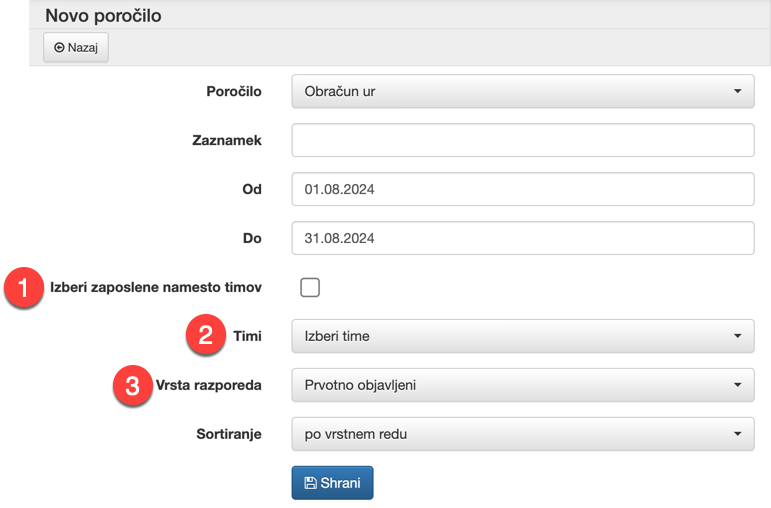
Viewing summary report
You can view the existing summary report; it shows 1 all report data. If the report has a status of completed, the employees and their report values are also shown in 2 the table.
Following 3 actions are available:
Execute reevaluate; when the report is ready, it will display completed in the Status column,
Publish publish,
Export export,
Print print,
Delete delete
or Back to list of summary reports.
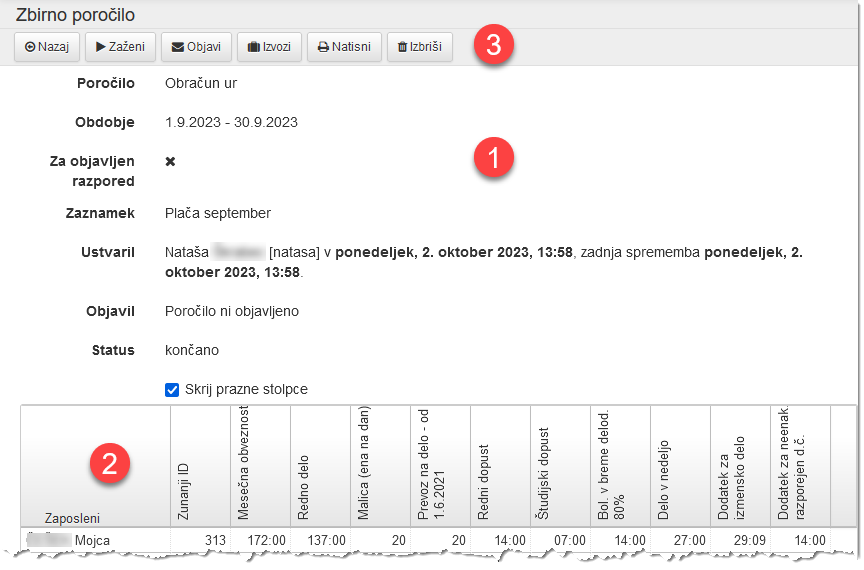
Summary report publication
By Publishing the summary report, you give employees access to the information contained in the report. Employees can view it in the Employee Portal, where they can only see their own data.
You can publish the summary report using print in list of summary reports or Publish in summary report view.
After publication, the employee receives a notification on the attendance terminal and by email.
If you reevaluate the report because of a data change, you need to publish the report again if you want the employee to see the updated data.
You can revert the publication by deleting the report.
Summary report export
You can export a summary report using the export action in the list of summary reports or Export in the summary report view. The report can be exported in a variety of file formats; consult with ShiftPlan for the available export formats.
In the dialog you must select 1 export type and specify 2 file name. The default file download location is specified in browser settings.
Export creates the file.
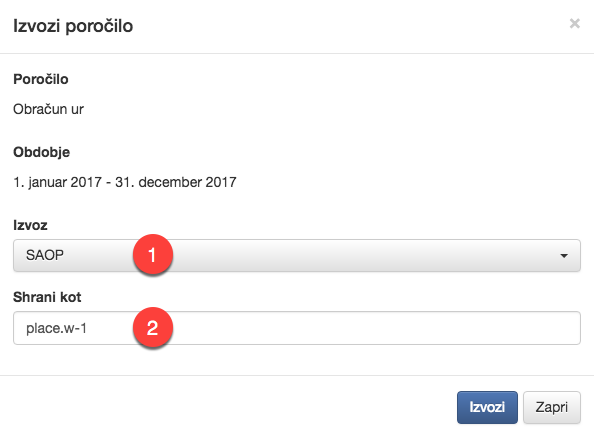
Printing summary report
You can print the summary report using print in list of summary reports or Print in summary report view.
In the dialog, select 1 orientation and 2 page size. If you do not want to print blank columns, check 3 do not print blank columns. If you want to print employees on separate pages, use 4 each employee separately. Option 5 adjust pages adjusts the column sizing so that all columns are printed on the same page.
Print opens a new window or tab in the browser, which determines display and further steps.
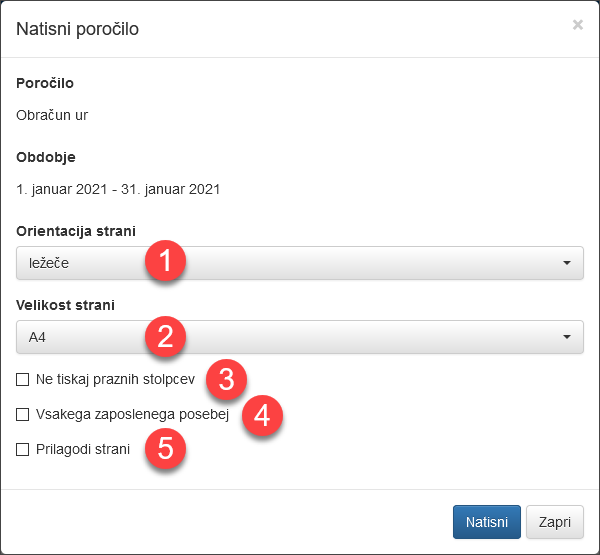
Daily reports
Daily reports are excerpts of specific data for selected employees by day during a period. This data can be:
V pogledu Dnevna poročila lahko 1 izdelate novo dnevno poročilo, ki se potem prikaže v seznamu poročil. V seznamu so samo poročila, za katera ima uporabnik ustrezne pravice, vsebuje pa podatke o vrsti poročila, časovnem intervalu, uporabniku in času spremembe ter statusu.
You can use 2 commands on corrently selected report:
Show view;
Execute execute; the report is reevaluated, when it is ready it gets value completed in the Status column;
Publish publish;
Export export;
Print print;
Delete delete.
Shortcuts to the commands can also be found in the last 3 columns of the list.
You can 4 copy the whole list to the clipboard, or you can 5 search through it.
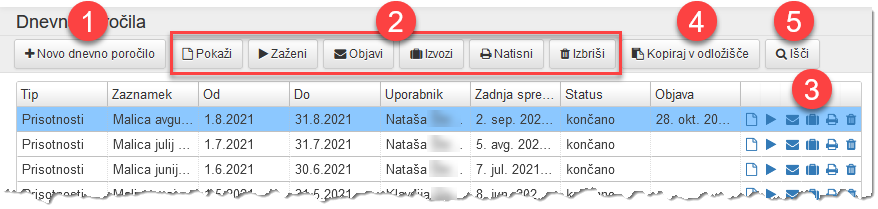
Creating a new summary report
To create a new daily report, use New daily report in list of daily reports.
To create a new summary report, you need to select the type of report and the period for which the report should be created in the dialog, additionally you can enter a note for future reference. Tick 1 Select employees instead of teams if you want to select employees instead of 2 teams.
If you are selecting employees, only employees who are currently in the team for which the user has permissions are displayed in filter 2.
Save creates a new report that is already being executed; once the report is generated it gets the status finished and can be e.g. viewed or printed.
Viewing daily report
You can view the existing daily report; all available report information 1is displayed. If the report has a status completed, the employees and their report values are also displayed in 2 the table. By checking 3 Also show blank days you can additionally show days for which there is no data in the table (for better orientation in time).
With 4 commands you can:
Execute reevaluate; when the report is ready, it will display completed in the Status column,
Publish publish,
Export export,
Print print,
Delete delete
or Back to view daily reports.
Publish daily report
By Publishing a daily report, you give employees access to the information contained in the report. Employees can view it in the Employee Portal, where they can only see their own data.
You can publish the daily report using the operation publish in list of daily reports or Publish when viewing daily report.
After publication, the employee receives a notification on the attendance terminal and by email.
If you reevaluate the report because of a data change, you need to publish the report again if you want the employee to see the updated data.
You can revert the publication by deleting the report.
Export daily report
You can export a daily report using export in list of daily reports or Export in view daily report. The report is exported in CSV format.
You must specify 1 name of the file in the dialog. The default file storage location is specified in browser settings.
Export creates the file.
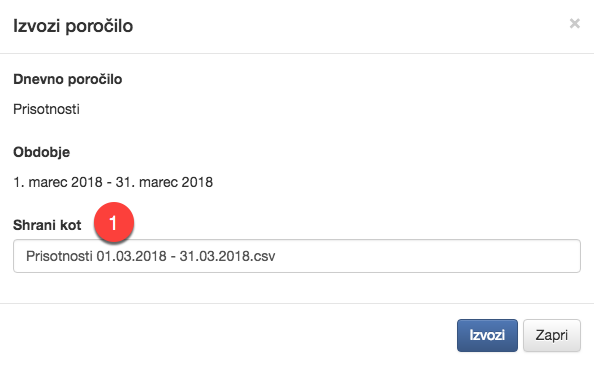
Printing daily report
You can print the daily report using the operation print in list of daily reports or Print when viewing daily report.
In the dialog, select 1 orientation and 2 page size. If you want to print employees on separate pages, check 3 each employee separately. If you want to print also days which contain no data, check 4 show also blank days.
Print opens a new window or tab in the browser, which determines display and further steps.
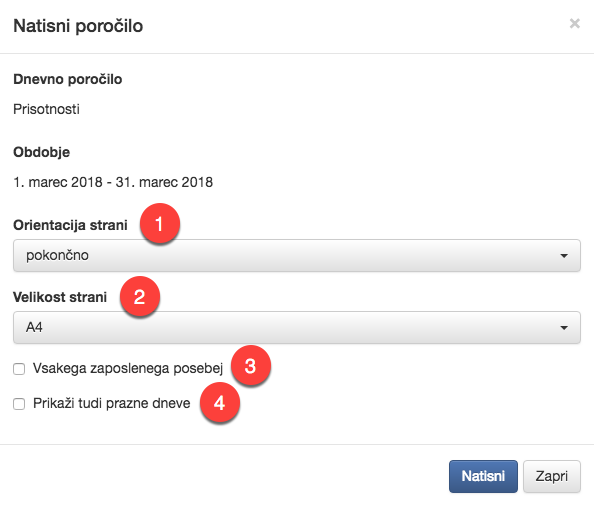
Data collection
The data is collected using registration terminals and the Employee Portal, e.g. for registration of lunch preferences, trips, etc.
1 toolbar provides tools to process the data: you can copy them to the clipboard, search, arrange them into groups, print them, or refresh them.
The 2 filters in the side menu allow you to filter the collected data by period, teams, types and terminals; all filters can be cleared at the same time . After changing the filter conditions, the data is automatically refreshed.
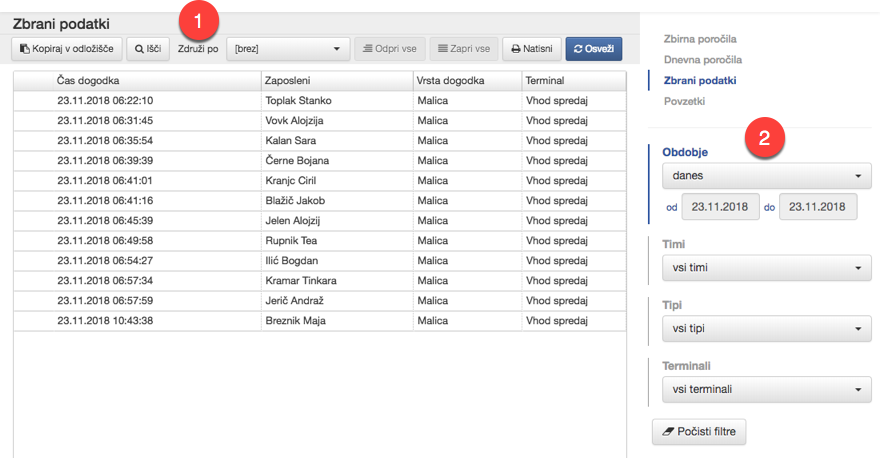
Summaries
Summaries are a tool for analyzing the work process that allows you to quickly and effectively determine time trends and relationships, both at the level of the entire organization, teams, or individual employees. They enable both time-based (daily, weekly, monthly, yearly) and organizational (between teams, employees) comparison of schedules.
1 toolbar offers display settings. Summaries can be displayed as a chart or tabular and the values displayed can be:
All displayed times can be opened and closed at the same time, and tabulated summaries can be copied to the clipboard and used in e.g. Excel.
With the 2 filters in the side menu, you can customise the display of summaries by filtering by teams and period, selecting and filtering the displayed summary categories (for shifts, schedules, places, works, absences, compensations or accounting categories).
V izbranem obdobju lahko napravite povzetke po celotnem obdobju, ali pa združeno po dnevih, tednih, mesecih ali letih; združevanje je uporabno, če vas zanimajo časovni trendi določenih karakteristik delovnega procesa (npr. kako se spreminja delež letnih dopustov skozi leto).
You can further break down the summaries by days of the week, day types, or special days. In this way, the shares are displayed only for the selected types of days; e.g., only for Saturdays, Sundays, or selected holidays.
All filters can be cleared at the same time. After changing the filter conditions, the data is automatically refreshed.
By 3 hovering mouse over the value label, all the equivalent values in the chart are highlighted and numeric value for each of them is displayed.
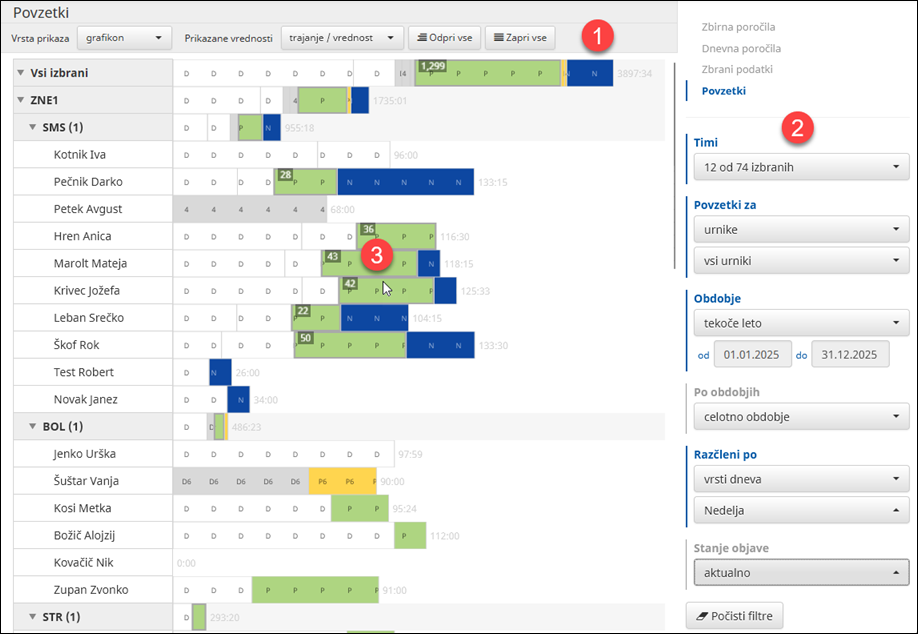
Example: duration of sick leave by month
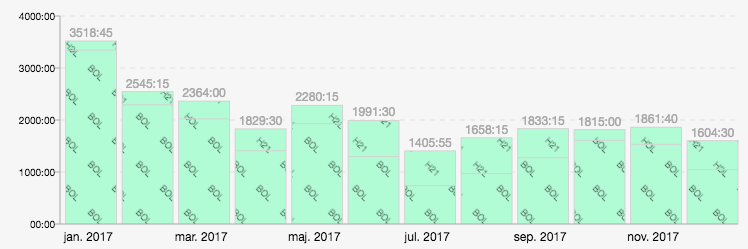
You would like to know how the total duration of sickness absence by month has changed over the past year.
1 In the Displayed values toolbar, select duration.

2 Set the teams filter in the side menu as desired.
3 Set the Summaries for selector to absences and select the relevant sickness absences in the corresponding filter.
4 Set period to the interval you are interested in, e.g. last year.
5 Set the grouping By periods to month.
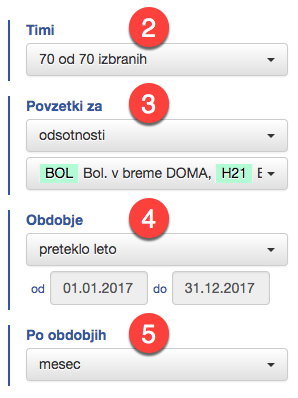
Example: share of annual leave by week in the previous year
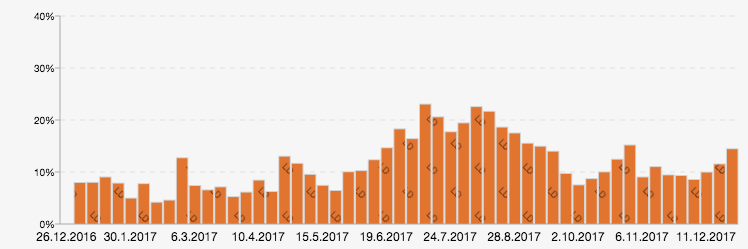
You would like to know how your annual leave has changed over the past year.
1 In the Displayed values toolbar, select share based on duration of all shifts and absences.

2 Set the teams filter in the side menu as desired.
3 Set the Summaries for selector to absences and select the relevant annual leave in the corresponding filter.
4 Set period to the interval you are interested in, e.g. last year.
5 Set the grouping By periods to week.
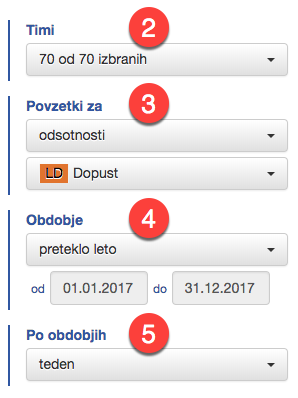
Example: annual leave as a percentage of annual leave for the last few years
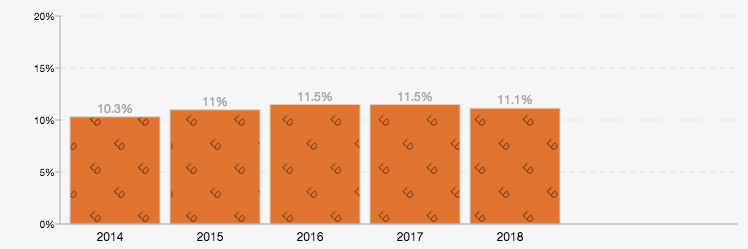
You would like to know what proportion of the total worked hours is annual leave in previous years.
1 In the Displayed values toolbar, select share based on duration of all shifts and absences.
2 Set the teams filter in the side menu as desired.
3 Set the Summaries for selector to absences and select the relevant annual leave in the corresponding filter.
4 Set the period to the interval you are interested in, e.g. the last few years.
5 Set the grouping By periods to year.
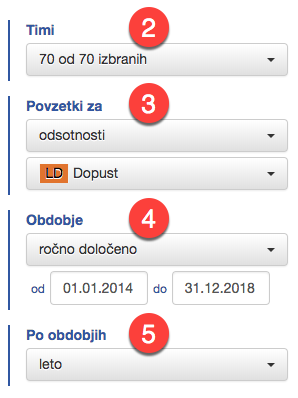
Example: percentage of departmental shift and comparison by employee
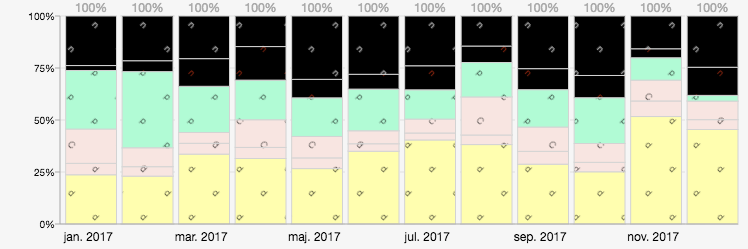
Find out what the ratio of work done is for different schedules in the past year.
1 In the Displayed values toolbar selector, select share of selection duration.
2 Set the filter for teams in the side menu, select the teams you are interested in.
3 Set the Summaries for selector to schedules and select all schedules in the corresponding filter, or select only the ones you want to compare.
4 Set period to the interval you are interested in, e.g. last year.
5 Set the grouping By periods to month.
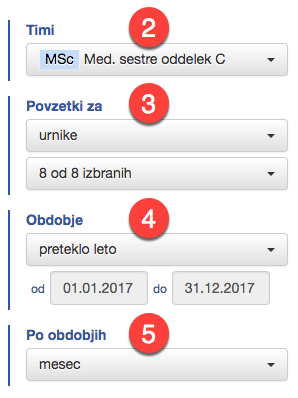
To compare employees by the percentage of worked shifts over the whole period, set 5 By periods to whole period.

Notifications
Keeping up-to-date with key events contributes an important part to better planning and monitoring of the organisation’s work. Notification are delivered either by email and/or in the User Portal. You can currently receive notifications for the following events:
You can set the notification method for each type of event and other notification options in Notification settings in My account.
In the User Portal, notifications can be accessed from the main menu, where you have 1 number in the red box to indicate how many unread notifications are there for you.
The Notifications drop-down menu displays a list of the recent notifications, which in addition to the basic information also contains the time of the event and a link to the subject of the event, e.g. Show unpublished plan. Each notification is displayed on a light blue background if it is unread; it is marked as read within a few seconds and is displayed uncolored from then on. The list of all notifications can be accessed via the 2 Show all notifications link.
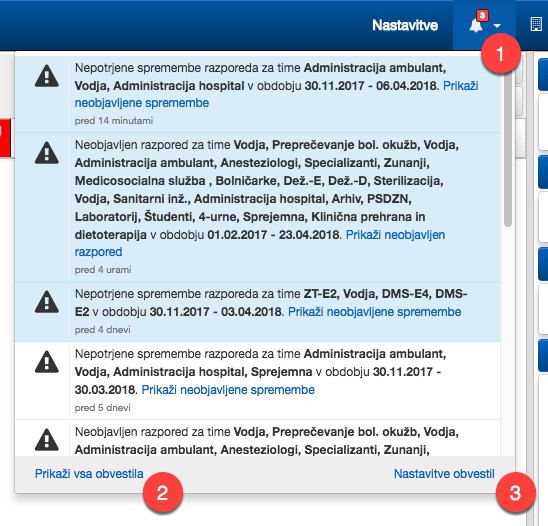
Settings
In the settings section, you can customise the ShiftPlan solution to your needs. Here you will find all the system settings, from defining colors and names for different entities to editing team memberships or tags.
The Settings tab is one of the 1 tabs in the main menu.
In the 2 side menu you can choose between different configurable entities. They are presented either as list of entities with the most important properties listed, or as single entity.
Under title you will find 3 toolbar, which lists all available actions for the current view.

Plan export options
Plan export options allow the plan to be exported in various formats for viewing and further processing in other systems or applications.
The following plan export options are currently available:
Event types
Event types are used for tracking working time and are available as buttons on the registration terminals on clock-in and clock-out.
The event name is listed as one of the options available to the employee when recording on the terminal or when registering online, and the description is displayed when the event is selected. The descriptions may be used to show additional information about the event type and its usage, e.g. maximum duration of the snack break.
In addition to the name and description, you can also specify the type:
The logic between different types of events in set in registration_modes.
In addition to the usual operations, you can order event types in list; this is how you order the selection buttons on the registration terminal.
List
Most entities in the app are contained in a corresponding list. It lists the most important properties of the objects and, in the 1 rightmost column, the actions on them, e.g. displaying properties, editing or deleting. All possible operations are listed in properties.

Toolbar
The Toolbar contains the actions for the list that are available in the selected view:
New item creates a new entity.
Expand all expands all items in the hierarchy.
Collapse all collapses all items in the hierarchy so that only those at the first level are displayed.
Copy to clipboard copies the list to the clipboard for use in other applications.
Search opens/closes a search bar that you can use to search the list.
Edit order allows you to edit the order of items in a list.
They also have actions on selected entities in the list; these are listed in properties.
Filter rows in a list
In the search bar, you can turn on list filtering, which hides all rows that do not match the search string.
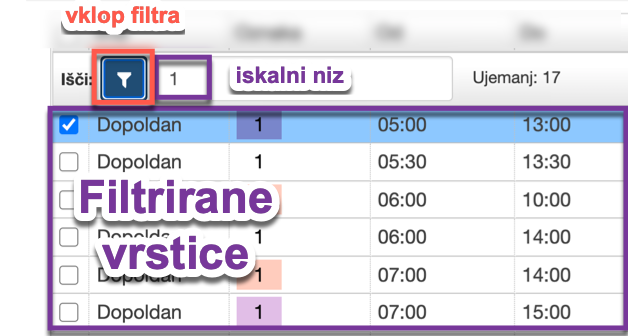
Managing multiple entities at the same time
In the list of some entities, e.g. teams or employees, you can manage multiple selected objects at the same time, i.e. perform operations on the selected entities that are listed in the properties. For example, you can delete multiple objects at the same time, copy them, or edit their common properties.
If the entity has multi-edit enabled, the first column of the list 1 is the selection column. To select the first object, click on a row in the list; use the SHIFT key and click select to expand from the last selected object to the currently selected object; use the CTRL or Command key and click to add or remove items from selection. You can also use the 2 checkboxes in each row to make a selection. In the list header there is 1 checkbook showing the number of currently selected entities; you can select all or deselect all with the given checkbox.
Perform action on the selected entities by clicking it in the toolbar. For some entities, e.g. employees, actions on the selected entities are grouped into a dropdown 3 Manage .
Depending on the selection of entities, individual actions may be unavailable, e.g. you can copy multiple selected shifts but not multiple employees.
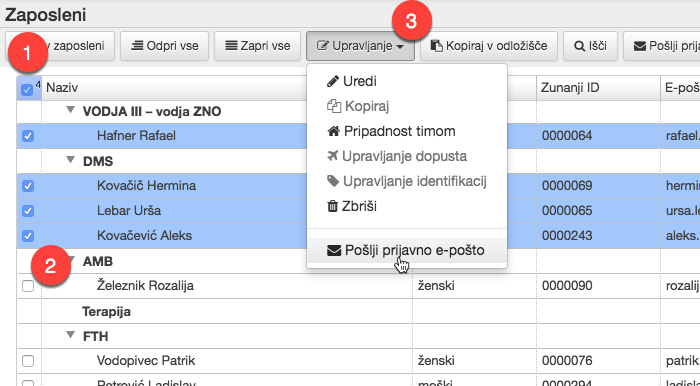
Editing the order of items
If the order of the elements is important for the entity, e.g. for display in a plan, there is Edit order in the toolbar. When you click it, it disappears and 1 column with handles for editing the order appears in the list on the far left. Use your cursor to grab the handle in front of the item you want to move and move item 2 to the desired position. When you release the handle, the item will move; the dark blue line indicates the position to which the item will move.
If the items are hierarchical (e.g. teams, employees), you can sort the elements only within each level of the hierarchy. To move between levels or branches of the hierarchy, use entity editing and assign an ancestor to the element, or team assignments for employees.
Save order appears in the toolbar when you change the position of at least one item; use it when you have set the position of all the items.
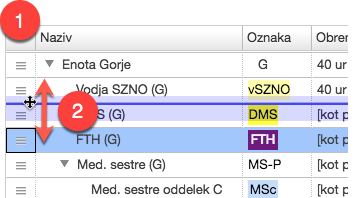
Editing the order of employees
By default, employees are always shown under their current primary team. An exception applies to those who are either about to join the company or switch teams and already have a future team assignment defined. These employees are displayed under the team they will belong to at that time.
If you need to adjust the order retroactively, change the date in window 1 to the desired display date, and then reorder the employees accordingly.
The list can also display employees based on their 2 assignments to secondary teams, for which the display order can also be managed. This ordering applies only within secondary teams and does not affect how an employee is ordered within their primary team!
Attributes
You can display the properties of an entity by selecting the entity in settings lists, or via shortcuts in other views (e.g. planning view).
Toolbar
Toolbar contains actions available for the selected object. Most of them are also available in the rightmost column in list.
Edit for editing properties of an entity.
Back returns to the previous page.
Add adds entity in the hierarchy under the selected element.
Duplicate creates a new entity which is a copy of the selected one.
Team Assignments manages the team memberships of the employee.
Leave and counters Manage employee leave and counters.
Manage tags assigns identifiers to the employee.
Send registration email sends a registration email to user or employee (if not already registered).
Reset Password sends a password reset email to user or employee.
Delete removes entity (in history, e.g. in a schedule plan, the entries are kept as-is).
Editing the properties of an entity
You must set the properties of an entity when you create a new object. You can of course edit or modify the properties of existing entities.
Once you have entered and edited all properties, save them using Save, which is always located below all properties.
In case of errors in the data entered, the relevant fields will be highlighted in red and a description of the error will appear below them, e.g.:

If you do not want to confirm the changes, select Back.
Teams
Teams are hierarchical groups to which employees are assigned at different times. You assign employees to teams in the employee settings.
You can order teams for the purpose of displaying them in plan, etc.
Assign a name and a label (short name) to each team, which is used for display in combination with a color.
Poleg tega se timu lahko določi lastnosti, ki se dedujejo po hierarhiji timov oz. organizaciji.
Team reassignments
Teams are hierarchically organised groups of employees, where an employee’s team membership is time-bound and set for each employee individually. Occasionally employee must be temporarily transferred to other teams; for this purpose, team reassignment is used.
The settings for team reassignment are simple: for each team, specify teams to which that team’s employees can be reassigned.
General settings
Employees have some traits that are inherited across teams. For example, you can assign a trait to the whole organisation in one place (e.g. commitment 5 x 8h/week), a different trait to a team (e.g. commitment 6 x 6h/week) and a different trait to an employee (e.g. commitment 5 x 4h/week). The rule is that the property closest to the employee shall prevail, i.e. first if it is assigned to the employee, then to his team, then to the team’s ancestors, only if it is not assigned to the employee or to any team in the chain of ancestors shall the value specified in the general settings be used.
These properties are:
In addition, set:
Employee
Employees are listed in the list and grouped by their current teams. At the bottom of the list, those who are not assigned to any team as of the current day or later are shown under other unassigned.
In addition to standard operations, you can send a sign-up email in list to all employees who have an email address defined and have not yet signed up to the Employee Portal. You can also adjust the order of employees for use in plans and other views.
As a general rule, do not delete employees. Instead, simply end their team assignment and tag assignment. A deleted employee is no longer available for any analysis or reporting, and in case of a potential return, all existing scheduling data would be lost.
When you a add a new employee, you also need to assign their teams, and possibly tags and annual leave quota.
Employees can use the Employee Portal.
Team assignments
Employees are assigned into teams based on organization’s work process; members of the same team generally work the same shifts.
An employee’s primary team is the team in which the employee usually works. To be available for assignment on a particular day, an employee must have a designated primary team on that day; primary team assignment must not overlap.
However, an employee can also be assigned to several secondary teams at the same time; this means that they can also be assigned to shifts in these teams by users with rights to these teams. An example of use is separate on-call teams, where only some employees from several different teams are on-call and are assigned to these teams by the on-call manager.
When editing the team membership for an employee with Add, you can easily add a row with the details of the team and time interval the employee belongs to the team; you need to specify this in the primary teams section and, if necessary, also in the secondary teams section. The time intervals for the primary teams must not overlap with each other. Cells can be edited and rows can be removed.
Use Save when you finished edits; use Back to discard the changes.
Annual leaves and counters
You can edit the employee’s annual leaves and counters using the link in the list or Annual leaves and counters in the employee’s properties.
Edit tag assignments
For the attendance tracking, each employee has a tag to register the various events on the terminals. The tag assignments of an employee are time-dependent.
When editing employee tags with Add, you can easily add a row with information about the tag and the time interval during which the tag belongs to the employee. The time intervals must not overlap, i.e. no more than one employee must have same tag on a given day. Cells can be edited and rows can be removed.
Use Save when you finished edits; use Back to discard the changes.
Employee Portal login
Employees who have entered an email address can access information in ShiftPlan via the Employee Portal. Access to the portal is granted to employees by sending a login email; the recipient receives the instructions in the inbox on how to create an account and access the portal.
In case the employee forgets his/her password to access the portal, use Reset password in the employee’s properties; the employee will receive an email with instructions on how to reset his/her password.
Annual leaves and counters
Editing annual leaves and counters displays all counters of 1 selected counter type for 2 selected period. The selectors allow you to view the leave and counters for all employees in one place; the counters for the selected period and the previous period are displayed, including the number already used and any expiration date (if different from that specified in counter type, e.g. for annual leave for returning employees after maternity leave).
You can 3 edit the selected counter and period as a whole, or 4 edit each employee individually, i.e. for all counters and periods of one employee in one place.
Editing in the list
After clicking 3 edit, it is possible to set the quota for the selected period and expiration date directly in the list; use the cursor to select a cell and edit the data.
Clicking Copy from previous year will populate the list with the quotas as set for the previous period. Useful in case you want to fill the quotas for all employees, e.g. if you are adding quotas for the next year.
Use Save when you finished edits; use Back to discard the changes.
Edit for individual employee
You can also edit annual leave and counters for an individual employee, either by clicking 4 in the list of leave and counters, or by clicking in the list of employees or Leave and counters in the employee’s properties.
With Add, you can add an entry for each counter with year, quota and you possibly expiration date. For existing entries, the quantity already used is also displayed.
Use Save when you have edited all the employee’s counters; use Back to discard the changes.
Shifts
A shift is a combination of schedule, work and place, describing when, what and where a shift is to be worked.
The shifts are arranged in a hierarchical list of teams that they can be used in. The works and places of a shift have teams assigned; the teams common to both are thus the teams that can perform the shift. If there are no teams in common (and therefore the settings are invalid), the shift will appear at the bottom of the list in the [currently unassigned] category.
Shifts must have a schedule, work, place and a validity interval. You can also specify validity by days; these can be specified by selecting day types or days of week.
To customise the display, you can configure the display of the cells of the plan and emphasize separator in shift view.
You can assign a specific registration mode to an shift, which may be different from the one for the employee.
Shift ordering
In the linear list, all shifts are listed in the order currently defined. In the view, you can edit the order of shifts, for the purpose of displaying them in pickers, schedules, etc.; you can also view and edit the properties of individual shifts.
Schedules
A schedule indicates when an employee is expected to work during a shift.
In case the from-to interval is not specified, each time you enter this shift, a window will appear in which you have to enter it.
Duration is used instead of from-to interval duration if specified.
If actual presence should not affect shift duration, check ignore presence for duration.
When displaying in shift plan table schedule label and specified colors are used, and possibly also time interval of the schedule, depending on display in plan setting.
If multiple shifts with different schedules for different day types should be treated as equivalent, you must set equivalent schedule to corresponding schedules. Which schedule should be used for display is determined by use for display of equivalent schedules option.
Assigning of shifts with given schedule can be limited only to employees with one of the burdens selected in available for employees with a burden.
Whether shift with schedule affects hourly balance and counters is determined by Adjust balance and Adjust counter options.
Places
Place indicates where an employee is expected to work during a shift.
When displayed in the plan, the place label is used and colored accordingly.
The places are hierarchically organised, you can assign a parent to each one.
Employees from the primary teams of a place will normally work in that place; those from other teams may also work in the selected places. Employees or shifts corresponding to other teams’ places appear in a separate list in the shifts or employees plan.
Works
Work refers to what an employee is expected to do during a shift.
In the plan, the label of the work is displayed and colored accordingly.
Only the teams you designate can be assigned to the shifts with the work.
To limit which employees can be assigned to shifts for the work, specify the skills that employees must have.
Assignment filters
Using filters in the plan, only certain shifts and absences are shown and all other shifts are hidden. Additionally, they also allow the display of daily summaries and plan summaries in the plan, which only count the shifts and absences specified in the filter. They can be used both in the by-employee view and in the by-shift view.
You can specify which shifts and absences are included in the filter and for which teams the filter is available. You can also specify the skills that employees must have to be included in the filter.
Additionally, you can specify if filter teams are automatically selected in the view when you select a filter. The filter can also reset the display of cells in the view by employees. E.g. if the default for a particular shift is to display schedule and work in a cell, the filter can change this setting to display only schedule.
Filters can also be used to specify the requirements in the planning context, i.e. the number of employees that need to work a certain combination of shifts from the filter, as well as whether listed assignments should be displayed in Shift view in the Employee Portal.
Requirement templates
Requirement templates determine the staffing requirements for each type of day. They allow quick and easy entry of requirements in the roster, where the entries for each day are determined by the type of day.
The classification of days in the template is part of the system settings of the application, and is defined by the Requirement prediction. The classification can be very simple (e.g. just separating into workday / weekend), or it can distinguish days according to arbitrary date and other criteria (e.g. separating Mondays separately, 1st days of the month, etc.). Several different Requirement predictions (i.e. day classifications) can be set up. In this case, when preparing the template, it is also necessary to select the Requirement prediction to be used for the day classification.
When editing the template, you can enter the min/max number of employees required for each type of day from the classification for all shifts that have requirements entry enabled.
You can also fill in the template based on an existing timetable, by identifying the daily requiurements currently entered for each type of day.
A single day can correspond to more than one type of day (i.e. template columns) at the same time. E.g. in a classification that distinguishes between 1st day of the month and Monday, the selected day can be both at the same time. In such a case, when using the template, the requirements are entered in the order of the classification (i.e. in the order of the columns in the template), where later entries overwrite earlier ones.
Assignments
Absence is used in the plan to refer to the day, or even a specific time interval in the day, when an employee is absent from the organisation. Examples of absences are annual leave, sick leave, etc.
The absence label is used in the timetable and colored accordingly.
You can restrict the absences to the teams and day_types to which they apply.
In case employees have a counter for this absence, specify it by selecting counter type.
If the absence can replace currently assigned shift, use the Replaces existing option. Such absences are e.g. sick leave, where the rule as if you were working applies, i.e. the sickness absence applies to the same interval as previously scheduled work.
For planned absences, you must specify the source of duration, which can be:
When scheduling, an absence can be automatically replaced by another absence in case of zero duration - option Use absence when no duration. E.g. annual leave can be automatically replaced by a day off when it has zero duration - i.e. for weekends and other days when the employee has no work commitment. In combination with the Replace existing option, you can thus mark a longer period in the schedule and change all working days to the corresponding absence, leaving the days off unchanged.
Whether shift with schedule affects hourly balance and counters is determined by Adjust balance and Adjust counter options.
In addition to the usual operations, you can order absences in list; this will sort the absences in all selectors, e.g. in absences pane.
Skills
Skills (via work) determine which employees are suitable to perform a specific shift.
Skills are hierarchical, you can assign a parent to configure ancestry.
Compensations
Compensations are used to change the balance of working hours or individual counters, either automatically or by user input. Automatic compensations is mainly used to determine holiday allowances, while manual compensations is used for arbitrary balance adjustments, counter adjustments, overtime payments, etc.
If the compensation is entered by manual entry, the value source option must be selected in none (manual entry).
Automatic compensations are created automatically according to predefined rules, i.e. the value of the compensation depends on the value source:
Compensation action on balance and counters is set by Adjust balance and Adjust counter fields.
If you are unsure about the type of compensation or the shifts that do not count towards the balance, please consult our support.
In addition to the usual actions, you can set order in list.
In the properties of the offset you can specify the name, label, color (for display in the schedule), value source (see above), teams to which it applies and day types (on which the compensation can or must be applied).
Compensation can be displayed as a supplement (with a color marker in the top left corner of the cell) or as an assignment (in the plan next to the existing assignment).

Burdens
A burden (or work obligation) describes an employee’s contractually agreed working time, and specifies the number of hours of work per day that the employee is expected to do in order to fulfill his or her contractual obligations to the employer.
The solution further distinguishes between accounting and planning burdens. The accounting burden determines the number of working hours to be charged to the employee as regular work in the selected period and also determines the employee’s current balance of hours. The planning burden, on the other hand, determines the agreed rhythm of the employee’s work, on the basis of which leave, other absences and holiday pay are normally granted.
The burden simultaneously provides for both billing and planning obligations. Unless specifically stated, both burdens are identical. Alternatively, another burden may be specified separately within the burden setting to be used as the planning burden.
Additionally, a team can be assigned properties that are inherited by the hierarchy of teams or organisation.
Examples of burdens are:
You can set the burden on individual days with different types of burden:
For new burden, select the appropriate type of burden you want to create in the toolbar. You cannot change the burden type of an existing burden.
In properties you can change the title and the burden for the duration of absence (for monthly burden) and modify and add entries for different types of categories (type of day, day of the week, month-year).
Counter types
Counters are used to limit and monitor usage of various absences, overtime, etc.
When counting absences, you must specify in absence properties which counter should be adjusted and whether it is decreased or increased when assigned.
Counters can also be used for managing overtime. To specify how counter is increased or decreased, set how it is adjusted in corresponding schedule properties or compensation properties.
The counter has a specific count type, i.e. what the quota is expressed in; use
Counting period can be
With each period start, an initial balance is added to the counter, which you specify in annual leaves and counters or employees;
If the counter type has a counter expires, it means that the unused balance of the counter expires in the next period after the date specified in the counter type. If no date is specified, the counter expires on the last day of the current period. You can change the expiration date for individual periods in annual leaves and counters.
With the option Use only for non-zero duration, the counter is not reduced when the duration of absence is zero.
Allow overflow allows the counter to consume over a certain threshold, with the app only giving a visual warning of the overflow. This allows the assignments to be entered even if the counter does not yet have a defined initial state during the entry period.
Reduce with usage determines which way the usage is directed. If this counter is decrementing, then it is consumed from the initial state to zero, otherwise the consumption is counted from zero towards the value available.
Request types
Requests are a tool for employees to participate in the planning and scheduling of work in the organisation, or they are used to record and display the status of data obtained from other sources.
The use is defined by Request Type 1 and can be:
All request types have a specific name, tag and colours 2. The color code indicates the cells of the schedule when displaying request within a shift plan.
Info for Employee 4 is a more detailed description of the request that will be shown to the employee upon submission.
Validation (calculation) 5 serves as an extension point where the system administrator can set arbitrary constraints that must be respected at the time of submission. In this way, you can restrict the conditions under which employees can submit a particular request (e.g. an request can only be submitted until the 15th of the current month). To configure these restrictions, please consult our Support.
The request can be set to apply only to selected teams 6.
Additionally, you can also assign approval levels and approvers to all requests 7, who must approve the request for it to be considered approved. Example: in order for a leave request to be approved, it must be approved by the line manager and also by the manager. The approving user may also designate a deputy to take over the role of approving user in the absence of the approving user.
Requests of type Assign on confirmation have additional actions which are triggered when the request is confirmed .9 At that time, the selected absence, shift or offset is automatically entered in the shift plan. Use option 8 to specify whether the automatic entry overwrites existing assignments.
You can also define additional fields for this type of request for the entry of the time interval from-to or the duration of the shift 10, which the employee fills in before submitting the request. Entry can be mandatory or optional.
If you do not want employees and users to be informed of an request status change, uncheck option 4.
In addition to the usual operations, you can order the types of requests in list for the purpose of displaying them in selectors and view.
Swap types
Swaps are used for trading shifts among employees, enforcing scheduling constraints and staffing needs. Swap type determines the rules regarding the procedure for the swap and the approval of the swap by the employees and the scheduling managers. The type of swap may be set for the whole organisation, or for individual times.
Day types
Each day has a specific day type; this can be used to e.g. restrict the choice of shifts, calculate the correct compensations for holiday, etc. The rules for determining the type of day shall be set in days_of_week and special_days.
You can only [order] the day types in list, otherwise you can only view them. To change the settings, please contact the consultant at ShiftPlan.
Days of week
The days of the week are assigned a day type; you can only view the settings. To change the settings, please contact the consultant at ShiftPlan.
Special days
Special days describe days when the day type should be other than one defined by the day of the week. It is usually used to specify holidays and other dates which require specific treatment with respect to the shift plan.
You can only browse specific days in the list and view their properties. To change the settings, please contact the consultants at ShiftPlan.
Plan summaries
Using plan summaries, you can see aggregated timetable data for a longer period of time by employee.
Several types of summaries are available, where each type of summary has additional settings regarding the details of the summarisation (e.g. limits to warn of deviation from target values, summarisation period). You can set label and name for each summary, and you can also restrict their use to specific teams.
The following summaries are currently available:
Employee constraint sets
The plan validation tool checks if the schedule is in line with the employee constraints. The latter are assigned to employees via employee constraint sets via inheritance in the team hierarchy.
A employee constraint set is a set of employee_constraints, which can be used on specific classes of employees.
Employee constraints
The plan validation tool checks whether the plan complies with the rules applicable to employees. The individual rules are grouped into constraint sets, which are assigned to employees or teams.
Employee rules can be of different types:
Tags
Identification tags are used to record working time at registration terminals. Most often, these are RFID cards which employees swipe on the terminal to register.
In list you can all tags and employees to which they currently belong.
The simplest way to enter new tags is at the Registration Terminal by registering; it will appear in the list a few minutes after registration. You can also add them via the settings, where you enter the serial number that is printed on the tag.
In the tag property you will find the serial number and a list of all employees who have ever been or will be assigned this identifier.
Types of attendance events
The attendance event types describe the time attendance events and thus also represent the selection buttons on the registration terminals.
The event name is listed as one of the options available to the employee when recording on the terminal or when registering online, and the description is displayed when the event is selected. The descriptions may be used to show additional information about the event type and its usage, e.g. maximum duration of the snack break.
Besides the name and description, you can set the button color, choose an icon, and select the event type:
The logic between different types of presence events is configured in registration_modes.
In addition to the usual operations, you can order event types in list; this is how you order the selection buttons on the registration terminal.
Types of collection events
Collection event types describe data collection events (e.g. check-in for snack) at the terminal and do not affect the recording of attendance. They also represent selection buttons on the terminal.
the event name is the choice made by the employee when recording on the terminal or when registering online, and the description is displayed when the event is selected.
Besides the name and description, you can also set the button color.
In addition to the usual operations, you can order the types of aggregation events in list; this is how you order the selection buttons on the registration terminal. The summary events will always be displayed after the attendance event types.
Registration modes
The registration mode is a set of rules that convert time registration events into presence at work and add possibly add alerts. Examples of registration modes are flexible time, mandatory attendance, etc.
The registration mode can also assign shifts automatically; for this purpose, use the automatically assign shift option. With such registration mode, if an employee does not have any entry in the schedule on the day of clock-in, the system will find the most appropriate shift for that employee and automatically assign it.
Assign a chain of attendance and alert transformations to the registration mode. When a registration event is processed, it is transformed according to the rules from the beginning to the end of the chain; therefore, the order of the transformations is also important.
Add a new transformation to the list by selecting the type of transformation in the Add transformation selector and clicking Add. Once you have added a transformation, you set the parameters and then specify its position in the list; by and to move the transformation higher or lower in the list; to remove a transformation, use .
You can use the following transformations:
Web registrations
Employees record arrivals and departures using the Employee Portal. Web registration also allows time and attendance to be recorded where the use of registration terminals and cards is impractical, e.g. for a large number of small worksites and when working from home.
You can only enable web registration at specific locations (networks) or on specific computers and smart devices. The same attendance rules apply as for the registration at the terminal.
Restriction registration to the network
You can only enable registration for devices that access the web through a configured network, e.g. your organisation’s network. This way, they can clock in using a computer at work, but also using their mobile phone if it is connected via your organisation’s wireless network; however, if the mobile phone is connected via the mobile operator’s data connection, clocking in is not enabled.
To restrict to a network, enter the external IP of the network in the IP Filter field.
Restricting registration to devices
You can also restrict online registration to specific devices. For example, you can only allow registration from selected computers in certain places.
To restrict device access, tick the Restrict access with certificate option in the edit properties of the online registration. You will then need to install a digital certificate on each device you want to enable; this can be obtained in the Web Registration view by selecting Download certificate. The password of the digital certificate is also listed next to it, and the serial number of the certificate is also available for authentication. On the device on which you install the digital certificate, you must ensure that employees cannot download the certificate to other devices.
Terminals
The Registration terminal is usually installed at a common point of arrival or departure from the organisation. Each organisation may have several registration terminals installed, e.g. in different buildings, entrances, etc.
You can configure individual terminals in the app and check their performance.
Terminal management
You can assign a title to the terminals, which will be displayed when you register your employees. The serial number and authentication token required to communicate with the terminal are also displayed.
Activate Report non-reporting if the terminal is in normal use and is expected to be on all the time. Deactivate the option when the terminal is not yet in use or is no longer in use. Regardless of this setting, you can view the Terminal Status in Control in the application, which shows when the terminal last reported and how many registrations it has recorded in the current day.
The terminal usually connects to the server via a wired connection. If the connection fails, a WiFi connection is available. In this case, someone physically on the device must select the WiFi network and enter the WiFi password. Only authorised personnel can access the network settings, so the terminal requires a PIN to establish a WiFi connection.
Terminals configuration
You can bind each terminal to one or more places.
You can also configure a terminal to offer all event_types, or only registration, collecting, or limit it to specific event types.
Users
Users have access to the User Portal, through which they participate in the process of planning, monitoring and analyses of past worktime.
In addition to the usual operations, you can use list to send a login email to all users who have email address specified and have not yet logged in to the User Portal.
You can change an individual user’s first and last name, email address and the ability to unlock and lock the schedule in properties.
Team roles
You can assign different team permissions to individual user. With roles you define what permission given to a role, which then can be applied to user in relation to the teams.
Team role is defined by its name and permissions:
Regular users can add or edit other users and their permissions within their own teams, provided they have been granted the User management.
User permissions over individual teams are also displayed in the user table, making it easier to review which team-related permissions have been assigned.
Execution of system actions on teams for users
Users with team management rights can perform selected system actions on the teams they have access to. These include: reverting shift plan publication, refreshing employee constraint violations and refreshing calculated accounting categories. These system actions are available in the team settings.
Access control
With the Access control module, the ShiftPlan solution allows you to define employee access rights and identification credentials for integration with an external physical access control system.
Managing access rights is made very simple: when a new employee is added to the ShiftPlan solution, assigned to a team, and issued an ID card, physical access is automatically granted to the areas the employee is required to have access to. Access rights are also automatically updated in case of a team change, card replacement, or termination of employment.
To implement the access control module integration, please contact our support as well as your physical access control system provider.
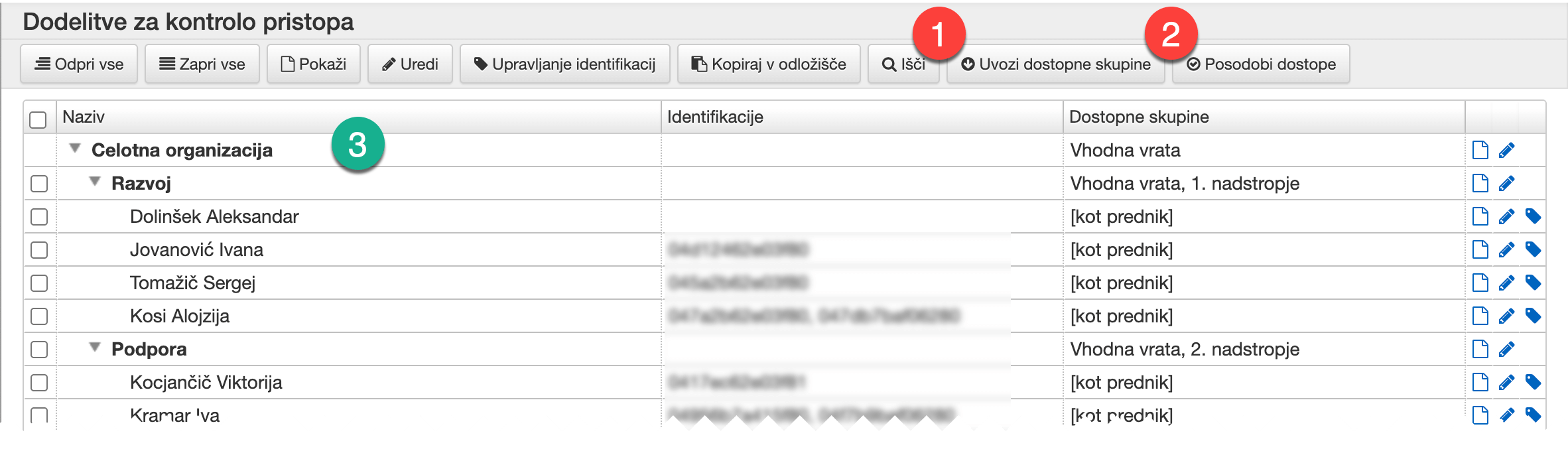
Access groups
An access group represents the basic unit used to define access levels for individual employees. Each access group can, for example, include all doors on a specific floor of a building or all access points at a particular location.
Access group configuration is defined within the external access control system. Upon user request, access groups can be imported at any time using the 1 Import Access Groups button. Once imported, the access groups are available for assignment to teams or individual employees.
Access group assignments
Access groups can be assigned to all employees in the company, to individual teams, or directly to a specific employee. The team and employee hierarchy is displayed in the assignment table 3. If no explicit access group assignments are defined for a particular team or employee, assignments are inherited based on the team hierarchy.
Synchronization of access rights
Access rights and identification (assigned access cards) are automatically transferred to the physical access control system. This also applies to any access changes resulting from team reassignments. Example (see image): If an employee is moved from the Development department to the Support department, they will, as of the effective date of the change, gain access to doors on the 2nd floor, and lose access to the 1st floor.
Explicit use of the 2 Sync access rights command is required for:
Apart from the cases listed above, the system automatically ensures synchronization with the external access control system.
All completed synchronizations—both automatic and manual—that result in changes to employee access rights are also recorded in the system processing logs.
System task logs
System task logs contain log entries for tasks that are executed automatically by the solution and are essential for ensuring data integrity and security. Each log entry includes the execution time and detailed information about the performed task.

Printing
Printing in the ShiftPlan solution opens a new window or tab in the browser, which displays the pdf file of the printed document. The display mode and further steps depend on the browser used.
Chrome
A new tab appears in the browser; the toolbar appears at the top of the page (and some tools at the bottom right) when the cursor is in this part of the tab. To print, select 1 printer icon.

Edge
A new tab appears in your browser; the toolbar appears at the top of the page if you click on the tab. Select 2 printer icon to print.

Firefox
A new tab appears in the browser; the toolbar is permanently displayed at the top of the page. To print, select the 3 printer icon.

Safari
A new tab appears in your browser. You can print by selecting 4 Print… from the Safari menu.
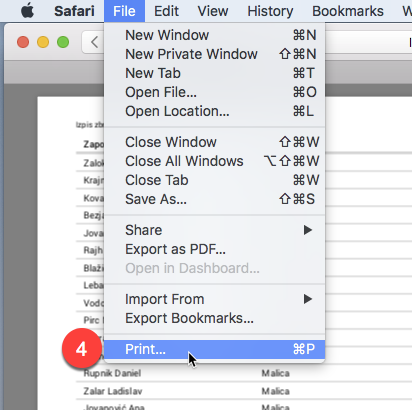
Specifying file download location
Chrome
Firefox
Safari
Clear browsing history
Chrome
Firefox
Safari
What is new
Version:
3.13
3.12
3.11
3.10
3.9
3.8
3.7
3.6
3.5
3.4
3.3
3.2
3.1
3.0
2.6
2.5
2.4
2.3
2.2
2.1
2.0
1.8
1.7
1.6
Colors and icons of the event log buttons
You can now assign a button color to individual buttons for recording attendance and collection events, and an icon to attendance events. The colors and icons are displayed on the registration terminal and on the Employee Portal (if this is also used for time attendance).
Improvements to the display of summaries in planning
The Summaries tab in the Schedule overview has been updated to display the combinations of shifts, and the way the ratios are displayed can be set in more detail - for which items they are displayed and the way they are displayed (ratios, values, etc.).
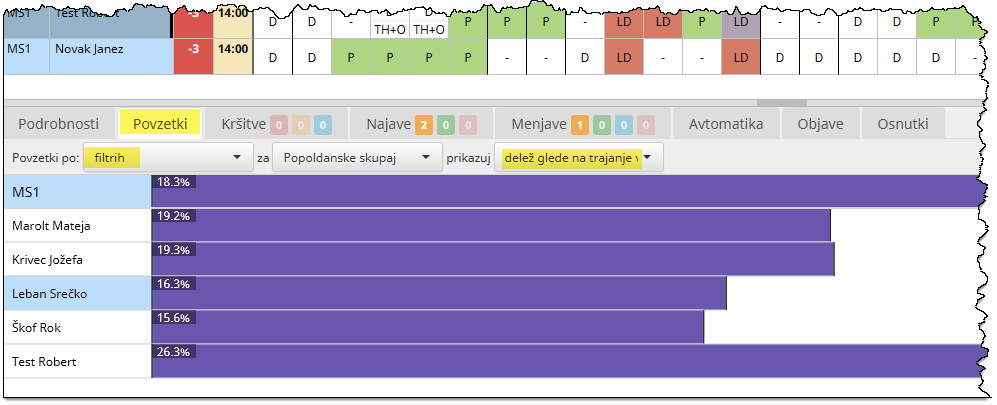
Analysis by day of the week
In Analysis, it is possible to further break down the summaries by type of day, day of the week or specific day. In this way, it is possible to show percentages and numbers of shifts, absences, billing categories for selected types of days only, e.g. Saturdays only, Sundays only, all or selected holidays only.
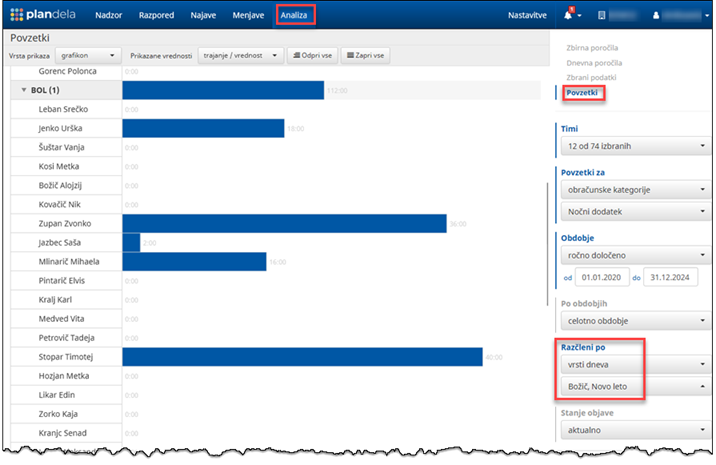
Recording working time via a location sticker
The NFC location stickers allow you to record your working time via a mobile device running the ShiftPlan app. The sticker is affixed to the desired location and the employee reads it with their phone to confirm their presence or absence.
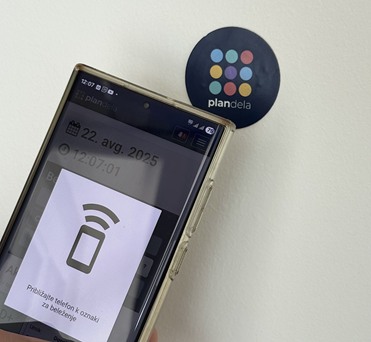
Automatic compensation of surplus or shortfall hours
A new type of compensation has been added which automatically balances hours to a target value when there is a surplus or shortfall of hours. Example of use: employees are allowed to have a limit of deviation of the balance of hours to a maximum of +20 hours. In case of a larger surplus, such a balancing will automatically reduce the balance to the set limit.
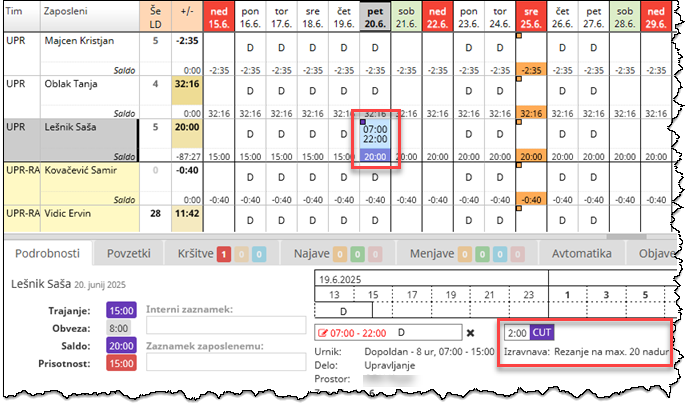
Automatic entry of default assignments at initialization
For simple work schedules (fixed schedule and work), initial shift plan can be automatically initialized. Thus, when a work burden is initialized or entered, a default schedule is automatically put in the shift plan, corresponding to the burden and the shifts available to the employee.
Improved differentiation between manually entered and automatic assigments
The degree of shading of the automatic assignments can be adjusted by the user. A slider to select the shading level is available by right-clicking on the button to switch on the shading.
Example for using strong shading: before restarting the automation, you want to check which assignments will remain fixed. With maximum shading, the fixed assignments are clearly displayed.
Example for the use of less pronounced shading: when viewing the final schedule, all assign,ments, both manual and automatic, should be clearly displayed to the user. In this case, the distinction between automatic and manually entered ones should be less pronounced.
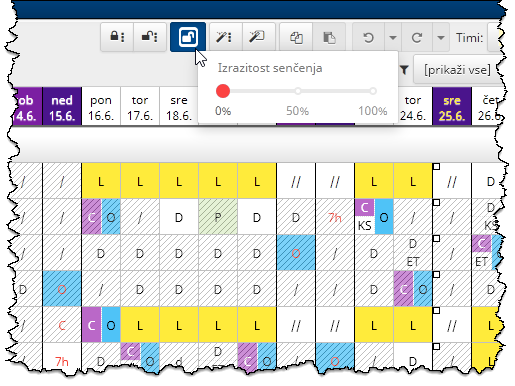
Highlighting of currently selected cells in the plan
The plan contains a large amount of data, with various labels and colors. As a result, it can sometimes be difficult to identify the currently selected cells— those for which details are shown and actions are applied. To make this easier, we’ve introduced the SHIFT SHIFT shortcut (press the key twice quickly), which triggers a blinking effect on the selected cells so you can easily locate them within the plan.
If the currently highlighted cells are outside the displayed part of the timetable, you can also move the timetable display to the location of the currently highlighted cells by using the SHIFT SHIFT shortcut again.
Additional display options for daily summaries in the Employee Portal
Employees can now be shown daily summaries in text and color, following from the daily requirements and the current schedule. The labels can be fine-tuned depending on the numerical value of the scheduling against a given need.
Example: you would like to show employees which days of leave can still be taken according to a maximum number of employees who can be on leave at the same time on the same day.
Integration with an access control system
With the new Access Control module, you can manage access rights and identification means for access to premises from within ShiftPlan. You can assign access rights to individual departments or employees as defined by the external access control system, and the corresponding rights and identification credentials are automatically synchronized.
Managing access rights is therefore very simple: when a new employee is enrolled in the ShiftPlan solution, assigned a team and an ID card, he or she will automatically be granted physical access to the premises to which he or she needs to have access. Access will also be automatically adjusted if the team is changed, if the employee leaves the company or if the card is changed.
Improvements and configurability of the export of the shift plan to the calendar
Employees can now set which shift plan details they want to automatically download to their calendar. By default, days off are no longer transferred to the calendar, only working days or days with defined absences.
The calendar export settings are taken into account for each employee both in the attachment in the new or modified timetable notification email, as well as in the manual export and automatic synchronisation with external calendars.
Export the shift plan in CSV format
We have added the possibility to easily export the timetable to a CSV file. This format can be easily edited and viewed in Excel. The export is as similar as possible to the display in the app and supports both per-employee and per-shift display and takes into account any filters that may be enabled.
Please consult our Support for configuration.
Abiulity to perform system actions over teams for regular users
Regular users with team management rights can perform selected system actions on the teams they have rights to. These include: reverting shift plan publication, refreshing employee constraint violations and refreshing calculated billing categories.
In previous versions, these actions were only available to super-users, but now they are also available to regular users with the appropriate permissions.
Ability to manage user rights for regular users
Regular users with user management rights can add and edit users and their rights for their teams. In previous versions, only superusers had this right.
User permissions over individual teams are now also displayed in the user table, making it easier to see the permissions assigned to teams.
Improvements to the publication of drafts
The published draft will remain on display to employees even if the timetable is subsequently amended. Subsequent (unpublished) changes to the draft are shown to the planner in the Draft tab, where they can be republished.
The possibility of automatic and real-time publication of the draft has also been extended. If you want certain assignments (e.g. annual leave) to be shown as a draft to employees as soon as they are assigned, please contact our support to adjust the configuration accordingly.

Display of compensations in shift plan
You can now adjust the way compensations (e.g. holiday allowance) are displayed in the timetable. The offset can be displayed either as a colored marker in the top left corner of the cell or as a schedule entry with the choosen label.
Show all requests to employees in the team shift plan
You can give employees access to the submitted requests of their colleagues. Example: show employees all the annual leave requests they have already made, so they can assess in advance whether they can still take leave in a given period.
You can enable the display of requests to employees in the general settings or in the settings for each team.
Improved display of requests and swaps in the timetable
The requests and swaps in the schedule are be clearly separated from the cells containing the schedule, with the border of the request or swap indicating its status. This clearly distinguishes schedule violations (the border of the whole cell) from the status of requests and swaps (the border of the request/swap label). The rounded edges of the request indicate the start and end of the request.
The swap label contains the initials of the employee with whom the swap was made.

Arbitrary checks when employees add request
We have added an extension point to the requests, where the system administrator can set arbitrary restrictions that must be respected when the request is submitted. This way, you can restrict the conditions under which employees can submit a particular request.
Example: For the following month, employees can only submit their shift requests up to a pre-defined date.
For help with configuring the display of daily summaries, you can contact our Support.
Mark holidays and other special days in the timetable
In the timetable table, you can right-click on the date bar to mark all the cells on public holidays and other special days, thus distinguishing them from regular days.
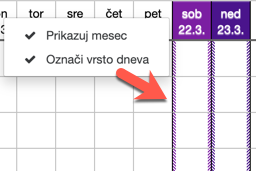
Unified burden naming
We have unified the terminology, but we have also made the two different uses of the term clearer.
A burden (or work obligation) describes an employee’s contractually agreed working time, and specifies the number of hours of work per day that the employee is expected to do in order to fulfill his or her contractual obligations to the employer.
The solution further distinguishes between accounting and planning burdens. The billing burden determines the number of working hours to be charged to the employee as regular work in the selected period and also determines the employee’s current balance of hours. The planning burden, on the other hand, determines the agreed rhythm of the employee’s work, on the basis of which leave, other absences and holiday allowances are normally granted, unless a schedule has already been prepared.
Display and analysis of the originally published timetable
You can now easily display the timetable as it was originally published to employees (i.e. the first publication). You can also produce reports and analyses for the originally published timetable. This allows you to compare the originally established schedule with the actual realised schedule, inter alia in terms of shift shares, absences and accrued salary supplements.
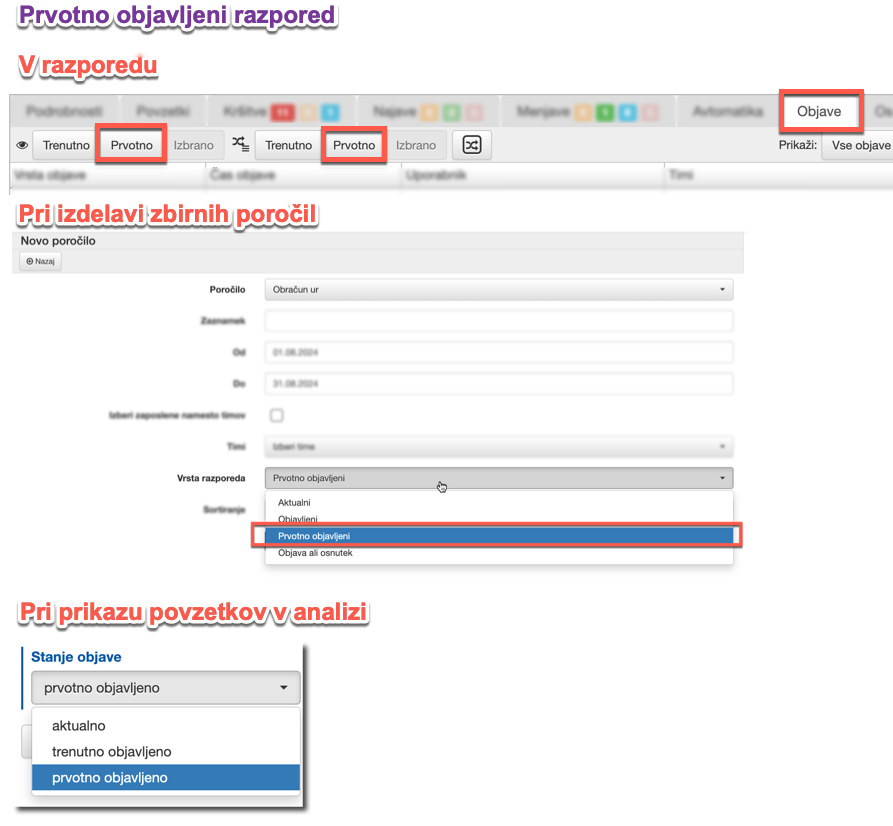
Publication of the draft timetable
You can publish a schedule that is still under construction as a draft to employees in advance to give them access to the planned schedule.
Publication of the draft to employees is thus particularly appropriate for:
For details on publishing drafts, see help.
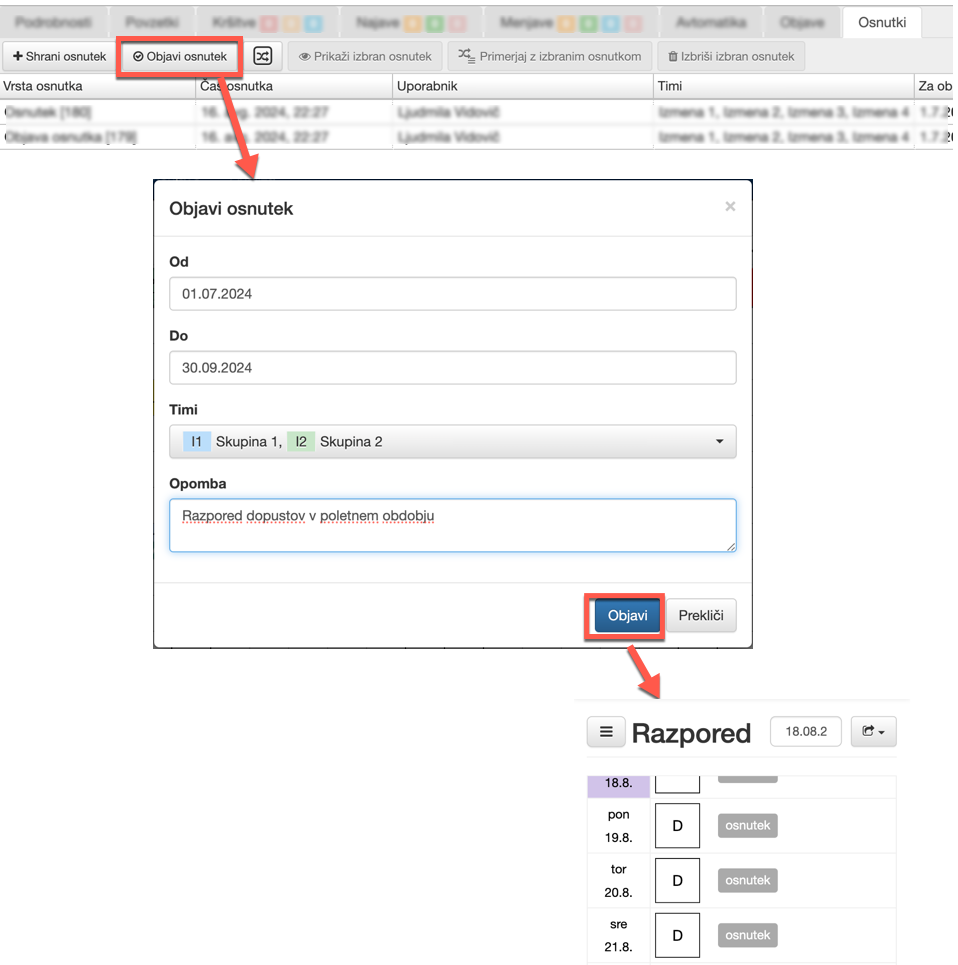
Showing the total number of assigned shifts or absences to employees
You can allow employees to see the total number of shifts or absences currently scheduled for each day in the Employee Portal. The display takes into account the currently published roster and the currently published draft roster.
Example: no more than 2 staff members can be on leave at the same time to ensure the smooth running of the department. When submitting a leave request, employees can check in advance which leave periods are not yet taken.
For help with configuring the display of daily summaries, you can contact our Support.
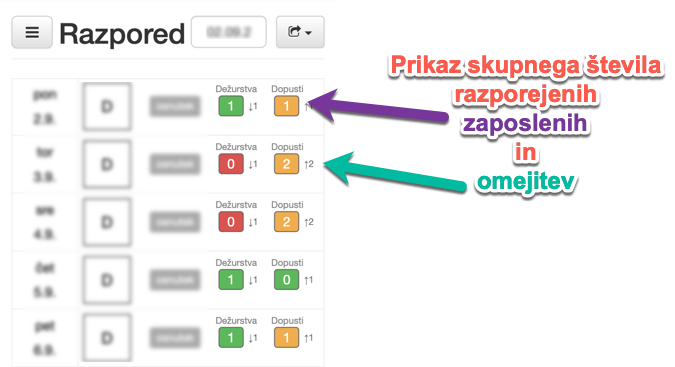
Improved counters display
We have improved the display of counters on the Employee Portal. Employees are now more clearly shown the counter on each day and the final status, which includes both the published timetable and the draft timetable already published.
This also gives employees an indication of how many days of leave they still have available (in addition to those already taken and allocated). At the same time, the due date of each counter is also displayed.
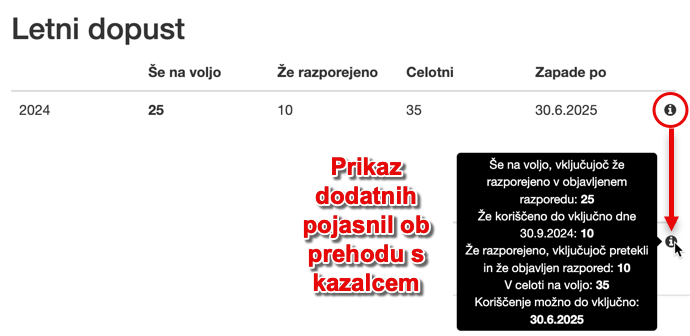
Conditional display of additional options at registration
The options available to employees when registering on the terminal or the Employee Portal can now be limited to a specific type of registration.
Example 1: The snack selection is only available when you register coming to work, but is not displayed when you leave.
Example 2: The confirmation of the rest period is only available when registering the departure from the workplace, but is not displayed when arriving at the workplace.
Excerpt from the schedule in the requests
When adding, displaying and processing an request, an excerpt from the timetable for the current period and employee is now also displayed, both on the Employee Portal and on the User Portal.
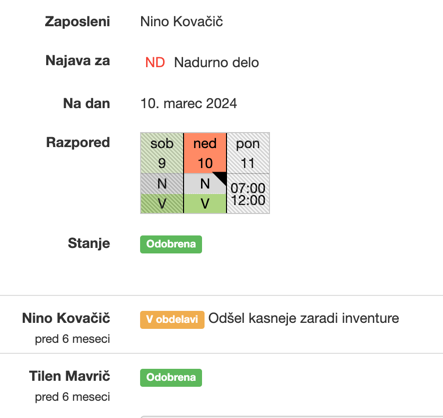
Simplified work with eBOLs
eBOL announcements are now processed and validated as all other requet types and no longer via the eBOL processing action in the Planning. When you approve a request, existing shift plan assignments are automatically changed, if necessary, to match the absences as defined by the sick note.
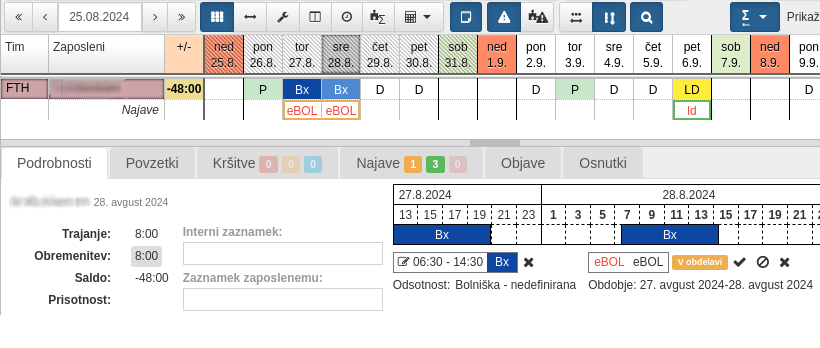
If existing shift plan cannot be edited automatically, the request will remain in the Processing state. Warnings shall also be added to such an request to assist in identifying non-compliances.
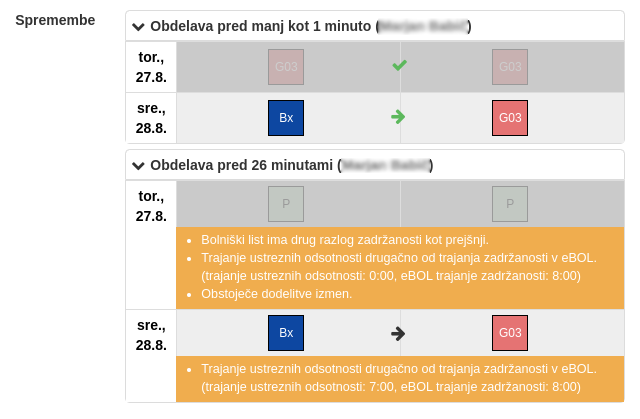
The warnings are also visible in the timetable.
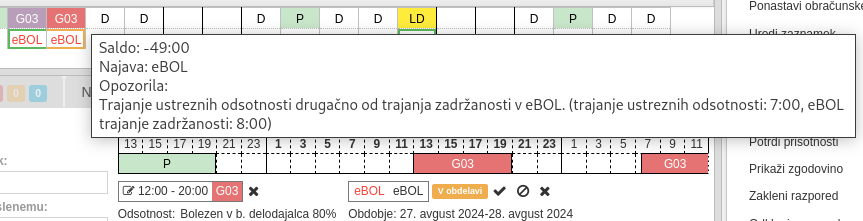
Correct the shift plan and re-approve the request. Once all warnings have been removed, the status of the request changes to Approved.
If there are warnings on the eBOL notification that cannot be removed (e.g. a warning about a different absence reason code when you still want to keep the same type of absence), you can still approve the notification. You can do this by using the Good without processing action in the details of the announcement.
To view all the requests that require your attention (this was previously the purpose of “eBOL processing”), use the Requests tab and select the filters to show requests of type eBOL and status In progress. You can select individual or all requests and confirm them with the OK button.
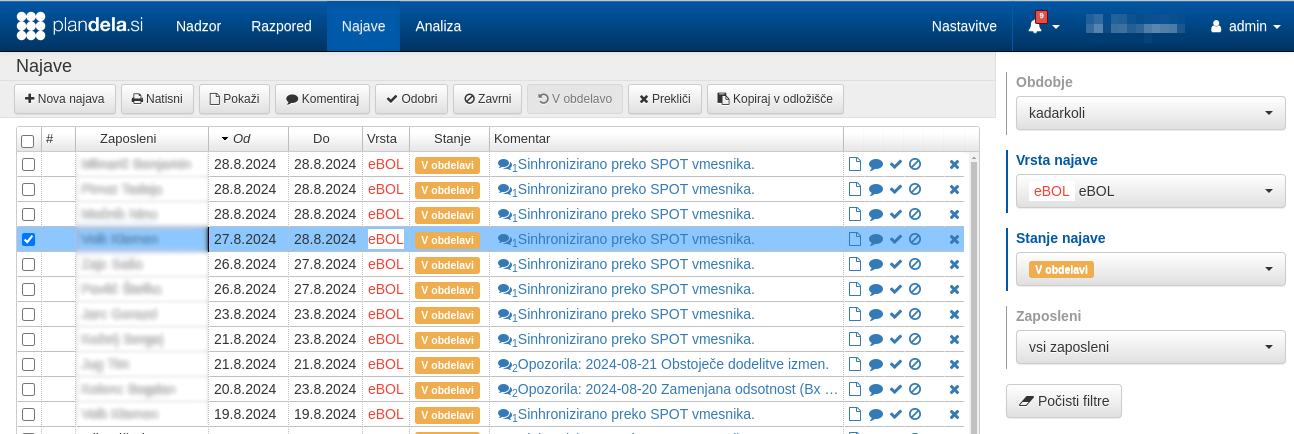
Cancelled eBOLs are now processed under the same notification. When a cancellation of a sick note is uploaded, the existing announcement is marked as cancelled. If an existing claim is already in the Accomplished state, it will revert to the Processing state. As a cancelled sick note should not affect your timetable, you only have the Cancel action available for cancelled sick note announcements. This completes the processing of the notification.
Display of compensations in shift plan
The contents of the schedule cell have been updated to indicate the compensations entered. They are shown as a square in the colour of the compensations, which allows a quicker overview of the entries of paid hours, holiday allowances, etc.
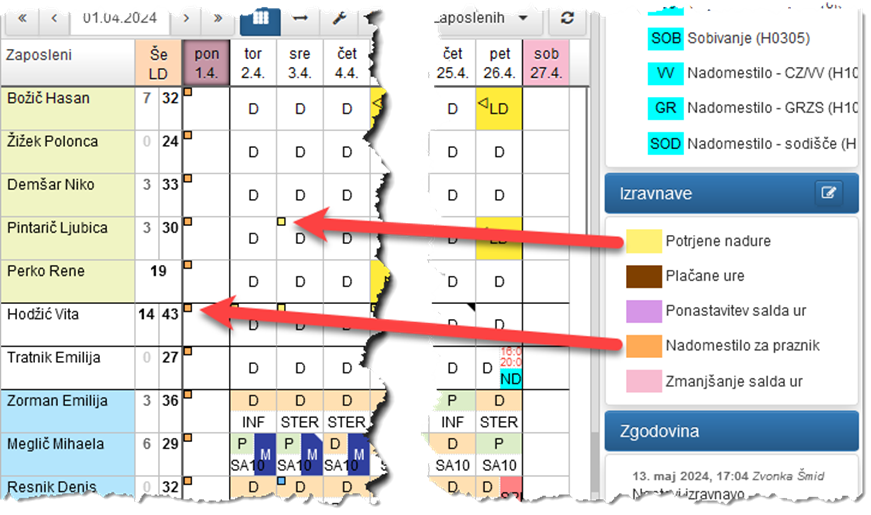
Requirement templates
We have introduced Requirement templates to simplify the entry of staffing requirements in the roster.
The user can pre-define the requirement templates that define the staffing requirements (i.e. the number of employees required on each shift) for each type of day (working day, weekend). The selected template can be entered in the schedule using the Set requirements action.
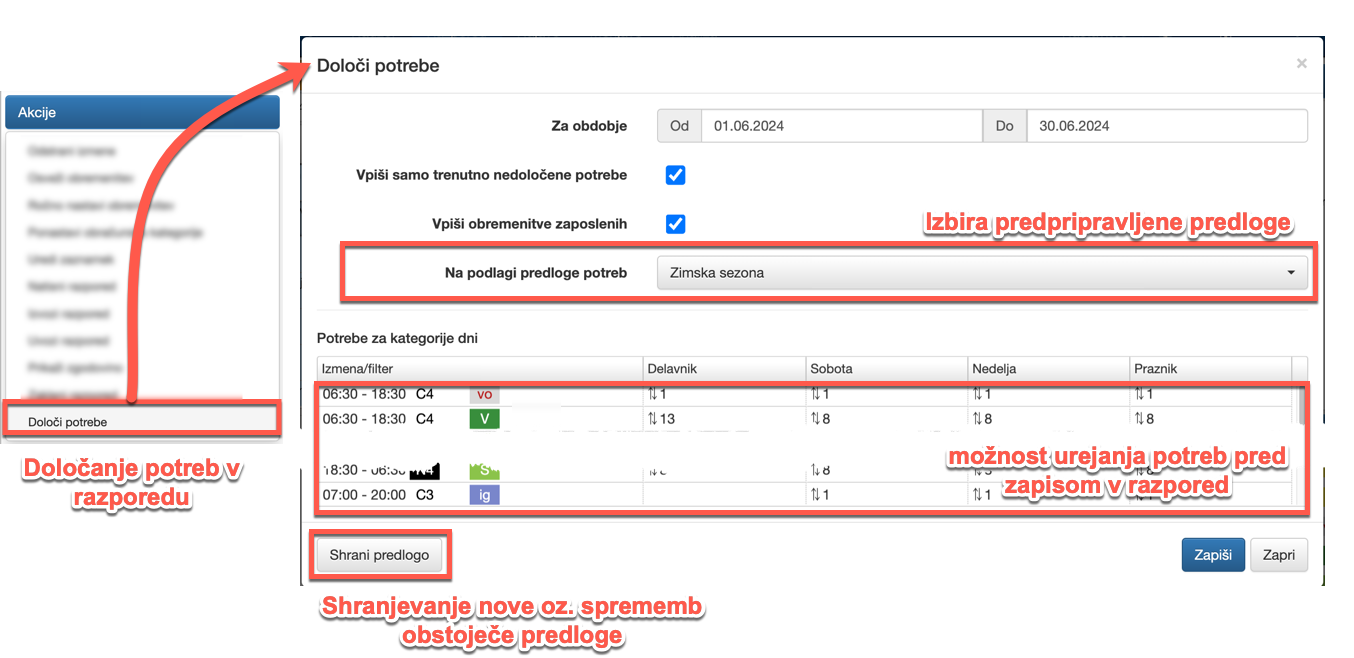
Improvements to the timetable display in the Employee Portal
Employees can adjust the size of the cells in the timetable, making it easier to navigate the timetable, especially on mobile devices. Zoom can be adjusted by pinch gesture, or by selecting zoom level from the menu.
To make better use of the viewport, the option to display employees’ initials instead of their full names has been added.
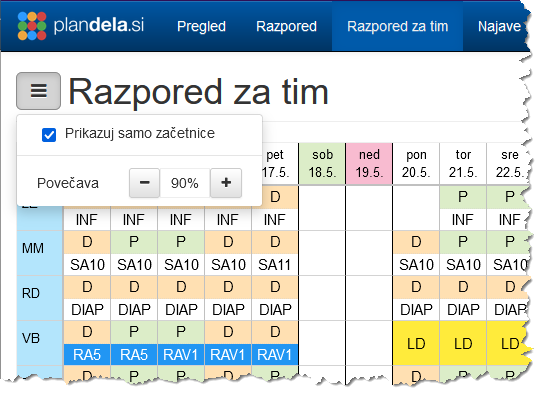
Assigning new employees to teams
Users with team management rights can add new employees and assign them in one of their teams. In previous versions, only power users could add new employees.
Display of categorised billing categories in the schedule
In the extended display, the categories are shown as rows, with the daily value for the category in each cell (e.g. duration for each cost centre, number of journeys on each route). The normal overview, on the other hand, shows the number of occurrences in all categories for each day (e.g. number of different cost centres for the day, total number of journeys between routes, etc.).
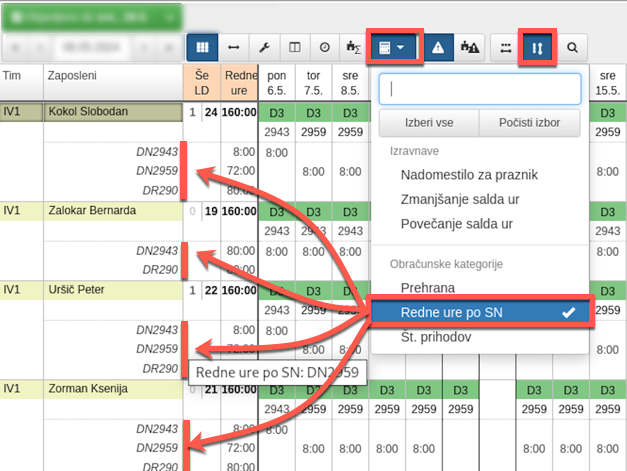
The change only affects users using categorised billing categories.
Improved plan summaries
Plan summaries now allow for a more detailed configuration of the summarisation method depending on the team membership.
Example: an employee was transferred from Division A to Division B during the year. The summary of the number of Sundays worked can now show the number of Sundays worked for the period of work in Division A, Division B, or for the whole period.
The change only affects users who use summary timetables (e.g. displaying the number of Sundays and public holidays separated in the current year, etc.)
It is also possible to summarise categorised billing categories. For example: sum of hours worked at individual cost centres, total number of journeys on a particular route, etc.
The change only affects users using categorised billing categories (e.g. categorisation of work by cost centres, route counts, etc.)
Evidentiranje odmorov
Zaposleni lahko evidentirajo izrabo odmora v okviru izmene na več različnih načinov, bodisi ob dejanski izrabi (začetek in konec odmora) ali pa samo potrdijo, da so koristili odmor v vnaprej določenem obsegu ob koncu dela.
Beleženje in potrjevanje izrabe odmora je možno na registracijskem terminalu in tudi na mobilnem telefonu v okviru Portala za zaposlene. Način evidentiranja odmora za vašo organizacijo določite sami, za konfiguracijo pa kontaktirajte našo podporo.
Objavljanje poročil zaposlenim
Zaposlenim lahko omogočite vpogled v katerokoli izdelano zbirno ali dnevno poročilo na katerem so navedeni. Ob objavi prejmejo obvestilo, poročila pa lahko pregledujejo v okviru Portala za zaposlene. Na poročilu vidijo samo svoje podatke.
Prikaz obračunskih kategorij zaposlenim
V Portalu za zaposlene se lahko zaposlenim na vpogled tudi določene obračunske kategorije. Te so prikazane v planu po vrsticah, podrobnostih plana in v dnevnem povzetku. Prikazane so samo neničelne vrednosti. Kategorije izberete sami, za vklop pa kontaktirajte našo podporo.
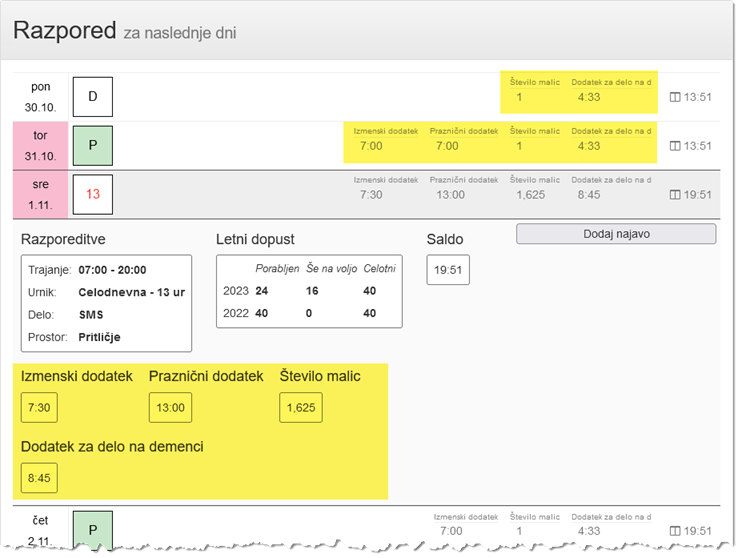
Preklic registracije
Zaposleni lahko v nekaj sekundnem intervalu po registraciji prekličejo ravnokar zabeležen dogodek.
Najava manjkajoče oz. napačne registracije
Dodana je nova vrsta najave, ki zaposlenim omogoča, da naknadno najavijo manjkajočo oz. napačno registracijo. Ob potrditvi se popravljen dogodek samodejno vpiše in upošteva pri prisotnosti.
Dodana Obveza po zadolžitvah
Nova vrsta obveze, ki je vedno enaka skupnemu trajanju zadolžitev v posameznem dnevu. Taka obveza je ustrezna za delavce, ki nimajo vnaprej določene pogodbene obveze za delo, ampak delajo in so plačani po potrebi, npr. študenti in upokojenci. Obveza po zadolžitvah tako zagotavlja, da imajo taki delavci vedno enak saldo ur, brez viška ali manjka.
Nivoji potrjevanja pri najavi: prikaz stanja
V kolikor se uporabljajo nivoji potrjevanja, je v podrobnostih take najave sedaj razvidno, kdo je je že odobril in kdo vse jo še mora odobriti.
eBOL spremembe
Uvoz za zaposlene, za katere obstaja bolniški list, niso pa vneseni v PlanDela, dobi vedno status napake. Take zaposlene lahko sedaj izločite iz nadaljnjih uvozov eBOL.
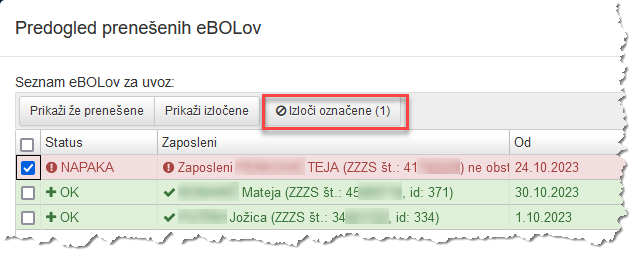
Poleg tega je mogoče potrditi eBOL najavo, brez, da se ob tem sproži njena obdelava, kar ohrani trenutno razporeditev nespremenjeno.
Prenovljeni števci
Nove možnosti števcev omogočajo ločeno vodenje različnih vrst viškov ur kot so npr. nadure za plačilo, nadure za koriščenje, referenčne ure, …
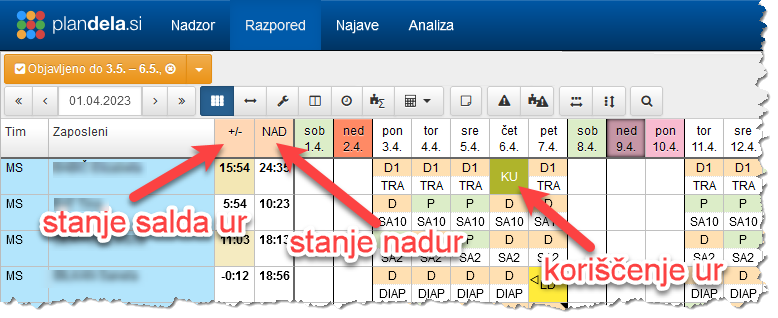
Za posamezno vrsto oz. števec se lahko določi obdobje porabe. Vpliv trajanja izmene na števec določimo v lastnostih urnika, ki velja za to izmeno.
Stanje števcev je lahko negativno
Števcu se lahko nastavi, da gre v negativno vrednost. Taka je sedaj tudi privzeta nastavitev štetja letnega dopusta - zaposlenega se lahko razporedi na dopust tudi, če je ves dopust že razporejen! V takem primeru se stanje v stolpcu Še LD obarva rdeče (spodnja slika).
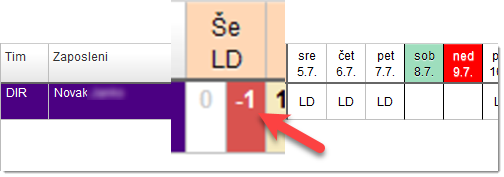
To je npr. uporabno ob začetku novega obdobja oz. leta, ko ima zaposleni porabljen ves dopust iz preteklega leta in ga potem ni mogoče nanj več razporejati, če ta ni določen tudi za tekoče leto.
V kolikor želite ohraniti staro funkcionalnost, ko je v primeru prekoračitve vnos onemogočen, prosim obvestite o tem našo podporo.
Prenovljene izravnave
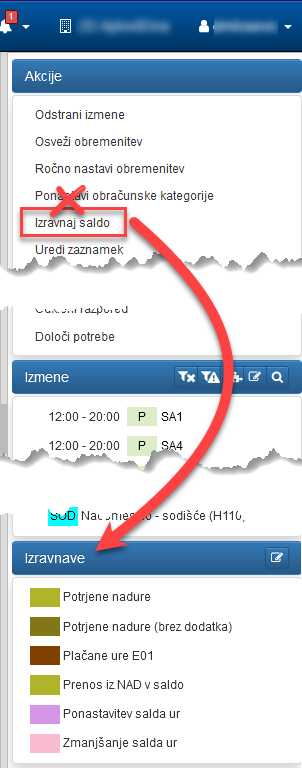
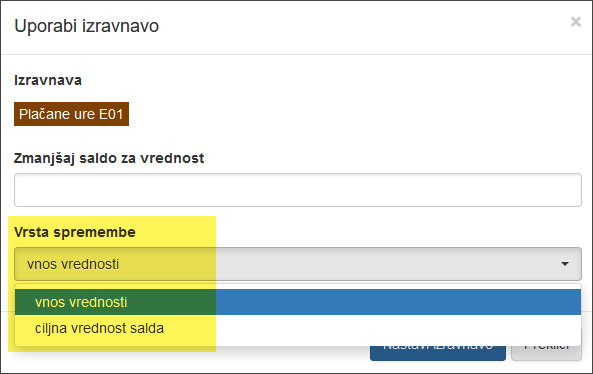
Urniki in odsotnosti so lahko brez nastavljenih časov
V takem primeru se vedno prikaže okno za vnos intervala od-do oz. trajanja - brez uporabe tipke SHIFT.
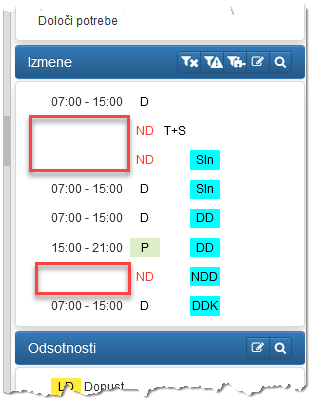
Oblika vnosa ponastavitve obračunskih kategorij
Vnašanje z enačajem spredaj je zamenjano z izbiro vrste spremembe “določi vrednosti”. Vse vrednosti se vpisujejo in prikazujejo z decimalno vejico in ne več s piko.
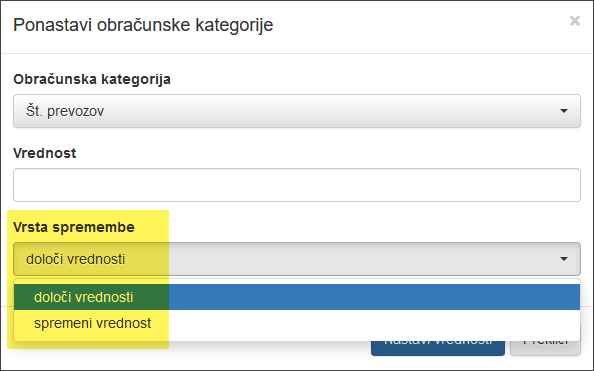
Razpored po izmenah na portalu za zaposlene
Zaposlenim se lahko nastavi prikaz razporeda tudi po izmenah. Ta izbira je na voljo v Pregledu razporeda za tim.
Mesečni razpored na portalu za zaposlene
Dodan je mesečni prikaz razporeda za prijavljenega zaposlenega.
Tiskanje razporeda na portalu za zaposlene
Omogočeno je tiskanje vseh oblik razporedov.
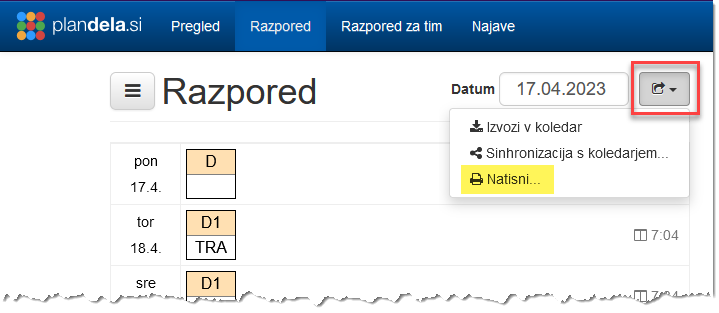
Zgodovina ukazov
Na dnu stranskega razdelka je sedaj na voljo na vpogled zgodovina ukazov za vse uporabnike. Na seznamu so ukazi vseh narejenih sprememb v trenutno prikazanem razporedu. Ob kliku na posamezno vrstico se pokažejo spremembe, ki jih je povzročil izbrani ukaz. Uporabniki z naduporabniškimi pravicami lahko ukaze tudi razveljavljajo.
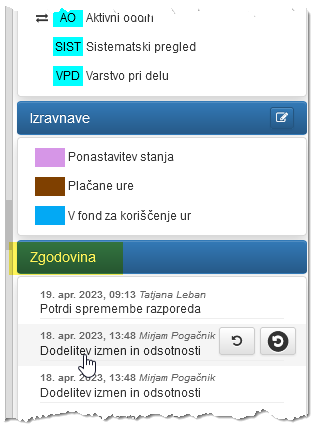
Strukturiran prikaz podatkov za posamezne vrste najav
Najavam se lahko nastavi dodatna polja, ki jih mora izpolniti zaposleni pri njeni oddaji (npr. prihod/odhod, začetek/konec izmene, trajanje odsotnosti,…).
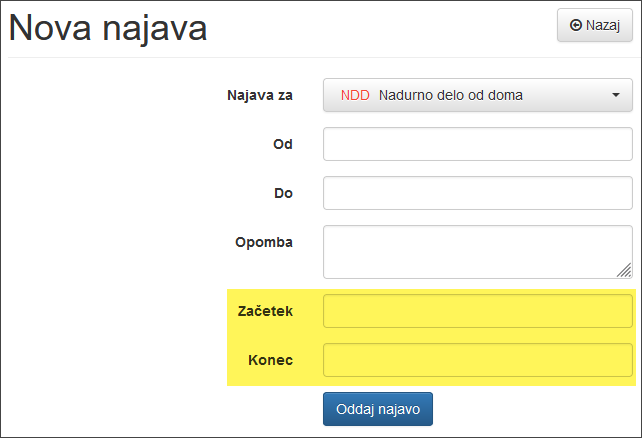
Najava eBOL vsebuje sedaj podrobnejše podatke iz el. bolniškega lista.
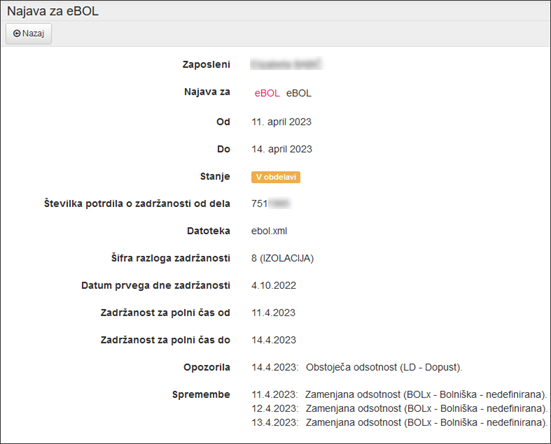
V razporedu so z oranžno obrobo označeni dnevi posamezne najave, ki se ne ujemajo z el. bolniškim listom, kar omogoča hitrejše iskanje odstopanj.
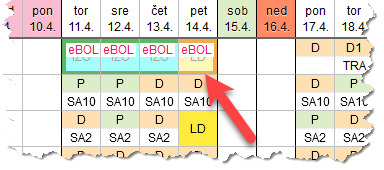
Spremno besedilo najave
Najavi se lahko določi dodaten opis, ki se prikaže zaposlenemu ob njeni oddaji.
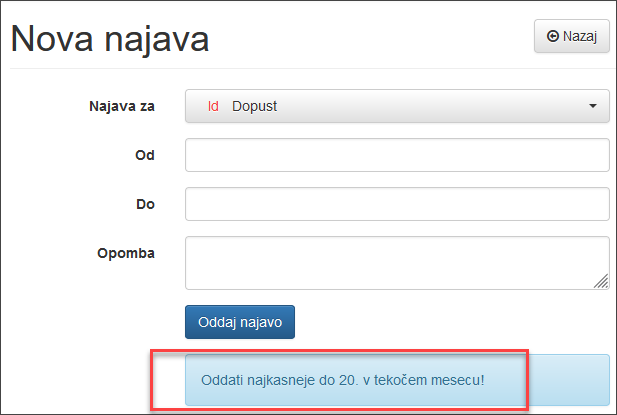
Samodejni prenos el. bolniških listov iz SPOT (modul eBOL)
Dodana je možnost samodejnega prenosa podatkov o el. bolniških listih s portala SPOT. Tako ročno uvažanje xml datotek ni več potrebno. Prenos se lahko zgodi dnevno ali pa na ukaz uporabnika.
Za omogočanje prenosa nam morate urediti Pooblastilo za delo preko spletnega vmesnika za prenos eBOL. Dodatne informacije so na voljo preko naše podpore.
Modul eBOL
Na voljo je dodatni modul za uvoz Elektronskih potrdil o upravičeni zadržanosti od dela (eBOL). Modul eBOL omogoča uvoz XML datotek iz sistema SPOT (e-VEM). Pri tem vas opozori na morebitna neskladja med že vnesenimi razporeditvami in izdanimi bolniškimi listi ter hkrati prešteje in samodejno zamenja vrsto bolniške glede na število dni pojavitev (npr. po 20 delovnih dneh iz G03 v H21). Za dodatne informacije glede delovanja in namestitve lahko kontaktirate našo podporo.
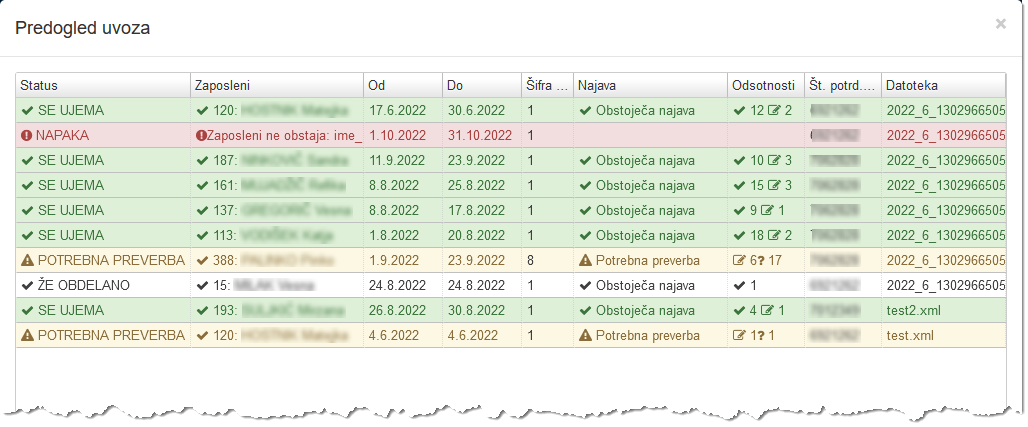
Modul za menjavo izmen med zaposlenimi
Tudi modul Menjave prihrani vodjem precej časa pri urejanju razporeda, saj prepusti iskanje ustrezne zamenjave kar samim zaposlenim. Ti lahko med seboj predlagajo in izvedejo menjavo posameznih izmen, modul pa pri tem samodejno preveri ali je predlagana menjava ustrezna tj. brez kršitev zakonodajnih in drugih pravil.
Vodja se pri tem lahko odloči, da je o menjavah samo obveščen ali pa jih mora vedno na koncu še odobriti. Vse menjave so tudi zabeležene, kar omogoča podrobnejšo analizo za poljubna pretekla obdobja.
Funkcionalnosti modula Menjave so bolj podrobno predstavljene v pomoči.
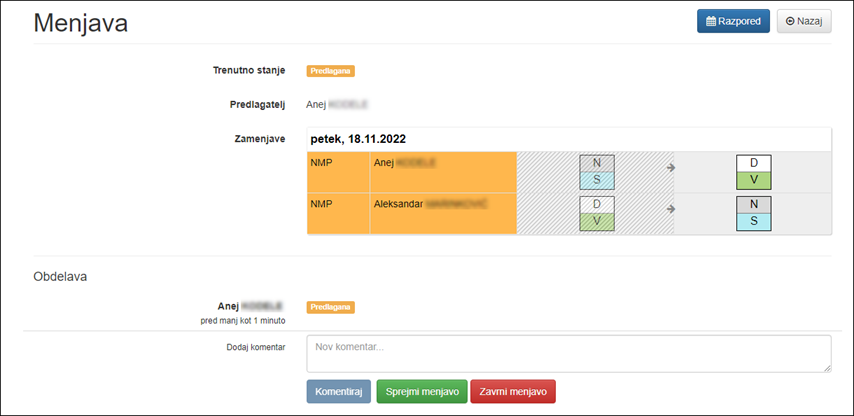
Razširjen / združen prikaz vrstic v Pogledu po zaposlenih
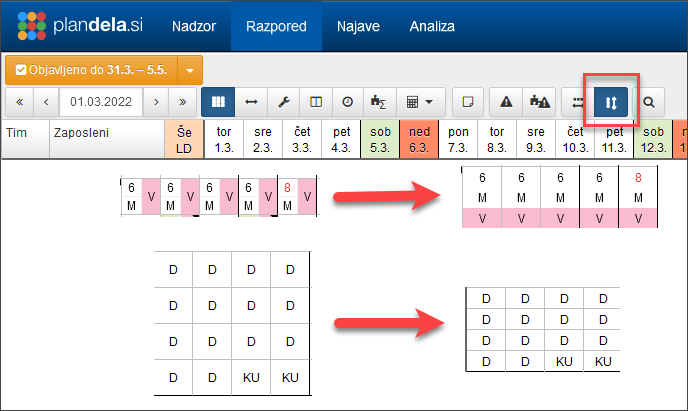
Razširjen / združen prikaz vrstic v Pogledu po izmenah
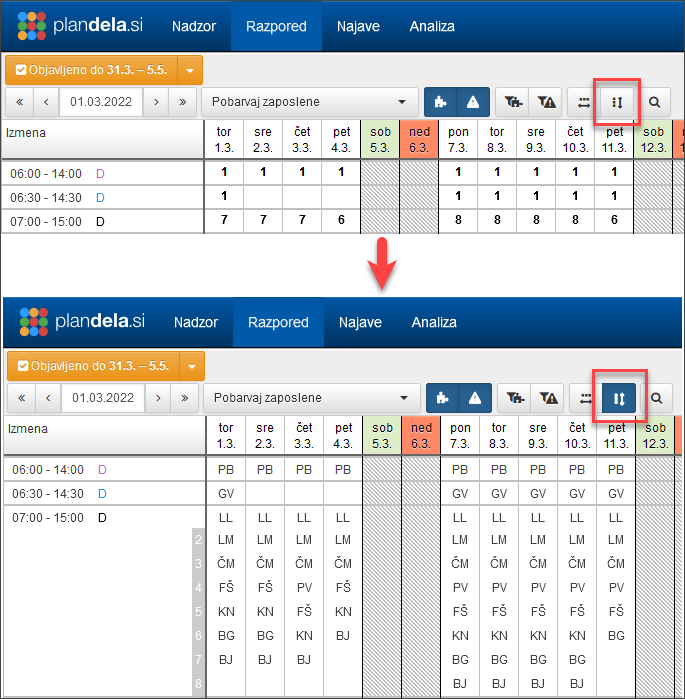
Razširjen prikaz stolpcev v Pogledu po zaposlenih
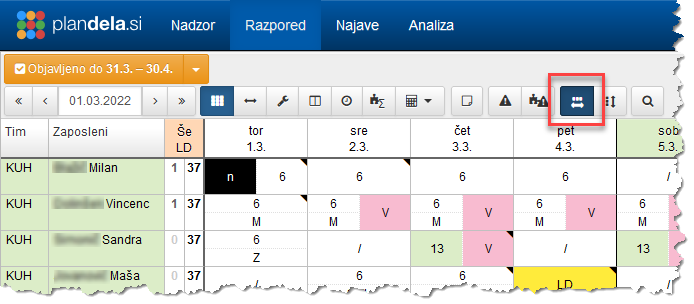
Poenostavljen vnos odsotnosti
Pri razporejanju na odsotnosti se sedaj samodejno upošteva trajanje predhodnih razporeditev (uporaba opcije Zamenjaj tako ni več potrebna). Poleg tega se odsotnosti nadomeščajo s prostimi dnevi tam, kjer zaposleni nima delovne obveznosti, npr. za zaposlenega lahko izberete daljše obdobje in ga razporedite na letni dopust oz. bolniško odsotnost, ki se bo vpisala na vse delovne dneve, dela prosti dnevi pa bodo samodejno označeni kot prosti dnevi.
Prikaz zbirnih podatkov pri izboru več celic v razporedu
Ko izberete v razporedu več celic hkrati, se v razdelku Podrobnosti prikažejo združeni podatki za vse izbrane celice. Tako lahko za označeno območje naenkrat odstranite določeno razporeditev, ji spremenite čas oz. trajanje, urejate najave, zaznamke, …
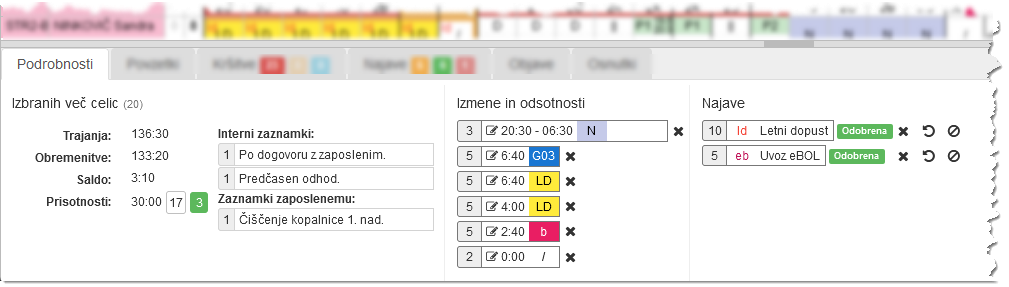
Izbor urnikov glede na delovno obveznost zaposlenega
Samodejno filtriranje urnikov glede na delovno obveznost zaposlenega omogoča bolj pregledno razporejanje, saj urniki, na katere zaposleni ne sme biti razporejen, ostanejo skriti.
Za posebne primere pa je ta pravila mogoče zaobiti z gumbom, ki omogoča prikaz vseh izmen, ne glede na lastnosti zaposlenega.
Možnost izpisa dodatnih stolpcev in povzetkov v izpisu po zaposlenih ločeno
Dodana je možnost izpisa dodatnih stolpcev in povzetkov tudi, če izberemo tiskanje izpisa po zaposlenih ločeno.
Potrjevanje prejema sprememb s strani zaposlenih
Dodali smo potrjevanje prejema sprememb razporeda s strani zaposlenih. Vodja lahko ob objavi sprememb zahteva potrditev s strani zaposlenih.
Zahtevo po potrditvi prejmejo zaposleni po elektronski pošti, na reg. terminalu ali na mobilni napravi hkrati s spremembami razporeda. Vodja ima vpogled v seznam potrditev in ob morebitnih manjkajočih potrditvah obvesti oz. kontaktira zaposlenega preko ostalih komunikacijskih kanalov.
Funkcionalnost potrjevanja prejema sprememb zmanjša možnost, da kateri izmed zaposlenih nebi bil obveščen o spremembah razporeda, hkrati pa tudi olajša delo vodjem, saj ni več potrebe po ročnem preverjanju prejema sprememb s strani zaposlenih.
Privzeto vrednost zahteve po potrjevanju lahko nastavite v splošnih nastavitvah za celotno organizacijo ali pa v lastnostih tima za posamezni tim.
Primerjava različnih verzij razporedov
Različne verzije razporedov (objave, osnutke) lahko pregledno in učinkovito primerjate med seboj s hkratnim prikazom izbranih verzij po sosednjih vrsticah.
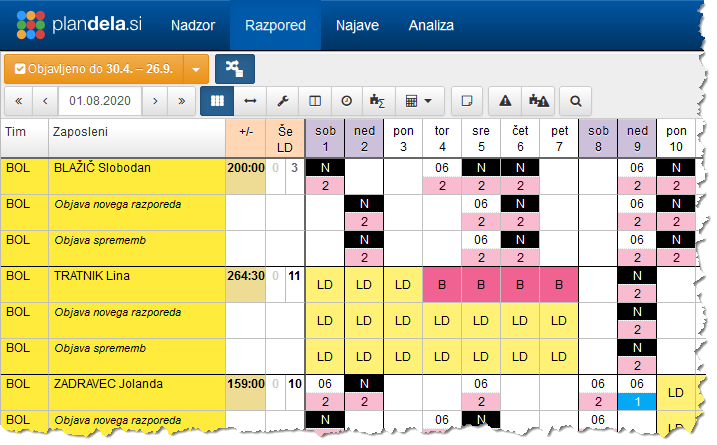
Prikaz sprememb razporeda ob objavi
Pri objavi oz. potrditvi sprememb razporeda je za vsako spremembo navedena trenutno objavljena razporeditev in stanje po spremembi. Tako lahko dodatno preverite katere spremembe objavljate.
Izpis legende na izpisu razporeda zaposlenih
Na izpisu razporeda po zaposlenih smo dodali možnost izpisa legende izmen in odsotnosti. Poleg oznake razporeditve se izpiše tudi njen opis. Navedene so le tiste razporeditve, ki so prisotne v natisnjenem razporedu.
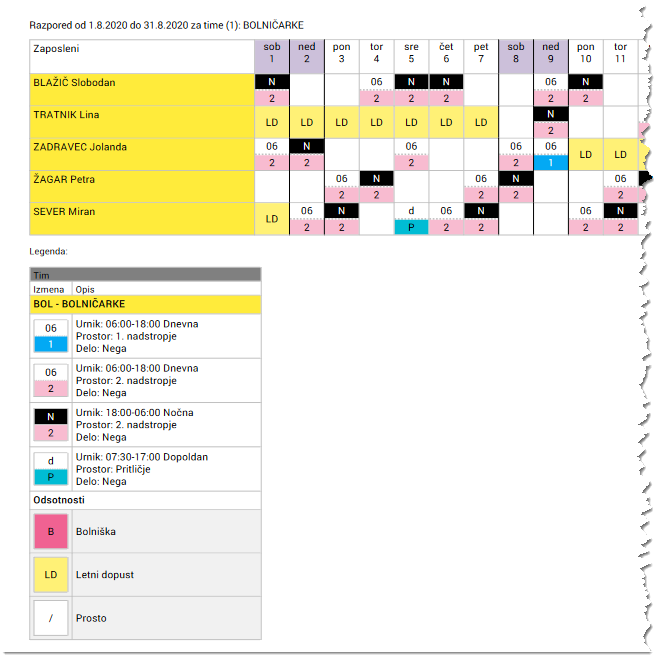
Izboljšano upravljanje s samodejnim razporejanjem
Samodejno razporejanje, ki je trenutno v izvajanju, lahko postavite v ozadje in tako nemoteno nadaljujete z delom s programom. Med samim razporejanjem lahko vključite tudi vse naknadne spremembe, ki so se pojavile po pričetku izdelave.
Vsa pretekla samodejna razporejanja se shranijo, kar omogoča naknadno primerjavo in izbiro najbolj ustreznega.
Opravilo smo preimenovali v Izmena
Z namenom poenotenja izrazov in uskladitve z dejansko rabo smo izraz Opravilo preimenovali v Izmena.
Povzetki razporeda
Dodali smo povzetke razporeda, ki za vsakega zaposlenega povzemajo relevantne podatke iz razporeda v daljšem časovnem obdobju. Vrste povzetkov se lahko poljubno nastavijo in med drugim prikazujejo stanje dopusta, saldo ur ob koncu meseca, število posameznih izmen v obdobju, delež posameznih izmen, itd.
V okviru nadgradnje smo že nastavili povzetek stanja letnega dopusta, stanje ur konec meseca in število oddelanih dni v mesecu. Za ostale prilagoditve in dodajanje novih povzetkov pa kontaktirajte našo podporo.
Izboljšave prikaza razporeda
V datumski vrstici je poudarjen aktualni mesec za katerega se prikazujejo povzetki in drugi podatki v spodnjem razdelku.
Ob izbiri posameznih celic razporeda so osenčeni tudi pripadajoči dnevni povzetki.
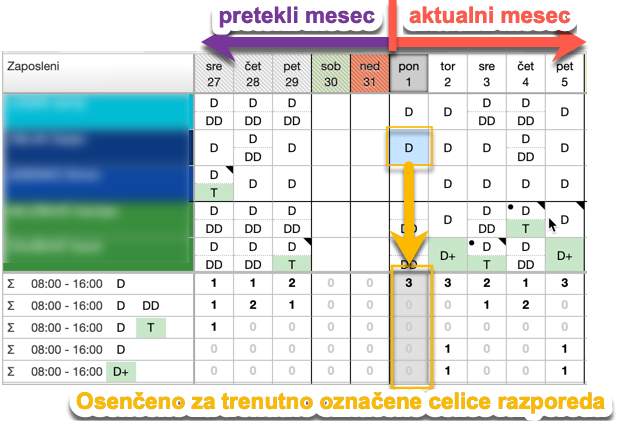
Filter v razporedu omogoča hkratno iskanje po več ključnih besedah
Če v filtru navedemo več ključnih besed ločenih z vejico, bodo vključeni rezultati za katerokoli izmed teh besed. Primer: iskalni niz: A,B,C bo iskal vse vrstice, ki vsebujejo A ali B ali C.
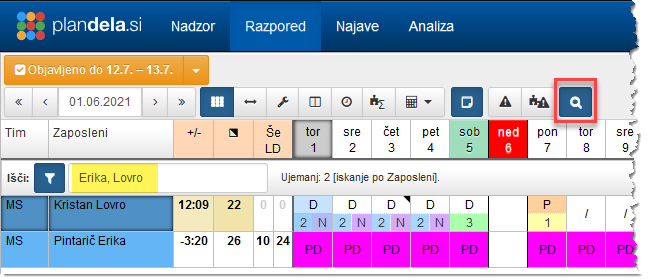
Izboljšana spletna registracija prihodov in odhodov v portalu za zaposlene
Če je registracija prihoda ali odhoda omejena na internetno omrežje organizacije, se gumb za registracijo samodejno odzove na morebitno spremembo omrežja - ob prihodu na delovno mesto se samodejno omogoči ter onemogoči ob odhodu.
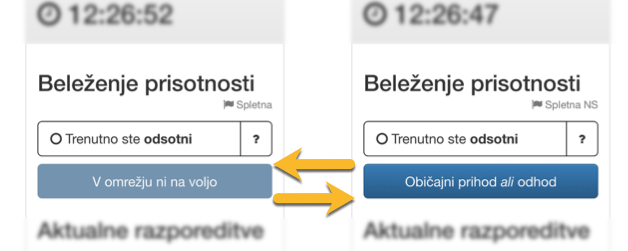
Prilagoditev prikaza izmen zaposlenim
Prikaz razporeda na Portalu za zaposlene lahko prilagodite tako, da so zaposlenim prikazane samo relevantne informacije. Primer: zaposlenim lahko prikažete samo urnik izmene, prostor ali delo pa skrijete.
Sprememb razporeditev skritih elementov izmene ni potrebno objavljati.
Omejitev obdobja prikazanega razporeda za tim zaposlenim
Vpogled v razpored tima, ki je na voljo zaposlenemu preko Portala za zaposlene, lahko omejite glede na koliko dni v preteklost in prihodnost je ta na voljo.
Večnivojsko potrjevanje najav
Za vsako vrsto najave se lahko sedaj določi enega ali več uporabnikov, ki jo morajo na vseh nivojih potrditi, da ta potem postane dejansko odobrena. Vsak nivo ima lahko izbranih več uporabnikov, vsaj eden izmed njih oz. njegov namestnik pa mora biti med potrjevalci najave.
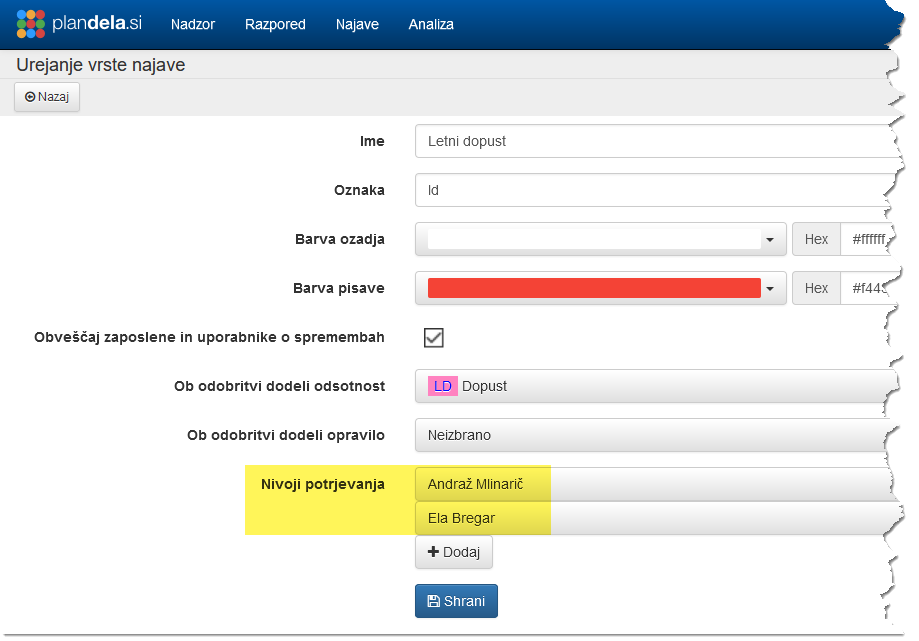
Še naprej je podprto tudi dosedanje delovanje, kjer je dovolj samo potrditev s strani enega uporabnika z omogočeno pravico “Upravljanje najav”.
Samodejni vnos odobrene najave v razpored
Odobrena najava se lahko takoj po potrditvi samodejno vnese v razpored. Podprt je vnos poljubne izmene ali odsotnosti, ki se določi v nastavitvah najave.
Namestniki za potrjevanje najav
Vsak uporabnik si lahko za določen časovni interval izbere namestnika, ki ga bo nadomeščal pri potrjevanju najav. To stori v nastavitvah namestnika.
Povratno obvestilo po el. pošti o spremenjenem statusu najave
Dodano je obveščanje zaposlenega po el. pošti o vsakem spremenjenem statusu oddane najave.
Nastavitev barve zaposlenega v razporedu
Zaposlenega se lahko barvno loči od ostalih, ki se nahajajo v istem timu. Na ta način poudarite zaposlene s posebnimi veščinami, izobrazbo, študente, dijake, … Barvo določite v nastavitvah zaposlenega.
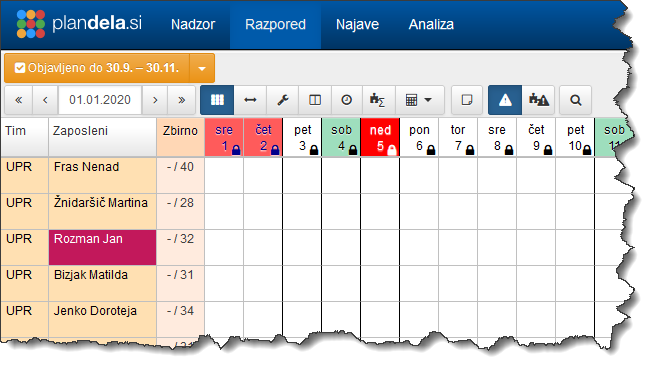
Omogočeno spreminjanje zaklenjenega razporeda
Naduporabniki in uporabniki z nastavljeno pravico “Odkleni razpored” lahko spreminjajo razpored brez, da bi ga bilo pred tem potrebno odkleniti.
Prikaz najav ali kršitev v razporedu z dvoklikom na seznam v spodnjem razdelku
V primeru določenega daljšega obdobja v spodnjem razdelku prikazanih Najav in Kršitev, lahko z dvoklikom na izbrano vrstico, pomaknete razpored direktno na interval v katerem se ta nahaja. S tem pohitrite pregledovanje in iskanje po seznamu.
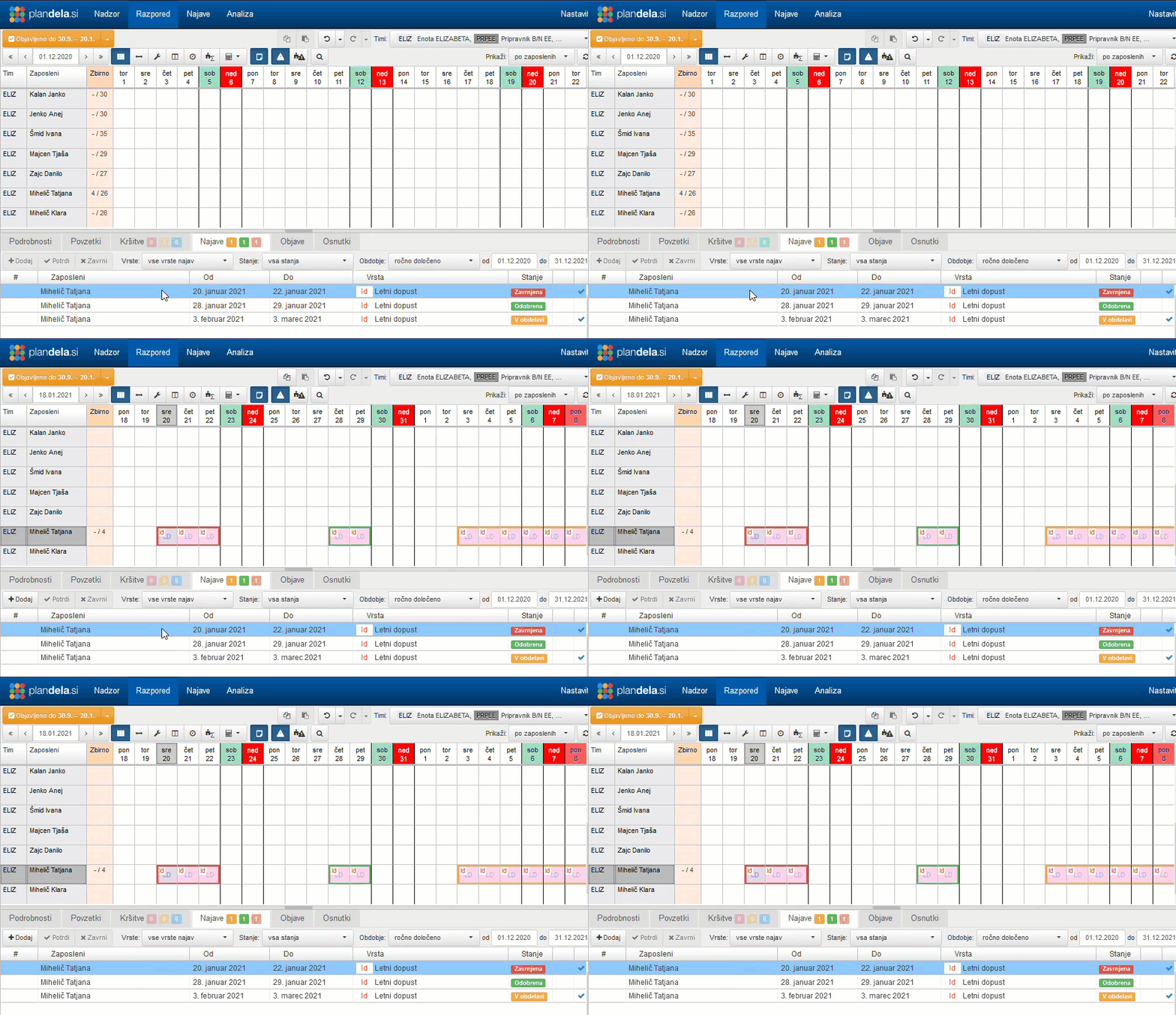
Dodatne možnosti pri tiskanju poročil
Prvi in drugi stolpec poročila (Ime in priimek, Zunanji ID) sta sedaj vidna na vsaki natisnjeni strani. Poleg tega se lahko s spodaj označeno opcijo poročilo prilagodi (pomanjša) tako, da so vsi prikazani stolpci natisnjeni na isti strani.
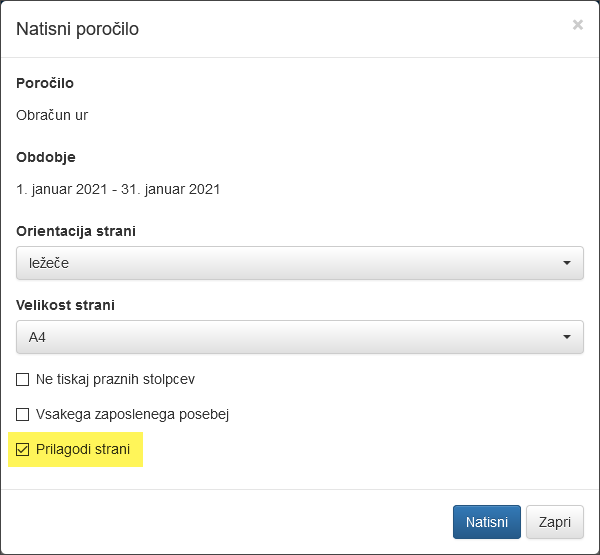
Izvoz razporeda v koledar zaposlenega
Dodana je možnost uvoza razporeda v koledar zaposlenega. Zaposleni preko Portala
za zaposlene v zavihku Razpored shrani .ics
datoteko, ki jo nato uvozi v svojo aplikacijo za vodenje koledarja (Gmail,
Outlook, …). Podprta je tudi sinhronizacija preko VCal vira (VCal feed).
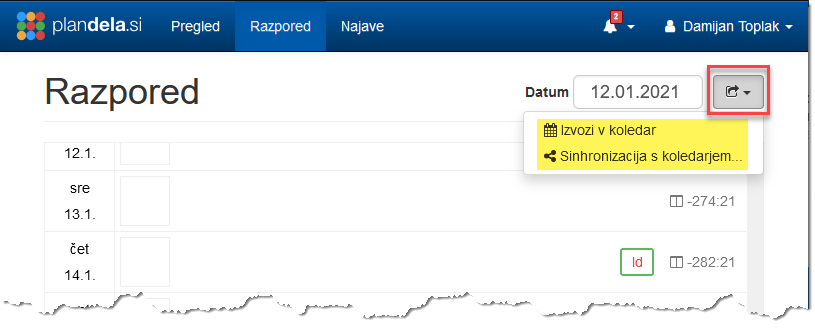
Razveljavljanje preteklih ukazov (Undo / Redo)
V pogledu Razpored je sedaj na voljo ukaz za razveljavljanje in uveljavljanje pravkar vnesenih sprememb (Undo / Redo). Ukaz deluje na enak način kot v običajnih programskih paketih za urejanje dokumentov (vključno z bližnjicami na tipkovnici CTRL + Z za razveljavitev in CTRL + Y za ponovno uveljavitev).
Razveljavitev je na voljo za večino ukazov v okviru razporejanja, izjeme so samo ukazi pri katerih so o spremembah že obveščeni ostali uporabniki in zaposleni (npr. objava razporeda).
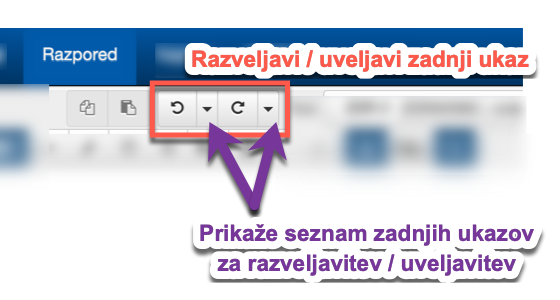
Hitro urejanje v razdelku Podrobnosti
V razdelku podrobnosti lahko sedaj hitro dostopate do urejanja s klikom na posamezne prikazane vrednosti in grafične elemente.
Povzetki števila izmen in odsotnosti po zaposlenih
V tabeli z razporedom lahko sedaj prikažete dodatne stolpce, ki preštevajo število izmen in odsotnosti v izbranem časovnem obdobju za posameznega zaposlenega. Želene stolpce izberete v orodni vrstici, obdobje prikaza povzetkov pa določite v zavihku Povzetki. Stolpce s povzetki lahko poljubno nastavite (nastavitev je na voljo samo naduporabnikom).
S klikom na stolpec s povzetki lahko tudi preklopite med prikazom števila in deleža (v primerjavi s trajanjem vseh izmen v izbranem obdobju).
Povzetki v dodatnem stolpcu nadomeščajo funkcionalnost hitrih povzetkov, kjer so bili deleži posameznih izmen prikazani samo ob prehodu z miško.
Mesečni povzetki obračunskih kategorij
V tabeli z razporedom so v stolpcu Zbirno sedaj prikazani tudi mesečni povzetki trenutno izbranih obračunskih kategorij.
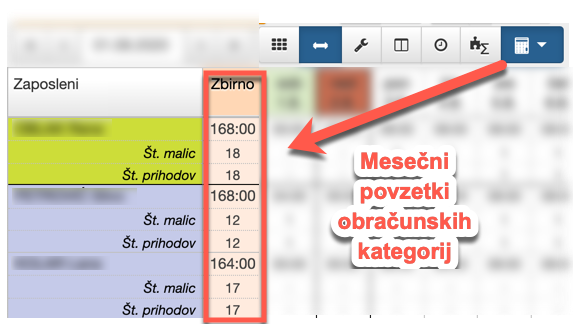
Dodatni stolpci v tabeli razporeda
Z desnim klikom na naslovno vrstico tabele z razporedom lahko izbirate prikaz dodatnih stolpcev s podrobnostmi o zaposlenih. Dodatno prikazani stolpci se upoštevajo tudi pri iskanju / filtriranju vrstic v razporedu.
Filtriranje vrstic v razporedu
V iskalni vrstici lahko namesto iskanja omogočite filtriranje vrstic, pri čemer v razporedu ostanejo vidne samo vrstice, ki vsebujejo vsaj en zadetek za vpisano iskalno geslo. Tako lahko enostavno prikažete le vrstice z želenimi izmenami oz. odsotnostmi, vse ostale pa skrijete. Vrstice lahko filtrirate tudi glede na vsebino dodatnih stolpcev, če so ti prikazani.
Prikaz dodatnih stolpcev v nastavitvah
V sklopu Nastavitve lahko z desnim klikom na naslovno vrstico tabele prikažete oz. skrijete posamezne stolpce.
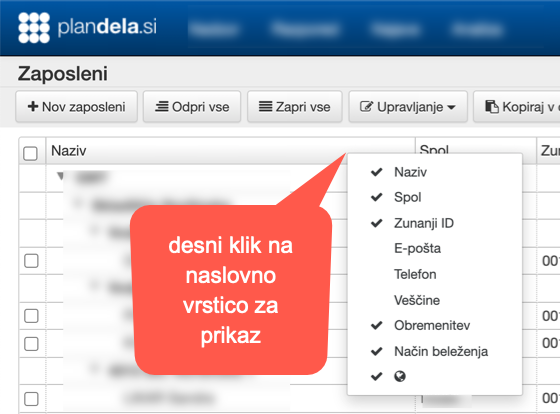
Filtriranje vrstic v nastavitvah
V sklopu Nastavitve lahko z vklopom filtra v iskalni vrstici filtrirate vrstice v tabelah.
Izboljšano hkratno urejanje večjega števila entitet
Izboljšali smo uporabniški vmesnik za hkratno urejanje večjega števila entitet v nastavitvah, ki sedaj omogoča hiter vnos bolj obsežnih konfiguracijskih sprememb.
Hiter vnos izmen, odsotnosti, zaposlenih in potreb s pomočjo tipkovnice
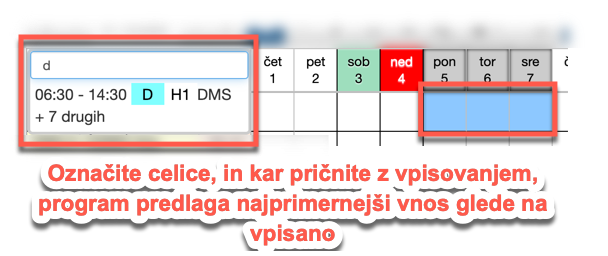
Razpored je mogoče vnašati tudi s tipkovnico in sicer tako, da v označene celice kar vpišete ustrezno oznako izmene, odsotnosti ali ime zaposlenega. Tak način vnosa deluje v pogledu po zaposlenih in tudi v pogledu po izmenah. V pogledu po izmenah lahko na isti način vpišete tudi potrebe po zaposlenih.
S tipko del tudi enostavno pobrišete vnose v označenih celicah.
Prikaz števila zaposlenih v izmenah in neizpolnjenih potreb
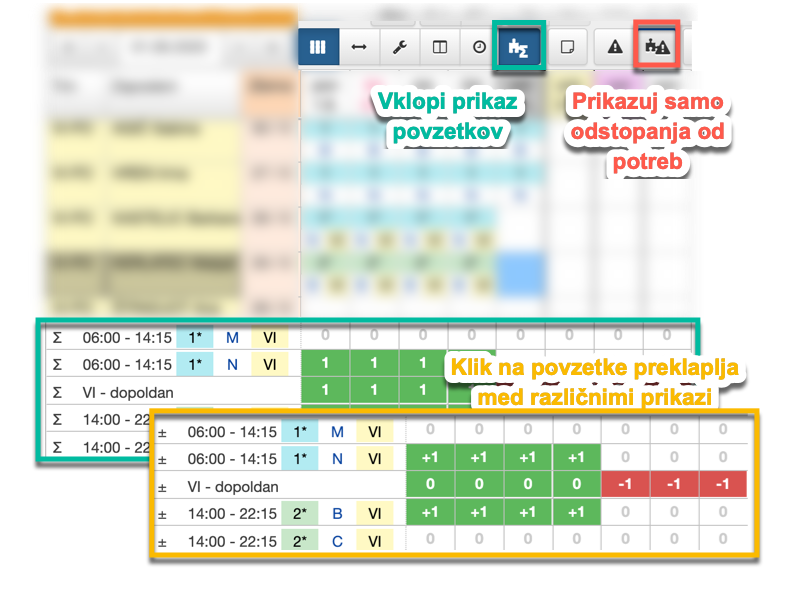
Z vklopom ustreznega stikala v orodni vrstici se pojavijo vrstice samodejnih seštevkov št. zaposlenih na posameznih izmenah. Izmene brez razporejenih zaposlenih pa se zaradi boljše preglednosti ne prikazujejo.
V kolikor so za izmene vnesene tudi potrebe, se povzetki obarvajo zeleno (ustrezno število zaposlenih v izmeni), rumeno (presežek zaposlenih v izmeni) ali pa rdeče (premalo zaposlenih v izmeni). Z vklopom stikala prikaza odstopanj (slika zgoraj) se v povzetkih prikazujejo samo izmene, kjer je vsaj en dan obarvan rdeče ali rumeno, ostale pa so skrite. Če je torej trenutni razpored v skladu z vnesenimi potrebami, vrstice niso prikazane, sicer pa ste ustrezno opozorjeni na odstopanja.
Razširjen način prikaza datuma v razporedu
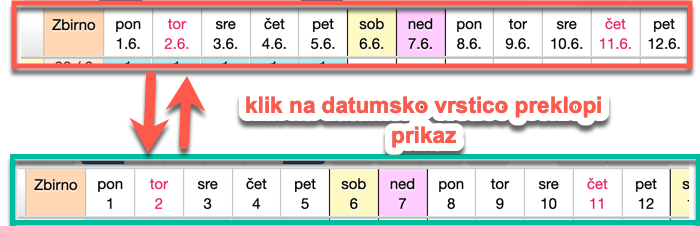
S klikom na datumsko vrstico v razporedu preklopite med kompaktnim prikazom datuma (samo dan) in razširjenim prikazom, ki vključuje tudi mesec.
Nastavljiva pomembnost kršitve razporejanja
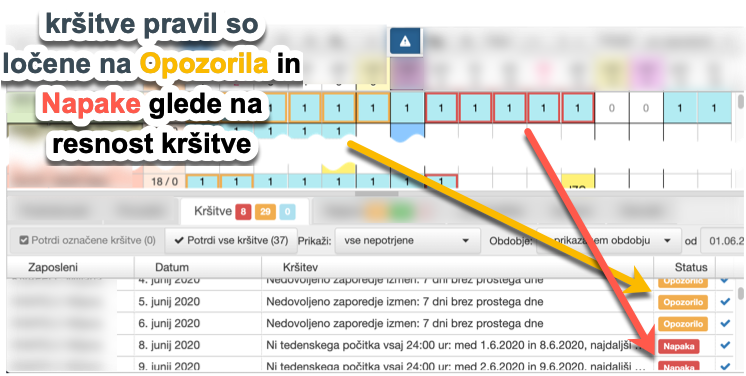
Krišitve pravil razporejanja imajo sedaj nastavljivo pomembnost opozorila s katerimi se lahko pomembnejše razločijo od manj pomembnih. Resnost posameznih opozoril prilagodimo glede na delovni proces v vaši ustanovi ali podjetju. Dodatno smo razširili tudi nabor kršitev. V kolikor bi želeli prilagoditev oz. razširitev pravil razporejanja, se obrnite na našo podporo.
Zgoščen prikaz razporeda po izmenah
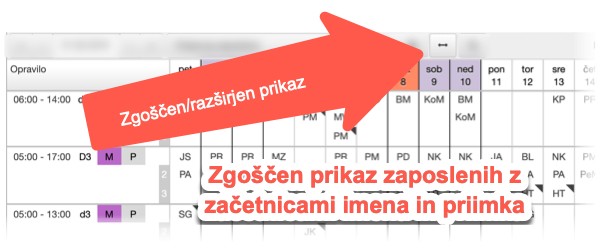
Tabela razporeda po izmenah je sedaj privzeto prikazana zgoščeno - zaposleni so v celicah prikazani samo z začetnicami priimka in imena. Začetnice so samodejno določene tako, da se posamezni zaposleni razločijo med sabo (npr. če sta v istem timu hkrati Jan Novak in Jure Novak, bosta v celici prikazana kot NJa in NJu). Ob postanku z miško na celici se prikaže tudi polno ime zaposlenega.
Širina stolpcev tabele pogleda po izmenah je usklajena s pogledom po zaposlenih, kar omogoča enostavno preklapljanje med obema vrstama prikaza.
Omogočen je tudi razširjen pogled po izmenah, kjer se stolpci ustrezno razširijo, zaposleni pa so navedeni s polnim priimkom in imenom.
Podrobnosti o uporabi pogleda po izmenah so na voljo v pomoči.
Vnašanje potreb po zaposlenih
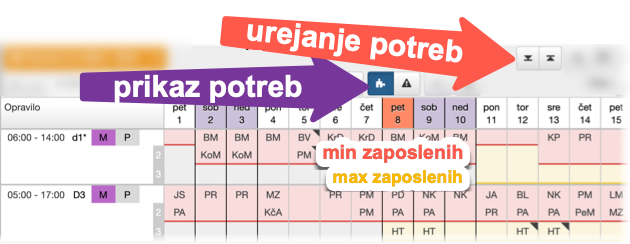
Za vsako izmeno se lahko na vsak dan določi spodnjo in zgornjo mejo potrebnega števila zaposlenih. Vnos potreb pri ročni izdelavi razporeda ni obvezen, je pa koristen, saj tako aplikacija ob razporejanju zaposlenih opozarja na morebitni primanjkljaj oz. presežek na posameznem delovnem mestu. Za avtomatsko izdelavo razporeda pa je vnos potreb obvezen, saj je to osnova za optimalno izdelan razpored.
Več informacij o vnosu in uporabi potreb pri razporejanju je na voljo v pomoči.
Filtriranje razporeda in prikaz dnevnih povzetkov
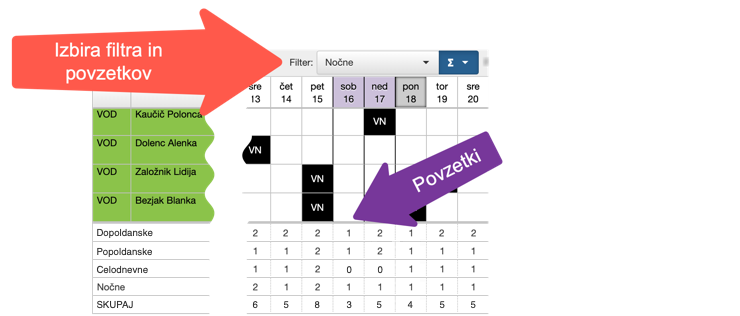
V prikazu razporeda se lahko s pomočjo filtrov prikaže samo določene izmene ali odsotnosti (npr. samo nočne izmene ali samo dopuste). Filtri tako omogočajo bolj pregleden vpogled v ključne elemente razporeda.
Dodani so tudi dnevni povzetki, ki na dnu razporeda seštejejo razporeditve glede na nastavljene in izbrane filtre.
Potrjevanje, sortiranje in filtriranje najav v razporedu
Pri Najavah v spodnjem zavihku razporeda je izboljšano njihovo vnašanje in potrjevanje. Dodano je tudi filtriranje glede na stanje in vrsto najave ter sortiranje, ki se izvede s klikom na izbrani stolpec.
Avtomatska izdelava razporeda
Rešitev PlanDela sedaj omogoča avtomatsko izdelavo razporeda. S pomočjo avtomatike se lahko zelo hitro pripravi delovni razpored za poljubno časovno obdobje, ki je v skladu z zakonodajo, potrebami in željami zaposlenih. Pri tem ima uporabnik popoln nadzor nad postopkom razporejanja, saj lahko spreminja potrebe po zaposlenih, prilagodi pravila razporejanja in po potrebi vnaprej vnese posamezne razporeditve oz. želje.
Rezultati iz prakse so pokazali, da se čas izdelave razporeda s pomočjo avtomatike zmanjša tudi za 10x, izdelan razpored pa je bolj uravnotežen, skladen z zakonodajo in željami zaposlenih.
Dodatne informacije o avtomatskem razporejanju so na voljo v pomoči. V kolikor vas zanima uvedba avtomatskega razporejanja v vaši organizaciji, pa se obrnite na našo podporo.
Sprotni prikaz kršitev v Razporedu
V pogledu Razpored se sedaj avtomatsko prikazujejo vse kršitve pravil, do katerih pride pri izdelavi in spreminjanju razporeda (premalo počitka med posameznimi izmenami, premalo tedenskega počitka, odsotnost prostega vikenda v mescu, ipd). Kršitve se prikažejo tako v razporedu (celice z napakami se označijo z rdečo obrobo), in v zavihku Kršitve, ki prikazuje tudi število aktualnih kršitev za prikazan razpored.
Kršitve avtomatsko izginejo, ko odpravite pomanjkljivost v razporedu. V kolikor pa določene kršitve ne morete odpraviti oz. narava dela potrebuje tak razpored, lahko to kršitev potrdite. Taka kršitev ne bo več označena v razporedu.
V kolikor trenutne nastavitve pravil v programu ne ustrezajo vaši organizaciji (program prikazuje nepotrebne kršitve oz. ne prikazuje kršitev, ko je v razporedu napaka) nam to javite na podporo, da ustrezno prilagodimo nastavitve.
Podrobna navodila za uporabo in prikaz Kršitev v razporedu so na voljo v pomoči, hiter pregled funkcionalnosti in napotke pa najdete na blogu.
Opis dogodkov za registracijo
Posameznim vrstam registracije (službeni izhod/prihod, privatni izhod/prihod…) smo dodali opis, ki je zaposlenim prikazan ob izbiri posameznega dogodka na terminalu oz. pri spletni registraciji. Opisi so poljubno nastavljivi, zato lahko po potrebi zaposlenim prikažete dodatne informacije o uporabi posameznega dogodka (npr. maksimalno trajanje izhoda za malico, ipd).
Izboljšava vmesnika za spletno registracijo delovnega časa
Vmesnik za spletno registracijo delovnega časa smo prilagodili za lažjo uporabo na mobilnih napravah.
Povzetki v Razporedu
V pogledu Razpored smo dodali prikaz raznovrstnih povzetkov, ki vam pri izdelavi novega razporeda nudijo množico ključnih informacij. Povzetki se prikažejo v tabeli razporeda ob prehodu z miško čez izmeno ali odsotnost, še bolj podrobno pa so za trenutno izbrane celice prikazani v novem zavihku Povzetki.
Med drugim so vam na voljo sledeči povzetki:
Podrobna navodila za uporabo povzetkov v razporedu so na voljo v pomoči, hiter pregled funkcionalnosti in napotke pa najdete na blogu.
Povzetki v Analizi
Še bolj podroben prikaz povzetkov je na voljo v pogledu Analiza. Tudi tukaj so vam na voljo povzetki trajanja, števila in deležev posameznih izmen, odsotnosti ali obračunskih kategorij, pri čemer pa vam je na voljo več različnih načinov prikaza.
Povzetke lahko prikažete tabelarično ali pa kot stolpični diagram, in sicer za celotno obdobje analize, ali pa povzeta po krajših časovnih intervalih (leto, mesec, teden ali dan).
Podrobna navodila za uporabo povzetkov v analizi so na voljo v pomoči, hiter pregled funkcionalnosti z napotki za najbolj pogoste primere uporabe pa najdete na blogu.
Avtomatska objava preteklega razporeda
Če uporabnik pozabi objaviti nov ali spremenjen razpored, bo le ta avtomatsko objavljen za trenutni dan in vse pretekle dni. Zaposleni v tem primeru ne bodo prejeli obvestila in elektronske pošte o spremembi razporeda, v pregledu bodo pa kljub temu videli zadnjo verzijo razporeda.
Izboljšava filtrov pri pregledu zbranih podatkov
V pogledu Zbrani podatki v analizi smo za boljšo preglednost filtre premaknili v stranski meni.
Kopiraj/prilepi razpored
V pogledu Razpored sta sedaj na voljo ukaza za kopiranje in lepljenje, s katerima lahko iz obstoječega razporeda hitro ustvarite nov razpored.
Navodila za uporabo kopiranja in lepljenja so na voljo v pomoči, dodatni nasveti in napotki pa so na voljo na blogu.
Bližnjice na tipkovnici
Za hitrejše delo z aplikacijo smo dodali več bližnjic do najbolj pogostih ukazov. Bližnjica do posameznega ukaza je navedena v namigu, ki se prikaže, ko se s kazalcem miške ustavite nad gumbom. Povzetek bližnjic je na voljo tudi v pomoči.
Priporočite nas!
Uvedli smo program priporočil, s katerim si lahko znižate mesečne stroške tako, da priporočite PlanDela podjetju ali organizaciji, ki bi ji uporaba aplikacije koristila.
Oznake, filtriranje in sortiranje najav
Najavam so dodane kratke obarvane oznake, ki se uporabljajo pri prikazu najav v razporedu. Tako se različne vrste najav bolje razločijo med sabo. Za obstoječe vrste najav so trenutno v uporabi privzete oznake in barve, poljubno pa se jih lahko prilagodi v nastavitvah.
Pri pregledovanju najav je omogočeno sortiranje po posameznih stolpcih, pa tudi filtriranje najav po različnih kriterijih.
Spletna registracija delovnega časa
Portal za zaposlene sedaj omogoča tudi registracijo delovnega časa. Tak način registracije je uporaben v primerih, ko registracija s terminalom in karticami ni praktična, npr. pri manjših dislociranih deloviščih oz. pri delu od doma.
Več informacij o spletni registraciji je na voljo na našem blogu.
Izboljšano upravljanje tabelaričnih podatkov
Upravljanje s seznami v nastavitvah in analizah je bilo izboljšano:
Prenovljen registracijski terminal
Registracijski terminala sedaj ob registraciji avtomatsko prikaže trenutni razpored in morebitna obvestila za zaposlenega. Podatki so prikazani v enaki obliki in obsegu kot na Portalu za zaposlene. Možno je tudi vnašanje Najav preko terminala.
Več o novem vmesniku si lahko preberete na našem blogu.
Preimenovanje “Zahtevkov” v “Najave”
Funkcionalnost Zahtevkov se lahko uporablja tudi za določene namene, ko Zahtevek ni najbolj primeren izraz. Zato smo jih preimenovali v Najave.
Prenovljena pomoč
Oblikovno in vsebinsko smo prenovili pomoč, ki sedaj vsebuje bolj podrobna navodila za delo s programom, vključno z navodili za Portal za zaposlene in registracijski terminal.
Več izravnav salda v istem dnevu
Sedaj lahko na isti dan vnesete več izravnav salda. Npr. na isti dan lahko vnesete nadomestilo za praznik in plačane ure.
Manjši popravki in izboljšave
Med drugim smo nekoliko izboljšali prikaz informacij v Portalu za zaposlene.
Podrobnejši prikaz opozoril in napak v prisotnosti
Samodejni vnos izmene glede na čas beleženja
Dodana je možnost samodejnega vnosa izmen glede na čas beleženja. Primerno za enostavnejše razporede, kjer se urniki ne prekrivajo. Tako se lahko vnaprej razporejajo samo odsotnosti, izmena pa bo samodejno vnesena po opravljeni registraciji.
Spremenjena akcija za samodejno zapolnjevanje prisotnosti
Akcija Samodejno zapolni prisotnosti je preimenovana v Potrdi prisotnosti. Ta sedaj omogoča, poleg obstoječega samodejnega zapolnjevanja prisotnosti, tudi potrditev prisotnosti z opozorili, kjer je le to mogoče.
Natančnejše določanje načina beleženja
Način beleženja se lahko nastavi tudi za posamezno izmeno in s tem določi drugačnega kot ga ima nastavljenega zaposleni oz. tim zaposlenega.
Objava razporeda in objava sprememb razporeditev
Dodana je nova funkcionalnost za objavo razporeda in objavo sprememb razporeditev. Objavljanje v celoti nadomešča in poenostavlja namen delovnih razporedov.
Obvestila
V aplikaciji in preko elektronske pošte je sedaj na voljo obveščanje o dogajanjih v zvezi z objavljanjem razporeda, potrjevanjem sprememb in izdanimi zahtevki. Več…
Ostale dopolnitve
Pregled dnevnih vrednosti obračunskih kategorij v razporedu
Zaradi lažje in hitrejše kontrole izračunanih vrednosti obračunskih kategorij oz. stolpcev v zbirnih poročilih, je sedaj v razporedu omogočen prikaz dodatnih vrstic, v katerih so te vrednosti prikazane po posameznem dnevu.
Tako se lahko npr. zelo enostavno preveri izračun izmenskega dodatka po posameznih dnevih, ne da bi bilo za to potrebno pognati kakršnokoli poročilo.
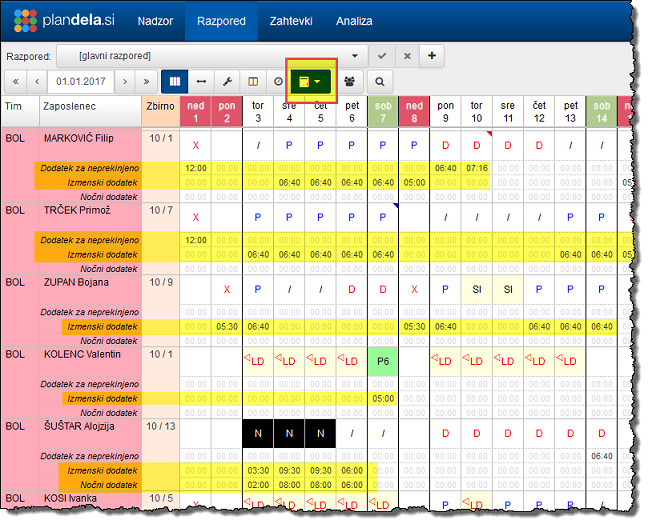
Izbor prikazanih vrstic lahko uporabnik določi v spustnem seznamskem polju, ki se prikaže s pritiskom na gumb označen na spodnji sliki.
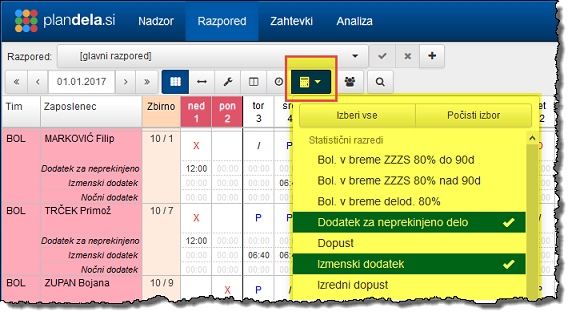
OPOMBA: Prikaz vrstic obračunskih kategorij je omogočen samo tistim uporabnikom, ki imajo tudi pravico do izvajanja zbirnih poročil!
Prenova Analize
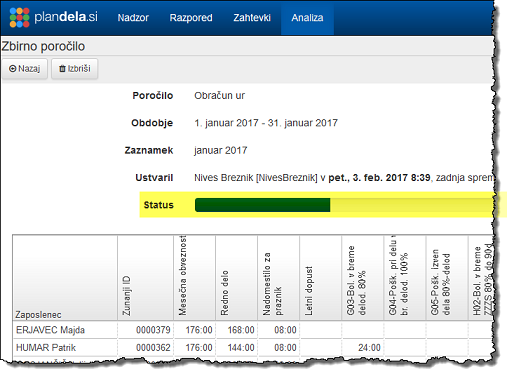
Poenostavitev urejanja dopustov
Samodejna deaktivacija zaposlenih
Vsi zaposleni so samodejno neaktivni v obdobju, ko ne pripadajo nobenemu timu. V tem obdobju se tudi ne upoštevajo pri izračunu porabljenih zaposlenskih licenc.
Preimenovanje akcije “Določi vrednost statističnim razredom”
Akcija Določi vrednost statističnim razredom je preimenovana v Ponastavi vrednosti obračunskih kategorij.
Pohitritev nalaganja razporedov in izvajanje ukazov
Desni klik
Vse akcije, izmene in odsotnosti, navedeni na desni strani zaslona, se lahko prikažejo tudi z desnim klikom na izbrano celico. Desno stran zaslona z akcijami, izmenami in odsotnostmi se tako lahko skrije in s tem poveča delovno polje.
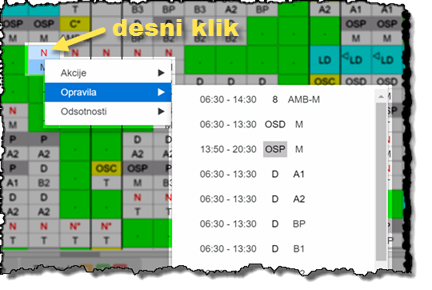
Prikaz prisotnosti v podrobnostih
Stanje prisotnosti je grafično prikazano tudi v podrobnostih. S postankom miške na narisan interval pa se izpišejo vse prisotnosti skupaj z dogodki.
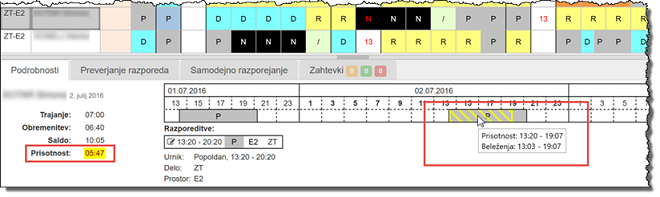
Za povzetek stanja o beleženju tako ni potrebno več odpirati okna za beleženje prisotnosti.
Nadzorna plošča
Nova nadzorna plošča omogoča enostaven pregled aktualnih podatkov. Razdeljena je na posamezne vsebine, ki jih lahko vsak uporabnik, glede na svoje želje in potrebe, prikaže, skrije ali razvrsti v poljubnem vrstnem redu. Nadzorno ploščo se nastavlja preko uporabniškega menija () v desnem zgornjem kotu.
Trenutno so v nadzorni plošči na voljo naslednje vsebine:
Zahtevki
[Zavihek z zahtevki je na voljo samo uporabnikom z omogočeno pravico branja razporedov in pravico upravljanja zahtevkov.]
Zahtevek lahko oddajo zaposleni preko Portala za zaposlene, vodja pa ga nato odobri ali zavrne. Primer uporabe so npr. želje za dopust, prosti dan, bolniško odsotnost, nočno izmeno, …
Oddani zahtevki so lahko prikazani tudi v samem razporedu, kar olajša planiranje. V primeru, da zaposleni portala ne uporabljajo, lahko v njihovem imenu zahtevke vnese vodja.
Več podrobnosti o uporabi zahtevkov je na voljo v pomoči.